> For the complete documentation index, see [llms.txt](https://docs.nested-knowledge.com/llms.txt). Markdown versions of documentation pages are available by appending `.md` to page URLs; this page is available as [Markdown](https://docs.nested-knowledge.com/review-workflow/screening/criteria-based-screening/smart-screener.md).

# Smart Screener

Learn how to use Smart Screener to answer your criteria across all studies.

**Smart Screener** answers your Criteria-Based Screening (CBS) questions for you, across your records, so reviewers spend their time confirming decisions rather than making every one from scratch. It works from the criteria you've already defined, manually or with **Smart Config: Screening**.

{% hint style="warning" %}
Smart Screener is separate from **Robot Screener**, which learns from applied decisions under the Exclusion Reasons paradigm at the Abstract Screening stage only.
{% endhint %}

### Use Smart Screener in Single or Dual Screening

In Single Screening, **Smart Screener** answers your criteria but doesn't make screening decisions. Records stay in the screening queue until you decide them, one by one, in bulk by answer combination, or with **Threshold**. Its answers are editable.

In Dual Screening, **Smart Screener** fills one reviewer seat and records a reviewer-level screening decision, so the record can reach adjudication. A human reviewer screens the other seat, and a human adjudicator resolves disagreements. **Smart Screener** decides by a fixed rule:

* **Abstract Screening:** Advances a record when every criterion is Yes or NR and at least one is Yes.
* **Full Text Screening:** Includes a record only when every criterion is Yes.
* **Otherwise:** Excludes the record, giving the first criterion answered No as the reason.

{% hint style="warning" %}
If you switch a nest from Single to Dual Screening, run **Smart Screener** again. Answers from a Single Screening run are final-level answers, not reviewer-level ones, so **Smart Screener** won't appear in the adjudication queue until you rerun it.
{% endhint %}

### Study Limits

Each nest has its own running allowance for Smart Screener, tracked separately for Abstract Screening and Full Text Screening. Every study it answers at a given stage uses one generation from that stage's balance, returning to Configure Screening shows what's left—for example, "This nest has 200,000 Abstract and 20,000 Full Text generations remaining." More generations can be requested by [contacting support](mailto:support@nested-knowledge.com).

### Run Smart Screener

{% stepper %}
{% step %}

#### Open Configure Screening

Once your screening criteria are finalized on the Configure Screening <i class="fa-gear">:gear:</i>, select **Smart Screen**.
{% endstep %}

{% step %}

#### Confirm Or Refine Your Research Question

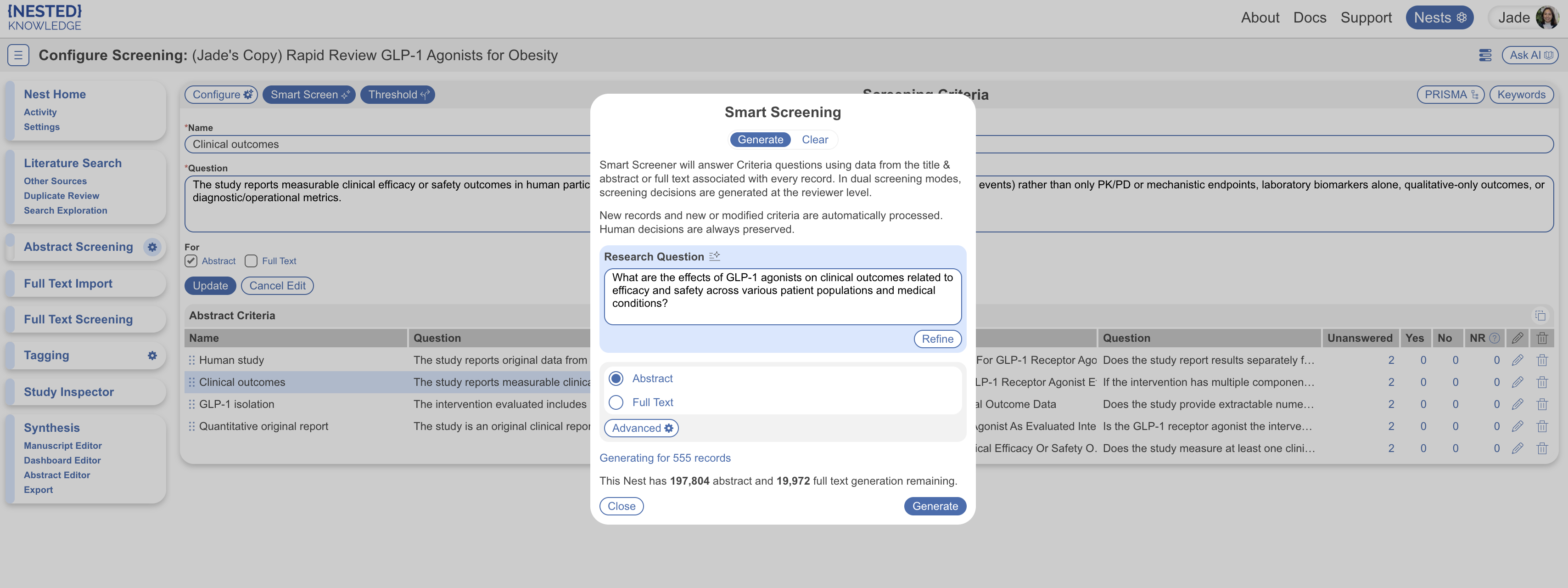
If you have already used another AI tool in your nest that requires a research question, the Research Question field will be pre-populated; otherwise, enter your research question directly. You can edit the question freely, or use the Refine button to have AI tighten it before generating criteria.

<figure><img src="https://305208404-files.gitbook.io/~/files/v0/b/gitbook-x-prod.appspot.com/o/spaces%2Fxb7uNGATUgwQAjDVQRXG%2Fuploads%2F44OEK6tu94kSKqEg8jPv%2Fsmart%20screener.png?alt=media&#x26;token=6fec97eb-d65b-4818-9482-036a9f44c09e" alt="Smart Screener modal with a Research Question field and Refine button."><figcaption><p>Enter or refine the research question before generating screening criteria.</p></figcaption></figure>
{% endstep %}

{% step %}

#### Select Abstract or Full Text

Select whether you want Smart Screener to run on Abstracts or Full Texts. The record total updates to show how many records Smart Screener will process.

{% hint style="info" %}
When selecting Full Texts, first import them. See Full Text Import.
{% endhint %}
{% endstep %}

{% step %}

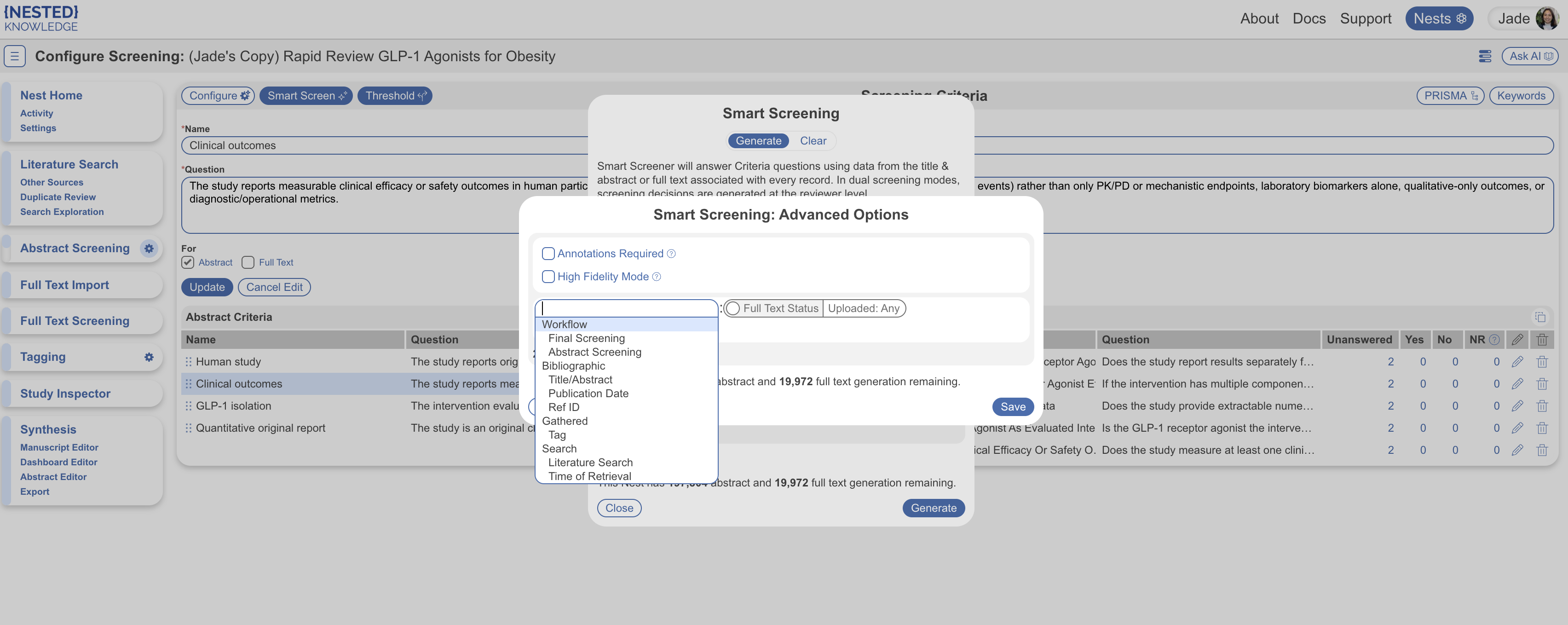
#### Set Advanced Options

Before generation, select Advanced to:

* Toggle on **Annotations Required**. It is unchecked by default. Select it to generate only criteria with direct citations to the Abstract or Full Text.
* Toggle on **High Fidelity Mode (Full Texts only)**. It is unchecked by default. Select it for enhanced PDF extraction of tables and figures, in addition to text. Processing takes longer.
* Filter to run on a subset of studies. Available filters include screening decisions, certain bibliographic data, tags, search, and time of retrieval.
  * For Full Texts, the Full Text Uploaded option is automatically applied.
  * To view the filtered set of studies prior to running Smart Screener, select **See in Inspector.**
* Select **Save**.

<figure><img src="https://305208404-files.gitbook.io/~/files/v0/b/gitbook-x-prod.appspot.com/o/spaces%2Fxb7uNGATUgwQAjDVQRXG%2Fuploads%2FdJXHymPTLI3XDxnPBbjs%2Fsmart%20screener%20advanced.png?alt=media&#x26;token=83cf3923-e6a8-4048-8cfe-b4e0be27ff2e" alt="Smart Screener Advanced options, including annotations, High Fidelity Mode, and study filters."><figcaption><p>Configure annotation, extraction, and study-filter options before generation.</p></figcaption></figure>
{% endstep %}

{% step %}

#### Generate

Select **Generate**. This process runs in the background if you leave the modal.

Smart Screener answers your criteria Yes or No with text content. When selected, it highlights evidence within the Abstract or Full Text.
{% endstep %}
{% endstepper %}

### What To Do Next

Once Smart Screener generates its answers, your next step depends on your review needs and timeline.

### Option 1: Review Every Study In Order

Choose this when you want a human decision on every record and don't want to skip around—the safest default while you're still confirming Smart Screener's answers match your judgment.

1. Open **Screening** from the navigation menu.
2. **Screen Records** by reading each record's answered criteria alongside its Abstract or Full Text.
3. Confirm or change Smart Screener's answers, then assign your screening decision.

### Option 2: Prioritize By Criteria Answer

Choose this when you'd rather work through the clearest or most important cases first—for example, reviewing every record **Smart Screener** marked as meeting all your inclusion criteria before working through the rest of the queue.

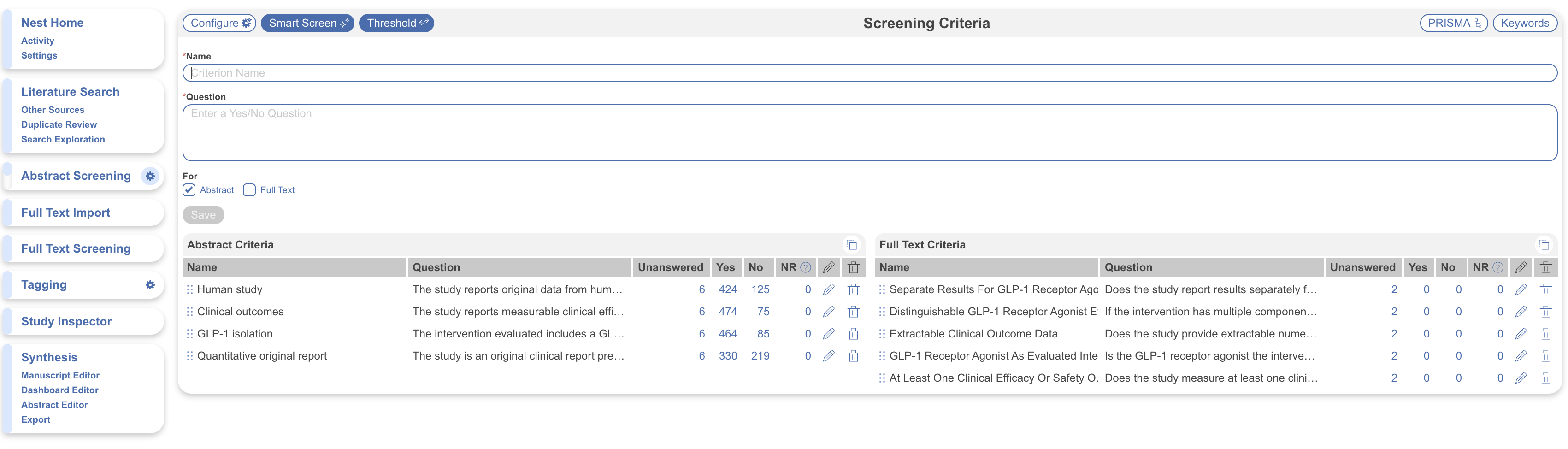
1. From **Configure Screening** <i class="fa-gear">:gear:</i>, find the specific criterion row and answer you want to prioritize.
2. Select the displayed number under the chosen answer column.

<figure><img src="https://305208404-files.gitbook.io/~/files/v0/b/gitbook-x-prod.appspot.com/o/spaces%2Fxb7uNGATUgwQAjDVQRXG%2Fuploads%2Fj61ruiPPAoMPUYCiS13A%2Fconfigure%20cbs.png?alt=media&#x26;token=1236bccd-8c14-4c89-b9f1-89495caafbb5" alt="Configure Screening table showing Smart Screener criteria responses and response totals." width="563"><figcaption><p>Select a response total to prioritize studies with that criteria answer.</p></figcaption></figure>

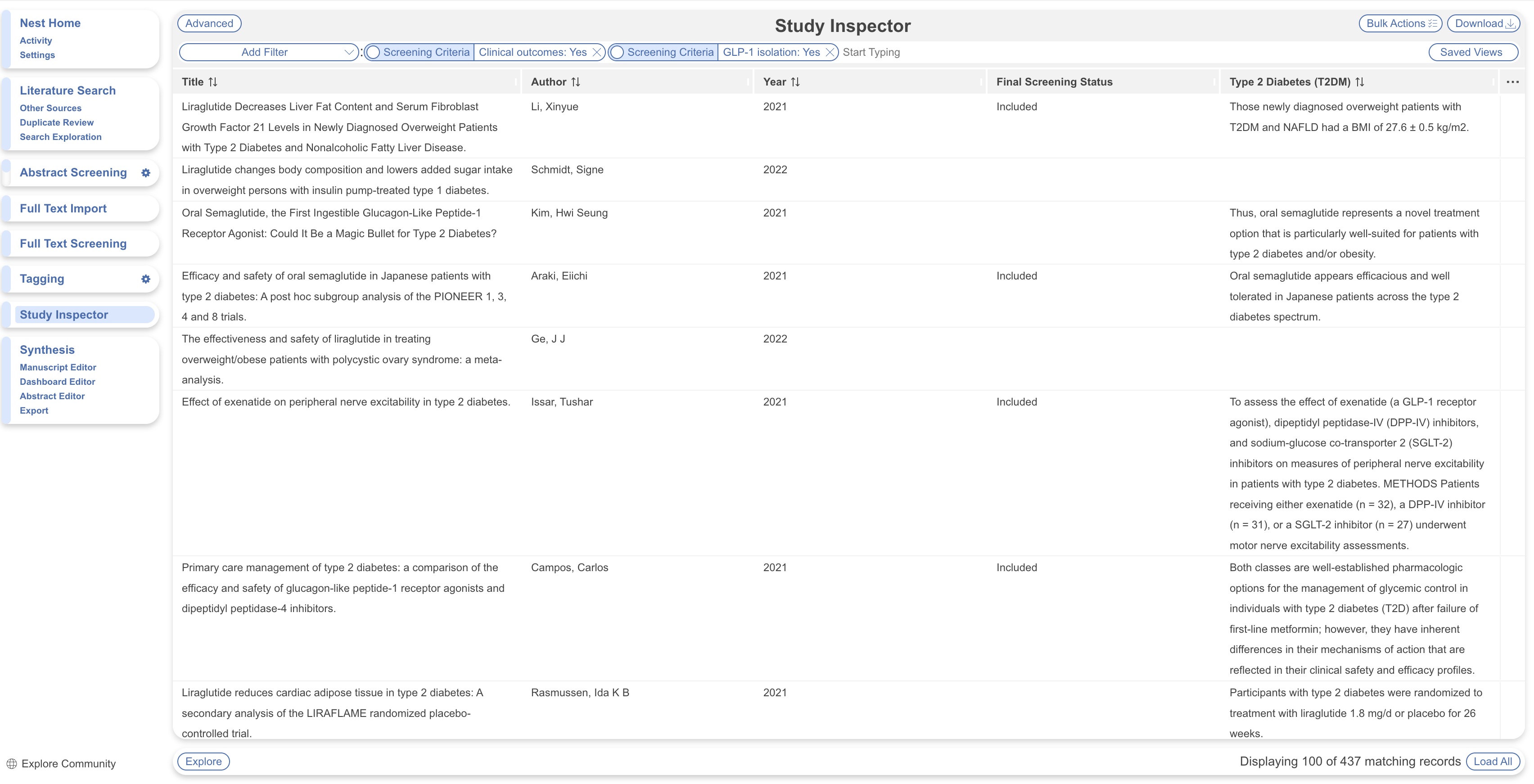
3. This takes you to **Study Inspector** and automatically adds the selected filter. Here you can scroll through studies at a glance, or select specific ones to edit and screen.

<figure><img src="https://305208404-files.gitbook.io/~/files/v0/b/gitbook-x-prod.appspot.com/o/spaces%2Fxb7uNGATUgwQAjDVQRXG%2Fuploads%2FKjX4ulVUKsST05OPaKKn%2Fscreening%20criteria%20filters.png?alt=media&#x26;token=53ab8768-9370-416e-92b2-20e8bddd7bf1" alt="Study Inspector with filters applied for a Smart Screener screening criterion and response type." width="563"><figcaption><p>Study Inspector opens with the selected criteria-response filter applied.</p></figcaption></figure>

4. To combine with another criteria and answer filter, select **Add Filter**. Select **Screening Criteria**, then select **Criteria** and **Response Type**. See [**Study Inspector**](/review-workflow/study-inspector.md) for more on combining filters and navigating this page.

To decide a filtered set all at once, see Screen By Answer Combination, below.

### Option 3: Screen In Bulk

Choose this when you have a large volume of records and want to decide many at once without giving up control over which records are decided and why. Two routes are available. **Screening by answer combination** in **Study Inspector** gives you the most control: you choose exactly which pattern of Yes and No answers to act on, see every record before you decide, and record a specific exclusion reason for each batch. **Thresholding** is quicker to set up, but decides records automatically by a fixed rule tied to criteria order. In Single Screening, screening by answer combination is the recommended route for most reviews.

#### **Screen By Answer Combination**

Each combination of answers is a batch of records that failed for the same reason, so you can exclude it in one step with a reason that holds for every record in it. Start with records that fail exactly one criterion — the reason for exclusion is unambiguous — then work through combinations with more than one No.

{% stepper %}
{% step %}
**Open The First Combination**

From **Configure Screening** <i class="fa-gear">:gear:</i>, select the number under the **No** column for one criterion. **Study Inspector** opens, filtered to records answered No on that criterion.
{% endstep %}

{% step %}
**Narrow To One Combination**

Select **Add Filter** → **Screening Criteria**, then add each remaining criterion with **Response Type** set to Yes. For example, with five criteria, filter to No on criterion 1 and Yes on criteria 2–5: every record left fails only criterion 1.
{% endstep %}

{% step %}
**Skim The Batch**

Scan the titles, opening the abstract wherever a title doesn't make the failing criterion obvious. Screen any record that doesn't belong in the batch individually from **Study Inspector**, so it drops out of the filter before you apply the bulk decision.
{% endstep %}

{% step %}
**Exclude The Batch**

Select **Bulk Actions** → **Update Screening**. Choose the screening level, set the status to **Excluded** and select the reason that matches the failing criterion. See **Bulk Actions**.
{% endstep %}

{% step %}
**Repeat For Each Combination**

Change which criterion is set to No and repeat until every single-No combination is done. Then move to combinations with two or more Nos, choosing the criterion you'd report as the primary reason for exclusion.

What remains — mostly records answered Yes on every criterion — are your likely advances. Review them in **Screen Records**.
{% endstep %}
{% endstepper %}

{% hint style="info" %}
Every bulk decision here is a human decision, made after reviewing the batch. Record in your methods that Smart Screener answered the criteria and reviewers confirmed exclusions in batches by answer combination.
{% endhint %}

#### **Thresholding**

Choose this when you want records decided automatically by a fixed rule, and you're comfortable with the rule following your criteria order rather than a combination you pick. **Threshold** lets you set a rule based on the number of criteria answered Yes and automatically advances or excludes every record that meets it. Records that don't clearly meet or miss your threshold are left for manual review.

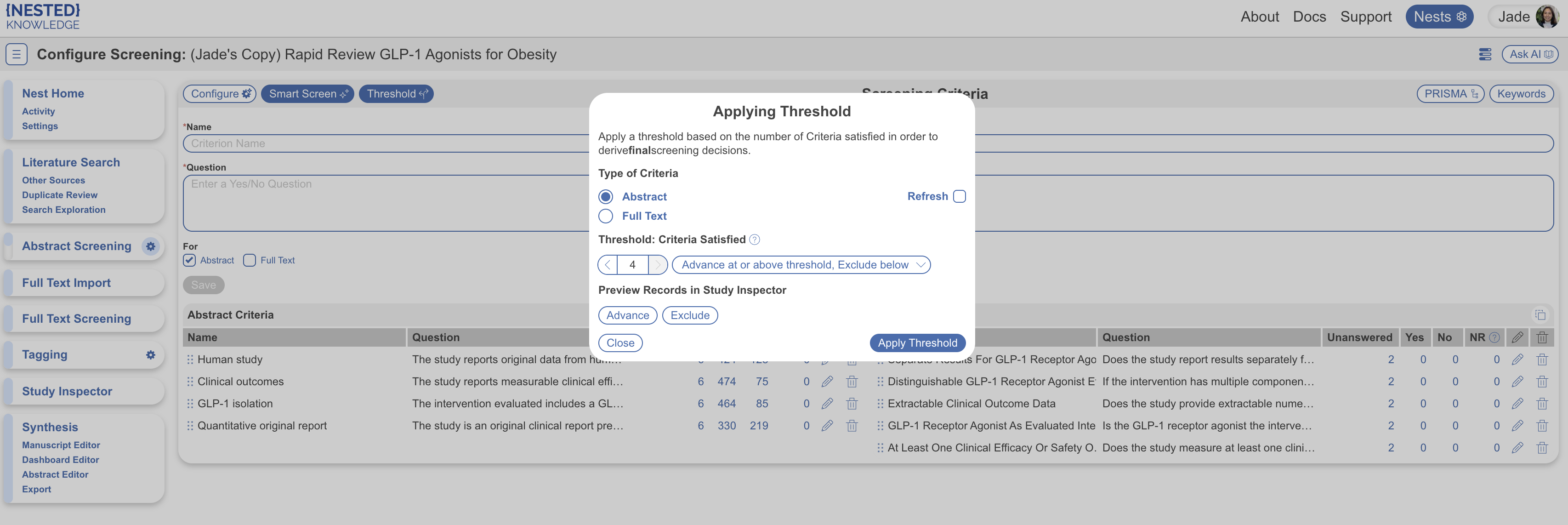
1. From **Configure Screening** <i class="fa-gear">:gear:</i>, select **Threshold**. The **Applying Threshold** modal opens.
2. Select **Type of Criteria**: Abstract or Full Text. Note: **Thresholding** applies only to final screening decisions.
3. Set your threshold based on the number of criteria answered Yes. Select 1 for only the first criteria listed, select 2 for the first two criteria listed in the table and so on. Re-order in the table to adjust priority.
4. Before application, preview records that would be affected. You can also filter to these later for review.
5. Select **Apply Threshold**.
6. When you reapply the threshold, changes apply only to unscreened studies. Select **Refresh** to override all existing decisions.

<figure><img src="https://305208404-files.gitbook.io/~/files/v0/b/gitbook-x-prod.appspot.com/o/spaces%2Fxb7uNGATUgwQAjDVQRXG%2Fuploads%2FlcoFmuyBl6vnFBn7rVuZ%2Fthreshold.png?alt=media&#x26;token=2c6414b7-ba0b-4d54-a598-57e6f002e1b6" alt="Applying Threshold modal for setting screening criteria thresholds and previewing affected records."><figcaption><p>Set and preview the criteria threshold before applying bulk screening decisions.</p></figcaption></figure>

#### Evaluate Smart Screener

Before you run **Smart Screener** across your nest, check how closely its criteria answers match your team's on a sample you've screened yourself. **Smart Screener Evaluation** reports **Recall**, **Precision**, and **Accuracy** for each criterion and shows every disagreement, so you can tune your criteria and report **Smart Screener**'s performance in your methods.

See [Smart Screener Evaluation.](/review-workflow/screening/criteria-based-screening/smart-screener/smart-screener-evaluation.md)

### FAQs

<details>

<summary>What happens if Smart Screener answers a criterion incorrectly?</summary>

In **Single Screening**, every answer is editable before you finalize the record. In **Dual Screening**, a disagreement between **Smart Screener** and the human reviewer goes to adjudication like any other.

</details>

<details>

<summary>Do I have to set a Threshold, or can I review every AI answer myself?</summary>

**Thresholding** is optional—you can review each **Smart Screener** answer individually instead of making bulk decisions.

</details>

<details>

<summary>Should I use Thresholding or screen by answer combination?</summary>

In Single Screening, screen by answer combination for most reviews. You see every record before it's decided and choose the exclusion reason for each batch. Thresholding decides automatically by criteria order, which suits very large sets where you've already confirmed Smart Screener's answers match your judgment.

</details>

<details>

<summary>What happens to records that fall in between my Threshold cutoffs?</summary>

Records that don't clearly meet or miss your **Threshold** are left for manual review rather than being decided automatically.

</details>

<details>

<summary>Can I turn on Threshold after I've already reviewed some records manually?</summary>

Yes. **Thresholding** applies only to final screening decisions and won't override any existing final decisions.

</details>

<details>

<summary>What happens if my nest runs out of generations?</summary>

[Contact us](mailto:support@nested-knowledge.com) to request more.

</details>

### Next Steps

<table data-card-size="large" data-view="cards"><thead><tr><th></th><th></th><th data-hidden data-card-target data-type="content-ref"></th></tr></thead><tbody><tr><td><i class="fa-clipboard-check">:clipboard-check:</i><br><strong>Screen Records</strong></td><td>Review records against your configured criteria.</td><td><a href="/review-workflow/screening/screen-records.md">Screen Records</a></td></tr><tr><td><i class="fa-magnifying-glass">:magnifying-glass:</i><br><strong>Study Inspector</strong></td><td>Find, filter, edit, and export records.</td><td><a href="/review-workflow/study-inspector.md">Study Inspector</a></td></tr><tr><td><i class="fa-file-import">:file-import:</i><br><strong>Full Text Import</strong></td><td>Import PDFs before Full Text Screening.</td><td><a href="/review-workflow/screening/full-text-import.md">Full Text Import</a></td></tr><tr><td><i class="fa-scale-balanced">:scale-balanced:</i><br><strong>Adjudicate Records</strong></td><td>Resolve disagreements in Dual Screening.</td><td><a href="/review-workflow/screening/adjudicate-records.md">Adjudicate Records</a></td></tr><tr><td><i class="fa-chart-line">:chart-line:</i><br><strong>Smart Screener Evaluation</strong></td><td>Compare Smart Screener's answers with manual decisions.</td><td><a href="/review-workflow/screening/criteria-based-screening/smart-screener/smart-screener-evaluation.md">Smart Screener Evaluation</a></td></tr></tbody></table>


---

# Agent Instructions
This documentation is published with GitBook. GitBook is the documentation platform designed so that both humans and AI agents can read, navigate, and reason over technical content effectively. Learn more at gitbook.com.

## Querying This Documentation
If you need additional information that is not directly available in this page, you can query the documentation by asking a question.

Perform an HTTP GET request on the following URL with the `ask` and `goal` query parameters:

```
GET https://docs.nested-knowledge.com/review-workflow/screening/criteria-based-screening/smart-screener.md?ask=<question>&goal=<user_goal>
```

`ask` is the immediate question: it should be specific, self-contained, and written in natural language.
`goal` is what the user is ultimately trying to achieve, the reason they need the answer. Sharing it helps GitBook give you a better, more relevant answer. A goal is most helpful when it describes the outcome the user wants rather than restating the question. For example, with `ask=how do I create an API token`, a goal like `automate deployments from our CI pipeline` lets GitBook tailor the answer to that use case.

The response will contain a direct answer to the question and relevant excerpts and sources from the documentation.

Use this mechanism when the answer is not explicitly present in the current page, you need clarification or additional context, or you want to retrieve related documentation sections.