> For the complete documentation index, see [llms.txt](https://docs.nested-knowledge.com/llms.txt). Markdown versions of documentation pages are available by appending `.md` to page URLs; this page is available as [Markdown](https://docs.nested-knowledge.com/review-workflow/screening/criteria-based-screening/smart-config-screening.md).

# Smart Config: Screening

Learn how to AI-generate your screening criteria.

**Smart Config** is an AI tool on the [Configure Screening](/review-workflow/screening/configure-screening.md) page that generates a complete set of Abstract and Full Text screening criteria from your research question. It removes the need to draft Yes/No criteria from scratch and is especially valuable for rapid reviews, where time spent on protocol setup directly impacts overall turnaround.

It only operates within Criteria-Based Screening (CBS) and pairs with [Smart Screener](/review-workflow/screening/criteria-based-screening/smart-screener.md) to automate the answering of those criteria for each study.

### Generate Criteria

{% stepper %}
{% step %}

#### Open Configure Screening

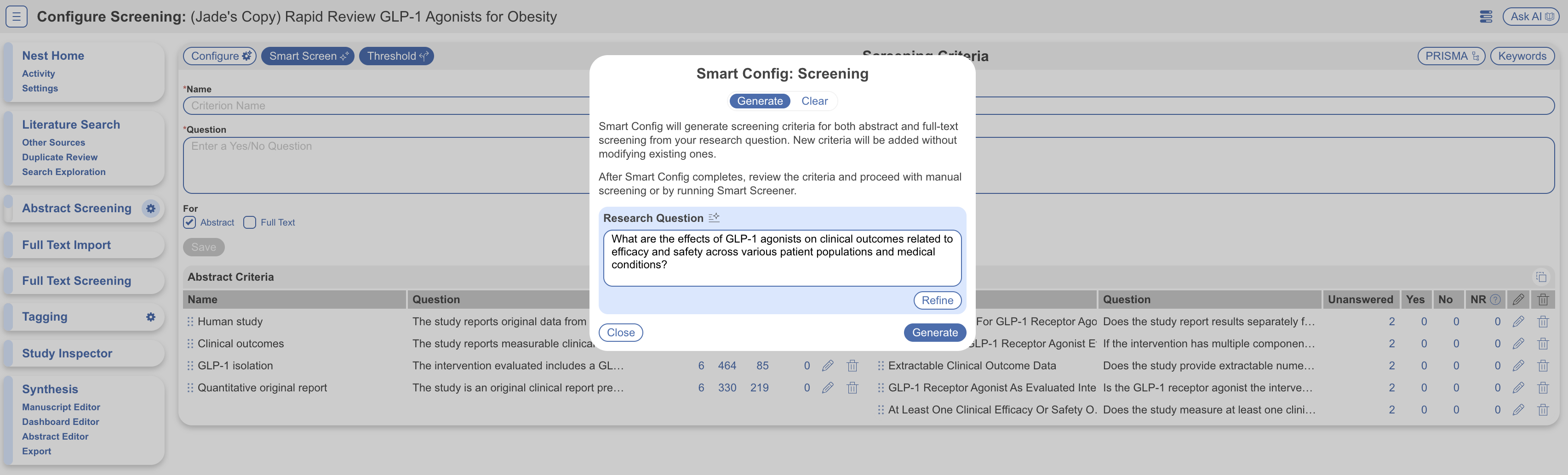
On the Configure Screening <i class="fa-gear">:gear:</i>, select **Configure.** The Smart Config: Screening modal will open.
{% endstep %}

{% step %}

#### Confirm Or Refine Your Research Question

If you have already used another AI tool in your nest that requires a research question, the Research Question field will be pre-populated; otherwise, enter your research question directly. You can edit the question freely, or use the Refine button to have AI tighten it before generating criteria.

<figure><img src="https://305208404-files.gitbook.io/~/files/v0/b/gitbook-x-prod.appspot.com/o/spaces%2Fxb7uNGATUgwQAjDVQRXG%2Fuploads%2FEjs4vc3u11jrXLVD6Gl8%2Fsmart%20config%20screening.png?alt=media&amp;token=4c4235d1-8fe7-49de-b3f2-d8bac7a4dcfa" alt="The Smart Config: Screening modal showing the Research Question field and Refine button."><figcaption><p>Enter or refine your research question before generating screening criteria.</p></figcaption></figure>
{% endstep %}

{% step %}

#### Generate

Select **Generate**. Smart Config produces a separate editable set of Abstract criteria and Full Text criteria based on the research question. Each criterion is a Yes/No question where **Yes = inclusion** and **No = exclusion**, following the standard CBS structure.
{% endstep %}

{% step %}

#### Review, Edit, And Refine

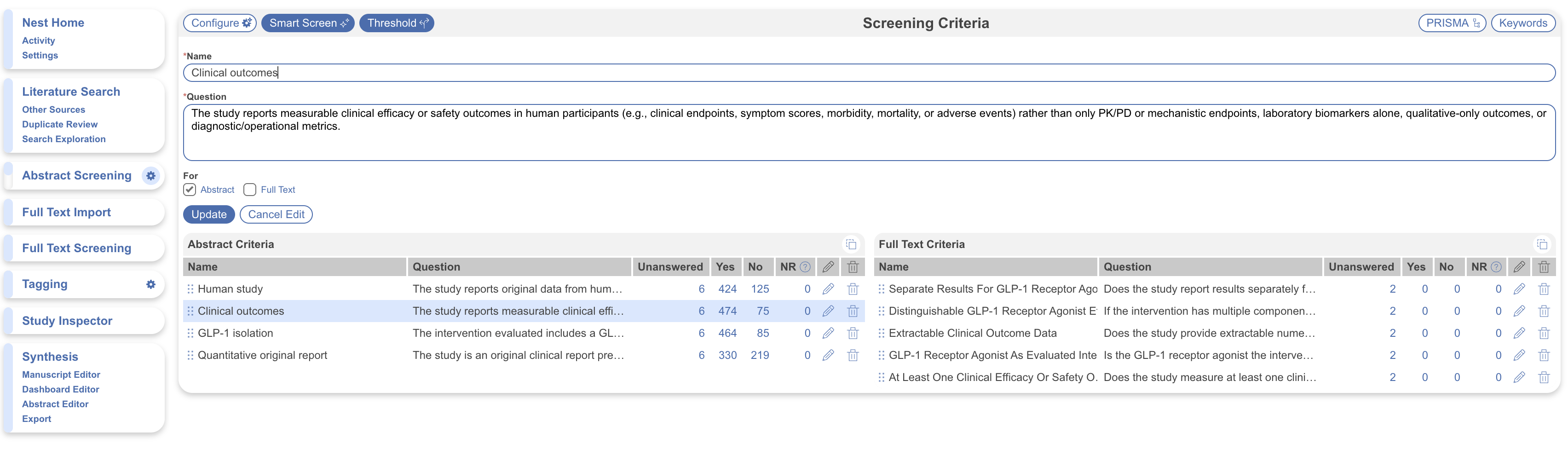
Edit, reorder, or delete any generated question the same way you would a manually written one, and add further questions of your own. Generated and manual criteria can sit side by side.

{% hint style="info" %}
Criteria names are listed as reasons for exclusion in Screening and displayed in the PRISMA.
{% endhint %}

The four columns alongside each criterion show, at a glance, how many studies have answered the question with **Unanswered**, **Yes**, **No**, or **NR** (not reported). Immediately after generation, and before any screening or Smart Screener run, every study will sit in the Unanswered column — these record counts only shift once screening has begun.

<figure><img src="https://305208404-files.gitbook.io/~/files/v0/b/gitbook-x-prod.appspot.com/o/spaces%2Fxb7uNGATUgwQAjDVQRXG%2Fuploads%2FD8HTzzygkHf66uHQm9QB%2Fedit%20criteria.png?alt=media&amp;token=689540bc-ced9-4ca2-8fc6-c4036af0701a" alt="Generated screening criteria with columns for Unanswered, Yes, No, and NR responses."><figcaption><p>Review generated criteria and monitor response counts as screening progresses.</p></figcaption></figure>
{% endstep %}
{% endstepper %}

#### Pairing with Smart Screener

Now you have a set of criteria generated, you can either start answering criteria and screening studies manually – see [**Screen Records**](/review-workflow/screening/screen-records.md) or run [**Smart Screener**](/review-workflow/screening/criteria-based-screening/smart-screener.md) for automated answering.

### Prompt Guidance: Screening

How a criteria is worded affects how well Smart Config: Screening and Smart Screener can work with it. See [Prompt Guidance](/ai-transparency/ai-in-nested-knowledge/prompt-guidance.md) before finalizing wording on anything you plan to build or extract with AI.

### FAQs

<details>

<summary>Will Smart Config overwrite criteria I've already written?</summary>

No — generated criteria appear alongside your own in the same editable tables; nothing you've written is replaced.

</details>

<details>

<summary>Can I regenerate criteria after editing the first draft?</summary>

Yes. Smart Config: Screening generates a separate set of criteria based on your research question and adds them to your tables. They are separate to your edits; it does not learn from existing criteria edits.

</details>

<details>

<summary>Does Smart Config work from my protocol document, or only from a typed research question?</summary>

No. It only generates based on the inputted research question.

</details>

<details>

<summary>Is Smart Config available under Exclusion Reason Screening?</summary>

No — it only operates within Criteria-Based Screening.

</details>

### Next Steps

<table data-card-size="large" data-view="cards"><thead><tr><th></th><th></th><th data-hidden data-card-target data-type="content-ref"></th></tr></thead><tbody><tr><td><i class="fa-robot">:robot:</i><br><strong>Smart Screener</strong></td><td>Answer configured criteria with AI.</td><td><a href="/review-workflow/screening/criteria-based-screening/smart-screener.md">Smart Screener</a></td></tr><tr><td><i class="fa-clipboard-check">:clipboard-check:</i><br><strong>Screen Records</strong></td><td>Review records against your configured criteria.</td><td><a href="/review-workflow/screening/screen-records.md">Screen Records</a></td></tr></tbody></table>


---

# Agent Instructions
This documentation is published with GitBook. GitBook is the documentation platform designed so that both humans and AI agents can read, navigate, and reason over technical content effectively. Learn more at gitbook.com.

## Querying This Documentation
If you need additional information that is not directly available in this page, you can query the documentation by asking a question.

Perform an HTTP GET request on the following URL with the `ask` and `goal` query parameters:

```
GET https://docs.nested-knowledge.com/review-workflow/screening/criteria-based-screening/smart-config-screening.md?ask=<question>&goal=<user_goal>
```

`ask` is the immediate question: it should be specific, self-contained, and written in natural language.
`goal` is what the user is ultimately trying to achieve, the reason they need the answer. Sharing it helps GitBook give you a better, more relevant answer. A goal is most helpful when it describes the outcome the user wants rather than restating the question. For example, with `ask=how do I create an API token`, a goal like `automate deployments from our CI pipeline` lets GitBook tailor the answer to that use case.

The response will contain a direct answer to the question and relevant excerpts and sources from the documentation.

Use this mechanism when the answer is not explicitly present in the current page, you need clarification or additional context, or you want to retrieve related documentation sections.