> For the complete documentation index, see [llms.txt](https://docs.nested-knowledge.com/llms.txt). Markdown versions of documentation pages are available by appending `.md` to page URLs; this page is available as [Markdown](https://docs.nested-knowledge.com/review-workflow/literature-search/other-sources.md).

# Other Sources

Add records that come from outside a database search.

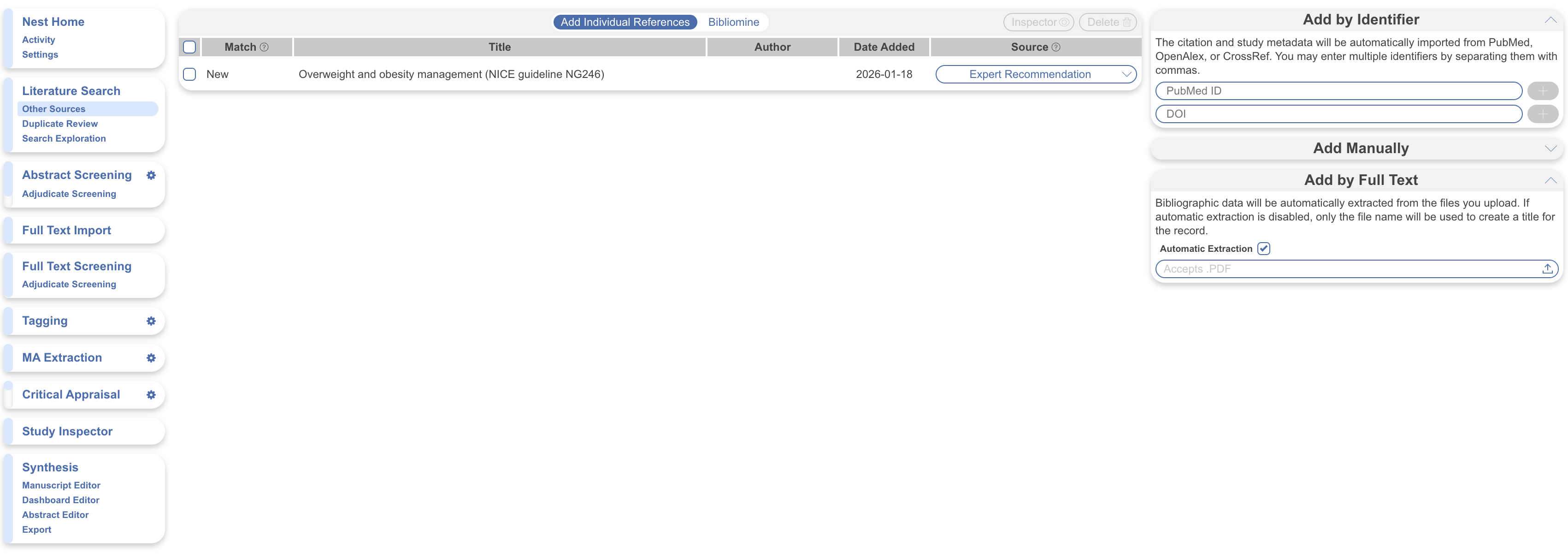
**Other Sources** lets you add records from outside database searches. Use it for expert recommendations, citation searching, clinical trial records, and gray literature. Each record keeps a source origin for [PRISMA Diagram](/review-workflow/synthesis/navigate-synthesis-outputs/prisma-chart.md) reporting and follows the same workflow as a searched record.

On the nest menu, select **Other Sources**.

<figure><img src="https://305208404-files.gitbook.io/~/files/v0/b/gitbook-x-prod.appspot.com/o/spaces%2Fxb7uNGATUgwQAjDVQRXG%2Fuploads%2FBFpB5CvxyaDZZN0I0QgW%2Fother%20sources.png?alt=media&amp;token=24df637c-2a89-433c-9d13-9e31a9738d84" alt="Other Sources page in the nest menu."><figcaption><p>Select <strong>Other Sources</strong> from the nest menu.</p></figcaption></figure>

Add records in three ways. Use [**Bibliomine**](/review-workflow/literature-search/other-sources/bibliomine.md) to mine an existing document's reference list:

1. **By DOI or PMID** retrieves bibliographic data from an identifier.
2. **Manually** adds sources without an identifier.
3. **By Full Text** creates new records from uploaded PDFs.

### Add Records

{% stepper %}
{% step %}

#### Add By DOI Or PMID

Use this option when a record has a DOI or PMID. **Other Sources** retrieves bibliographic data from the identifier.

Paste the DOI or PMID into the field, then select the plus sign. Separate multiple identifiers with commas.
{% endstep %}

{% step %}

#### Add Manually

Use this option for clinical trials, news articles, and sources without a DOI or PMID. Select **Add Manually** to open the entry form.

A manual record needs a title, at least one author, and a link. The remaining fields are optional.
{% endstep %}

{% step %}

#### Add By Full Text

Use this option to create new records from PDFs. It is separate from [**Full Text Import**](/review-workflow/screening/full-text-import.md) for existing records. Each upload can contain up to 2 GB.

**Automatic Extraction** is on by default. It extracts bibliographic data from each PDF into the new record. Clear it to create the record from the file name alone. Extraction can take up to 10 minutes.
{% endstep %}
{% endstepper %}

### Manage Added Records

Select records in the list, then choose one of these actions:

* **Inspector** opens selected records in [Study Inspector](/review-workflow/study-inspector.md).
* **Delete** removes selected records from the nest.

<figure><img src="https://305208404-files.gitbook.io/~/files/v0/b/gitbook-x-prod.appspot.com/o/spaces%2Fxb7uNGATUgwQAjDVQRXG%2Fuploads%2FOiEZvhpe6pwBBBAM8UeM%2Fmanage%20other%20sources.png?alt=media&amp;token=6ce3e9be-2c05-4900-8e59-19d69104865b" alt="Other Sources record list with Inspector and Delete actions."><figcaption><p>Manage selected records with <strong>Inspector</strong> or <strong>Delete</strong>.</p></figcaption></figure>

### Set The PRISMA Source

Records added here appear as **Expert Recommendation** in the [**PRISMA Diagram**](/review-workflow/synthesis/navigate-synthesis-outputs/prisma-chart.md) by default. For another source, select the source dropdown and enter the source origin. For example, use a trial registry, citation search, or regulatory database.

The assigned name appears in the **PRISMA Diagram**.

### Add Citations With Bibliomine

Use **Bibliomine** to import citations from a review article or similar PDF. See [**Bibliomine**](/review-workflow/literature-search/other-sources/bibliomine.md) for instructions.

### FAQs

<details>

<summary>Is there a limit on how many files I can upload at once with Add by Full Text?</summary>

The upload limit is 2 GB total. No separate file-count limit is stated.

</details>

<details>

<summary>Are records added on this page checked for duplicates against my searches?</summary>

Yes. Duplicate checking runs across your nest, not only within a search. A record already present from a search or import is identified the same way. Review [**Duplicate Review**](/review-workflow/literature-search/duplicate-review.md) to inspect identified records.

</details>

### Next Steps

<table data-card-size="large" data-view="cards"><thead><tr><th></th><th></th><th data-hidden data-card-target data-type="content-ref"></th></tr></thead><tbody><tr><td><i class="fa-book">:book:</i><br><strong>Bibliomine</strong></td><td>Import citations from a review article or similar PDF.</td><td><a href="/review-workflow/literature-search/other-sources/bibliomine.md">Bibliomine</a></td></tr><tr><td><i class="fa-diagram-project">:diagram-project:</i><br><strong>PRISMA Chart</strong></td><td>Track how records were found and selected.</td><td><a href="/review-workflow/synthesis/navigate-synthesis-outputs/prisma-chart.md">PRISMA Chart</a></td></tr><tr><td><i class="fa-list-check">:list-check:</i><br><strong>Screening</strong></td><td>Screen records for inclusion in your review.</td><td><a href="/review-workflow/screening.md">Screening</a></td></tr><tr><td><i class="fa-magnifying-glass">:magnifying-glass:</i><br><strong>Study Inspector</strong></td><td>Review, filter, and export records across your nest.</td><td><a href="/review-workflow/study-inspector.md">Study Inspector</a></td></tr></tbody></table>


---

# Agent Instructions
This documentation is published with GitBook. GitBook is the documentation platform designed so that both humans and AI agents can read, navigate, and reason over technical content effectively. Learn more at gitbook.com.

## Querying This Documentation
If you need additional information that is not directly available in this page, you can query the documentation by asking a question.

Perform an HTTP GET request on the following URL with the `ask` and `goal` query parameters:

```
GET https://docs.nested-knowledge.com/review-workflow/literature-search/other-sources.md?ask=<question>&goal=<user_goal>
```

`ask` is the immediate question: it should be specific, self-contained, and written in natural language.
`goal` is what the user is ultimately trying to achieve, the reason they need the answer. Sharing it helps GitBook give you a better, more relevant answer. A goal is most helpful when it describes the outcome the user wants rather than restating the question. For example, with `ask=how do I create an API token`, a goal like `automate deployments from our CI pipeline` lets GitBook tailor the answer to that use case.

The response will contain a direct answer to the question and relevant excerpts and sources from the documentation.

Use this mechanism when the answer is not explicitly present in the current page, you need clarification or additional context, or you want to retrieve related documentation sections.
