> For the complete documentation index, see [llms.txt](https://docs.nested-knowledge.com/llms.txt). Markdown versions of documentation pages are available by appending `.md` to page URLs; this page is available as [Markdown](https://docs.nested-knowledge.com/review-workflow/screening/criteria-based-screening.md).

# Criteria-Based Screening

Learn how to set up criteria-based screening.

**Criteria-Based Screening** (CBS) records a screening decision through Yes/No eligibility questions. Use it when your protocol defines eligibility as questions, or when you want **Smart Config** and **Smart Screener** to support screening. Reviewers, or **Smart Screener**, answer each question for every record. The answers explain the screening decision; the decision itself is recorded separately, and only the decision moves a record forward.

CBS works in all Screening modes. Smart Config and Smart Screener work only with CBS. See [**Configure Screening**](/review-workflow/screening/configure-screening.md) to compare the paradigms.

### Set Up Abstract And Full Text Criteria

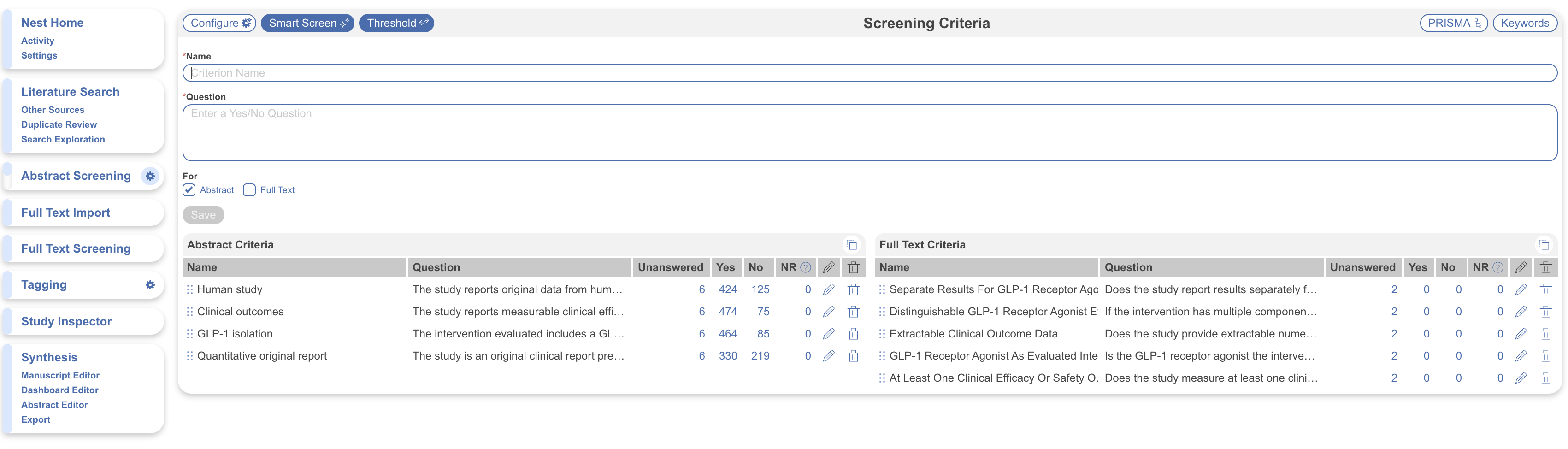
On Configure Screening <i class="fa-gear">:gear:</i>, build separate criteria for Abstract Screening and Full Text Screening. Give each stage distinct question wording. This keeps each decision traceable to its criteria.

<figure><img src="https://305208404-files.gitbook.io/~/files/v0/b/gitbook-x-prod.appspot.com/o/spaces%2Fxb7uNGATUgwQAjDVQRXG%2Fuploads%2Fj61ruiPPAoMPUYCiS13A%2Fconfigure%20cbs.png?alt=media&amp;token=1236bccd-8c14-4c89-b9f1-89495caafbb5" alt="Configure Screening shows separate question lists for Abstract Screening and Full Text Screening."><figcaption><p>Configure separate criteria for Abstract Screening and Full Text Screening.</p></figcaption></figure>

Build criteria in either of two ways:

* Write Yes/No questions from your protocol's eligibility criteria.
* Use [**Smart Config: Screening**](/review-workflow/screening/criteria-based-screening/smart-config-screening.md) to draft criteria from your research question.

### How Records Move Through Criteria-Based Screening

One rule governs every Criteria-Based Screening queue: **only a screening decision moves a record out of a queue.** Criterion answers explain the decision, but they don't make it. A record with every criterion answered and no decision stays where it is.

This is the same in every screening mode and at both stages. In Two Pass Screening, records move from Abstract Screening to Full Text Screening the same way they do under Exclusion Reasons.

#### In Single Screening

One reviewer answers the criteria and records a decision for each record. That decision is final.

**Smart Screener** can answer the criteria for you, but in Single Screening it doesn't record decisions, so its records stay in the queue until you decide them. Decide them one by one, in bulk by answer combination, or automatically with **Threshold**. See [Smart Screener.](/review-workflow/screening/criteria-based-screening/smart-screener.md)

<figure><img src="https://305208404-files.gitbook.io/~/files/v0/b/gitbook-x-prod.appspot.com/o/spaces%2Fxb7uNGATUgwQAjDVQRXG%2Fuploads%2F96lJAwG8DfgETYklbMS8%2Fcbs-single-screening-flow.png?alt=media&amp;token=af14d877-ceb7-42c7-b8f4-bce7bc801c5d" alt="Single Screening record view shows Smart Screener&#x27;s criterion answers and the reviewer decision controls."><figcaption><p>In Single Screening, review Smart Screener's answers before recording a decision.</p></figcaption></figure>

#### In Dual Screening

Two reviewers screen each record independently. The second reviewer can be a human or **Smart Screener**. Each reviewer's answers and decision are **reviewer-level**: they're hidden from the nest's final data, including your PRISMA diagram, until adjudication.

A record reaches the adjudication queue once both reviewers have recorded a decision. Criteria don't need to be complete. In the adjudication queue, records the reviewers agree on appear under **Agreements**, and an adjudicator resolves the rest. Resolve agreements manually, or run **Auto Adjudicate** to finalize them by rule. Whatever the adjudicator records becomes the **final** decision.

See [Adjudicate Records](/review-workflow/screening/adjudicate-records.md) for manual adjudication and **Auto Adjudicate** settings.

<figure><img src="https://305208404-files.gitbook.io/~/files/v0/b/gitbook-x-prod.appspot.com/o/spaces%2Fxb7uNGATUgwQAjDVQRXG%2Fuploads%2FEi3vLcvfv662MjwovNEl%2Fcbs-dual-screening-flow.png?alt=media&amp;token=f863440a-b819-420d-b993-dc0822d986bf" alt="Dual Screening record view shows two reviewer decisions and an adjudication control for the final decision."><figcaption><p>In Dual Screening, an adjudicator records the final decision after both reviewers decide.</p></figcaption></figure>

### Add AI Assistance

Once your criteria are ready, **Smart Screener** can answer them. In Single Screening, it answers criteria but doesn't record decisions. In Dual Screening, it fills one reviewer seat and records a reviewer-level decision by a fixed rule; a second human reviewer and a human adjudicator remain required. See How records move through Criteria-Based Screening and Smart Screener.

See [**Smart Screener**](/review-workflow/screening/criteria-based-screening/smart-screener.md) for its Threshold feature and study limits. Once criteria are answered, the fastest controlled way to screen in Single Screening is in bulk by answer combination from **Study Inspector.**

<details>

<summary>PRISMA Settings</summary>

Under **PRISMA Settings**, assign an existing criterion to categorize records as “Reports not retrieved” in the generated PRISMA diagram.

<figure><img src="https://305208404-files.gitbook.io/~/files/v0/b/gitbook-x-prod.appspot.com/o/spaces%2Fxb7uNGATUgwQAjDVQRXG%2Fuploads%2FpBf6FFfMg8UK7Q8uTdZQ%2Fscreening%20prisma.png?alt=media&amp;token=c4eb9a74-4c33-4938-9c05-c527642792eb" alt="PRISMA Settings shows a criterion selected for the Reports not retrieved category."><figcaption><p>Assign a criterion to the Reports not retrieved category in PRISMA Settings.</p></figcaption></figure>

</details>

<details>

<summary>Keywords</summary>

Configure keywords to highlight them in record abstracts and full texts. Change the adjacent color to update the highlight. You can also open this setting from **Your Keywords** in any abstract view.

<figure><img src="https://305208404-files.gitbook.io/~/files/v0/b/gitbook-x-prod.appspot.com/o/spaces%2Fxb7uNGATUgwQAjDVQRXG%2Fuploads%2FPNbgfWY7ND6PlQjBjVBR%2Fimage.png?alt=media&amp;token=a1efcb83-9b5c-45a4-b877-efc19552bfae" alt="Keyword settings show terms with adjacent color selectors for highlights."><figcaption><p>Configure keywords and their highlight colors for abstracts and full texts.</p></figcaption></figure>

</details>

### Prompt Guidance: Screening

How a criteria is worded affects how well Smart Config: Screening and Smart Screener can work with it. See [Prompt Guidance](/ai-transparency/ai-in-nested-knowledge/prompt-guidance.md) before finalizing wording on anything you plan to build or extract with AI.

### FAQs

<details>

<summary>Can my Abstract and Full Text criteria overlap in meaning, just not in exact wording?</summary>

Yes. The wording must differ, so each decision remains traceable. The criteria can still test similar concepts.

</details>

<details>

<summary>What happens if I edit my criteria after some records have already been screened against it?</summary>

Edited criteria automatically update for records already screened against them.

</details>

<details>

<summary>Do I have to use Smart Config, or can I write every criterion myself?</summary>

No. **Smart Config** is optional. You can write every criterion yourself. You can also combine generated and manual criteria.

</details>

<details>

<summary>Can I run Criteria-Based Screening without ever turning on Smart Screener?</summary>

Yes. Reviewers can answer every criterion manually. **Smart Screener** is optional.

</details>

<details>

<summary>What's the difference between a reviewer-level decision and a final decision?</summary>

In Dual Screening, each reviewer's answers and decision are reviewer-level. They're visible in the adjudication queue but don't count in your nest's results or PRISMA diagram. The adjudicated result is the final decision. In Single Screening, every decision is final as soon as you record it.

</details>

<details>

<summary>Can I switch from Single to Dual Screening partway through?</summary>

Yes, but records already decided in Single Screening keep their final decisions. If you've run **Smart Screener**, run it again after switching: its Single Screening answers are final-level, so it won't appear as a reviewer until you rerun it.

</details>

### Next Steps

<table data-card-size="large" data-view="cards"><thead><tr><th></th><th></th><th data-hidden data-card-target data-type="content-ref"></th></tr></thead><tbody><tr><td><i class="fa-sparkles">:sparkles:</i><br><strong>Smart Config: Screening</strong></td><td>Draft criteria from your research question.</td><td><a href="/review-workflow/screening/criteria-based-screening/smart-config-screening.md">Smart Config: Screening</a></td></tr><tr><td><i class="fa-robot">:robot:</i><br><strong>Smart Screener</strong></td><td>Answer configured criteria with AI.</td><td><a href="/review-workflow/screening/criteria-based-screening/smart-screener.md">Smart Screener</a></td></tr><tr><td><i class="fa-clipboard-check">:clipboard-check:</i><br><strong>Screen Records</strong></td><td>Review records against your configured criteria.</td><td><a href="/review-workflow/screening/screen-records.md">Screen Records</a></td></tr></tbody></table>


---

# Agent Instructions
This documentation is published with GitBook. GitBook is the documentation platform designed so that both humans and AI agents can read, navigate, and reason over technical content effectively. Learn more at gitbook.com.

## Querying This Documentation
If you need additional information that is not directly available in this page, you can query the documentation by asking a question.

Perform an HTTP GET request on the following URL with the `ask` and `goal` query parameters:

```
GET https://docs.nested-knowledge.com/review-workflow/screening/criteria-based-screening.md?ask=<question>&goal=<user_goal>
```

`ask` is the immediate question: it should be specific, self-contained, and written in natural language.
`goal` is what the user is ultimately trying to achieve, the reason they need the answer. Sharing it helps GitBook give you a better, more relevant answer. A goal is most helpful when it describes the outcome the user wants rather than restating the question. For example, with `ask=how do I create an API token`, a goal like `automate deployments from our CI pipeline` lets GitBook tailor the answer to that use case.

The response will contain a direct answer to the question and relevant excerpts and sources from the documentation.

Use this mechanism when the answer is not explicitly present in the current page, you need clarification or additional context, or you want to retrieve related documentation sections.
