> For the complete documentation index, see [llms.txt](https://docs.nested-knowledge.com/llms.txt). Markdown versions of documentation pages are available by appending `.md` to page URLs; this page is available as [Markdown](https://docs.nested-knowledge.com/review-workflow/study-inspector/view-and-edit-studies.md).

# View and Edit Studies

Learn how to view and edit studies in Study Inspector.

[Screening,](/review-workflow/screening.md) [Tagging/Extraction](/review-workflow/tagging.md), [MA Extraction](/review-workflow/meta-analytical-extraction.md) and [Critical Appraisal](/review-workflow/critical-appraisal.md) each normally work through their own queue of studies. Study Inspector allows you to open any single study from a filtered list and view or edit every one of those modules' decisions on that record anytime at any stage.&#x20;

Use it to spot-check a decision, resolve a one-off disagreement, fix a record's bibliographic data and more.

### Open And Navigate A Study

{% stepper %}
{% step %}

#### Filter The Study List

[Filter studies](/review-workflow/study-inspector/filter-studies.md) you need. Here, either view the presented list, [customize columns](/review-workflow/study-inspector/customize-columns.md), [download from inspector](/review-workflow/study-inspector/download-from-inspector.md) or view and edit individual studies.

Select a study to open the **Study Modal**.

<figure><img src="https://305208404-files.gitbook.io/~/files/v0/b/gitbook-x-prod.appspot.com/o/spaces%2Fxb7uNGATUgwQAjDVQRXG%2Fuploads%2FBEkyJDciREFGwjyiOlAP%2Fview%20study.png?alt=media&amp;token=eee1c2b5-803c-4910-9e3b-2b4086dc7920" alt=""><figcaption></figcaption></figure>
{% endstep %}

{% step %}

#### Review The Study

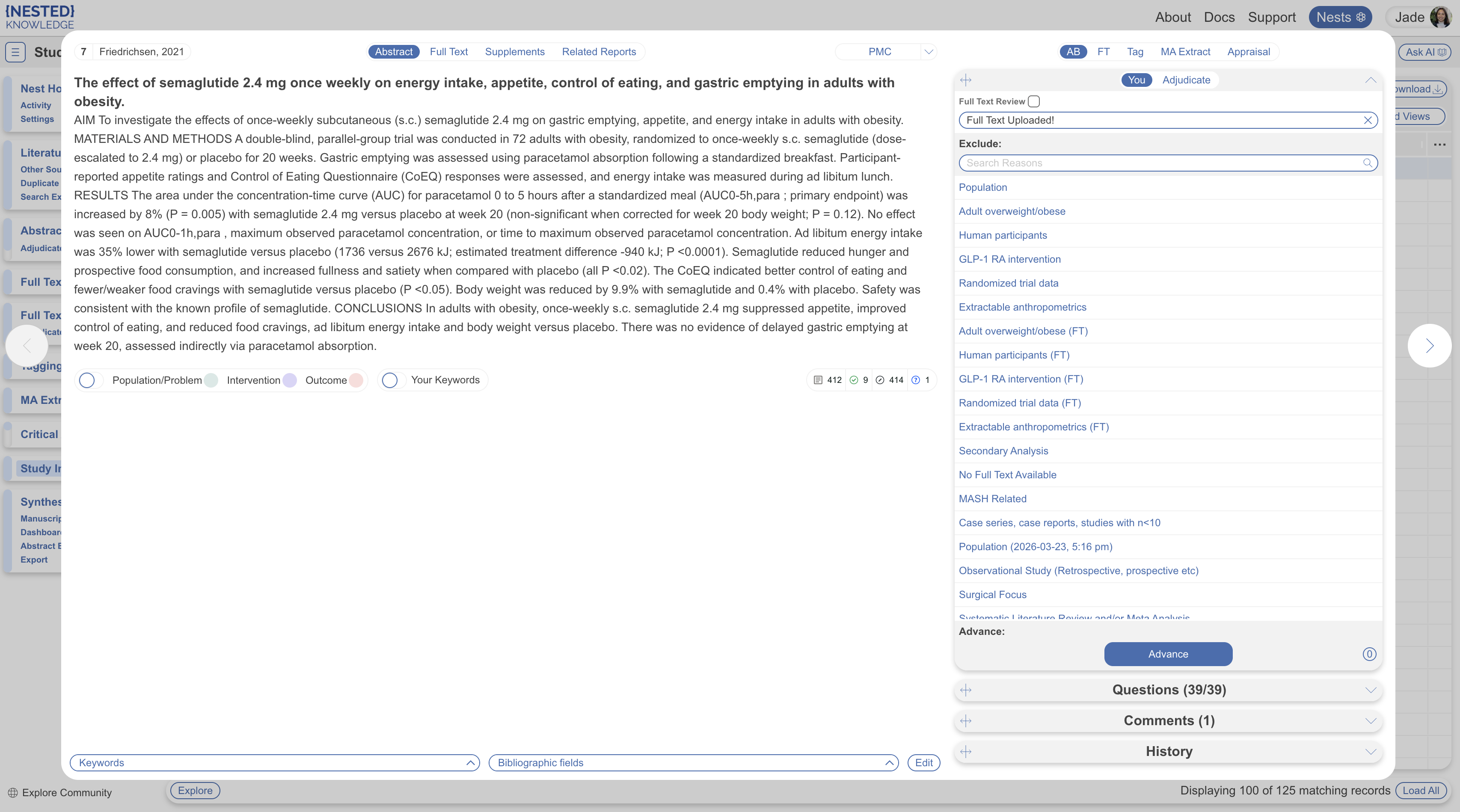
In the left panel, review **Abstract**, **Full Text**, **Supplements**, and **Related Reports**.

See [understanding the workspace](/review-workflow/screening/screen-records.md#understanding-the-workspace) for more details.

<figure><img src="https://305208404-files.gitbook.io/~/files/v0/b/gitbook-x-prod.appspot.com/o/spaces%2Fxb7uNGATUgwQAjDVQRXG%2Fuploads%2F69UwlohfS7gPOa8xx889%2FScreenshot%202026-08-18%20at%2010.35.27.png?alt=media&amp;token=8675f43c-0327-4a79-80e6-8ceae6a080f5" alt=""><figcaption></figcaption></figure>
{% endstep %}

{% step %}

#### Select A Module

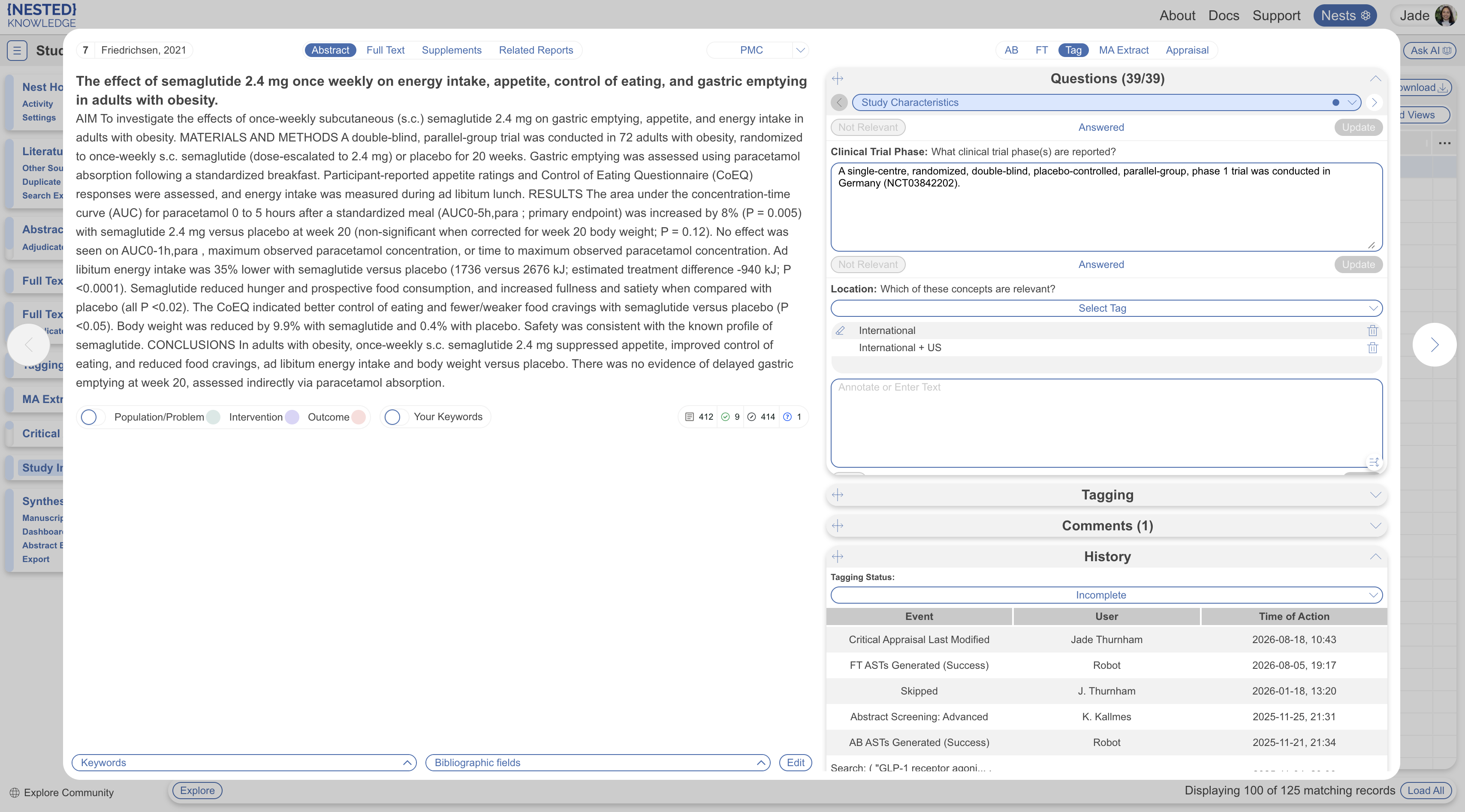
In the right panel, select the module to view or edit: **AB**, **FT**, **Screen**, **Tag**, **MA Extract**, or **Appraisal**.

**AB** and **FT** appear separately only in **Two Pass Screening**. **MA Extract** and **Appraisal** require their modules to be enabled.

**You** and **Adjudicate** are displayed if you are an admin. You can edit decisions in either mode.
{% endstep %}

{% step %}

#### Move Between Studies

Select the arrow keys on either side of the modal. This moves through your filtered list without closing the modal.
{% endstep %}
{% endstepper %}

### Screen A Study From Inspector

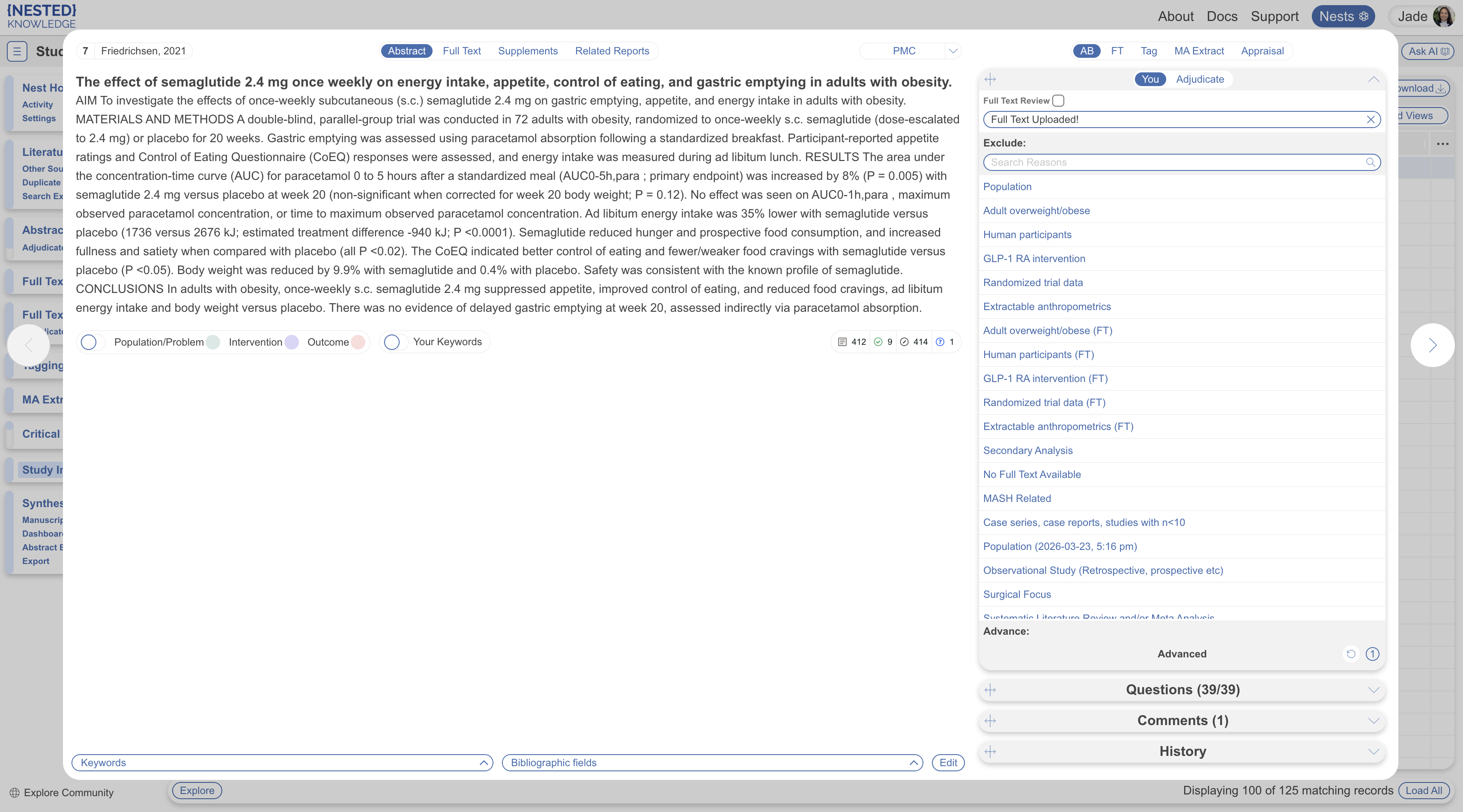
In Dual Screening, select **You** to view, make, or edit your own decision, or **Adjudicate** to view or make the adjudicated decision. Only admins can see and use Adjudicate as well as their own decision; other users see only their own.

An excluded study is bolded in grey. An advanced or included study shows **Advanced** or **Included** in place of the decision button. An unscreened study has no exclusion reason selected and an active Advance or Include button. Select a different exclusion reason to change the decision, select **Advance** or **Include** to advance or include the study, or select the undo arrow to unscreen it. The number beside the decision button shows how many screening decisions exist for that record. See [Screen Records](/review-workflow/screening/screen-records.md) for more.

<figure><img src="https://305208404-files.gitbook.io/~/files/v0/b/gitbook-x-prod.appspot.com/o/spaces%2Fxb7uNGATUgwQAjDVQRXG%2Fuploads%2FEbtBI1jDNFNwiSqenBrW%2FScreenshot%202026-08-20%20at%2012.16.17.png?alt=media&amp;token=6b0e559a-73cf-4b8a-bd69-4fd3195cf08e" alt=""><figcaption></figcaption></figure>

### Tag, MA Extract Or Appraise A Study From Inspector

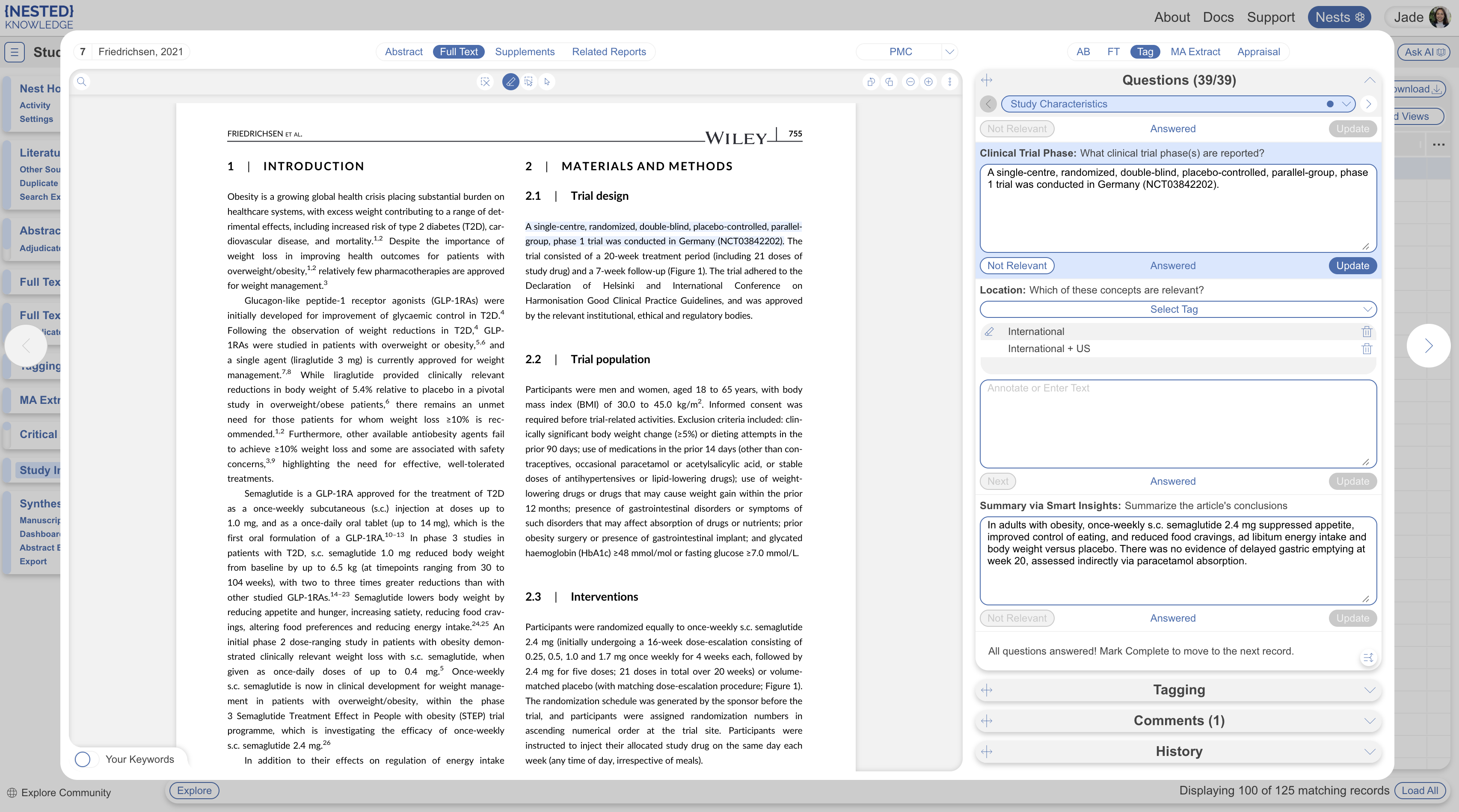
You can use Study Inspector to tag, MA extract, and appraise individual studies using the corresponding tab. The functionality is the same as in the module queues. See [Apply Tags](/review-workflow/tagging/apply-tags.md), [Extract MA Data](/review-workflow/meta-analytical-extraction/extract-meta-analytical-data.md) and [Appraise studies](/review-workflow/critical-appraisal/appraise-studies.md) for more.

In Dual modes, select **You** to view, make, or edit your own decision, or **Adjudicate** to view or make the adjudicated decision. Only admins can see and use Adjudicate as well as their own decision; other users see only their own.

<figure><img src="https://305208404-files.gitbook.io/~/files/v0/b/gitbook-x-prod.appspot.com/o/spaces%2Fxb7uNGATUgwQAjDVQRXG%2Fuploads%2FzGDadcXc88yPIfTETVPH%2FScreenshot%202026-08-20%20at%2012.17.12.png?alt=media&amp;token=d1dc9a62-3e9d-41f5-bb6c-e2c66448e734" alt=""><figcaption></figcaption></figure>

### Mark A Module Complete Or Incomplete

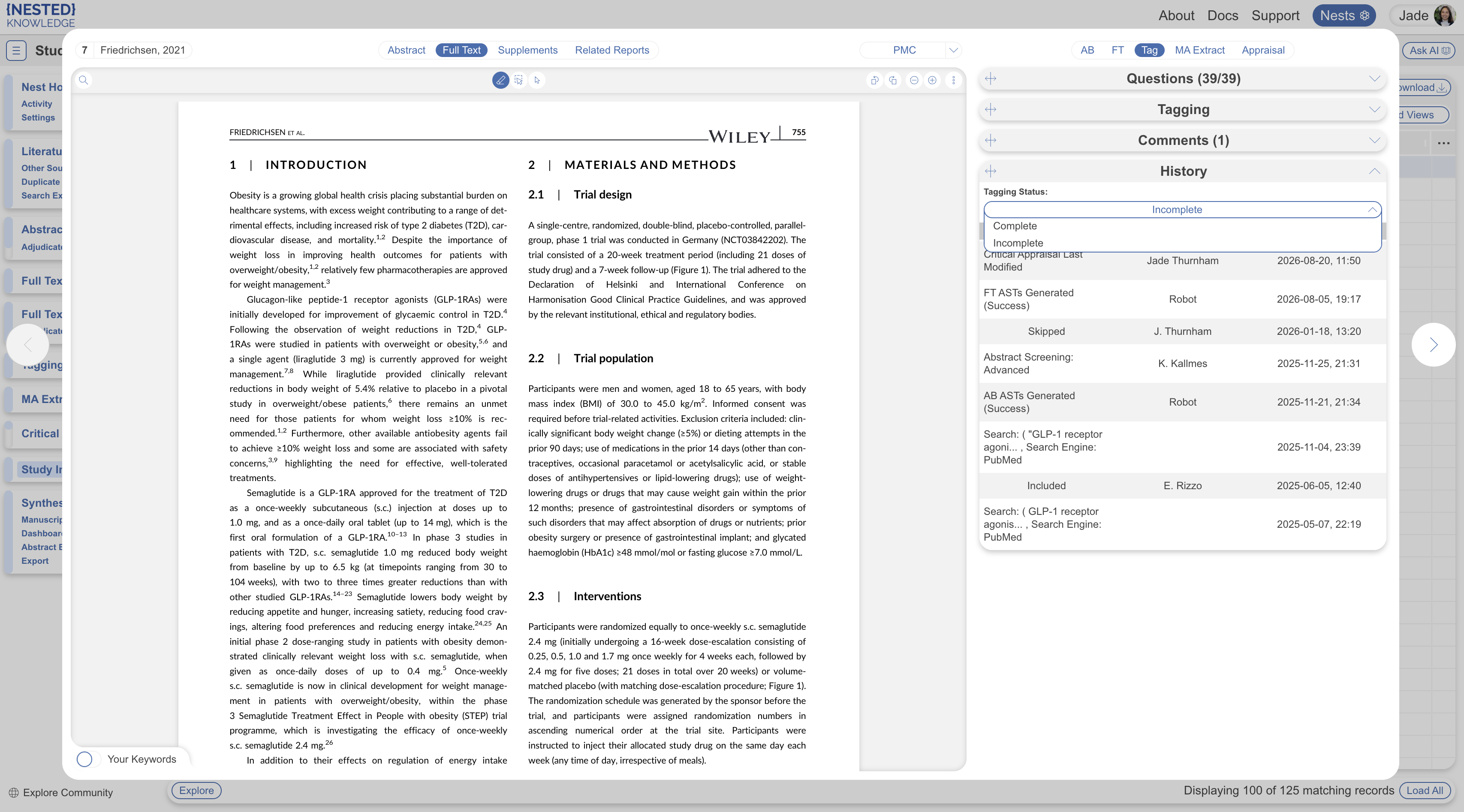
Marking Tagging, MA Extraction, or Critical Appraisal **Complete** removes a record from that module's queue; marking it **Incomplete** returns it. This only changes whether the record appears in the sequential queue; it doesn't alter any tags applied or data already extracted, and the record stays fully editable in Study Inspector regardless of its module status.

To change this for one record, open its **History** tab and use the Module Status dropdown to select Complete or Incomplete. To change it for many records at once, see [Bulk Actions.](/review-workflow/study-inspector/bulk-actions.md)

<figure><img src="https://305208404-files.gitbook.io/~/files/v0/b/gitbook-x-prod.appspot.com/o/spaces%2Fxb7uNGATUgwQAjDVQRXG%2Fuploads%2FFB0Gequ861k927UkRage%2FScreenshot%202026-08-20%20at%2012.17.31.png?alt=media&amp;token=891dee38-460e-46e7-bccc-b671c20652ce" alt=""><figcaption></figcaption></figure>

### Edit Bibliographic Information

In the Abstract view, select **Edit** next to the bibliographic fields, then edit any field in the modal that opens.

### Comment On A Study

Comments give reviewers a way to flag a question, a disagreement, or a note on a specific study without leaving the page they're working on.&#x20;

See [Comments](/collaborate/comments.md) for the full guide to leaving, resolving, and managing comments across a nest.

### Study History

View actions applied by specific users and time of action in the History tab.

<figure><img src="https://305208404-files.gitbook.io/~/files/v0/b/gitbook-x-prod.appspot.com/o/spaces%2Fxb7uNGATUgwQAjDVQRXG%2Fuploads%2FvMsYkZaALQMc1qurkZUw%2Fstudy%20history.png?alt=media&amp;token=e7186a91-635f-48f0-8660-690f923c13cb" alt=""><figcaption></figcaption></figure>

### Implications

A record stays editable in Study Inspector no matter what its module status shows. Only admins can adjudicate Dual Screening decisions while other users see only their own decision. Editing a decision from here changes the same underlying data as editing it from that module's own queue.

### FAQs

<details>

<summary>Can I edit a decision made in a module's queue from here?</summary>

Yes. Study Inspector and each module's own queue read and write the same underlying record.

</details>

<details>

<summary>Does marking a module as Complete delete data?</summary>

No. It only changes whether the record shows up in that module's queue; the tags applied or data extracted stay exactly as they were.

</details>

<details>

<summary>Why don't I see an MA Extract or Appraisal tab?</summary>

Those tabs only appear if Meta-Analytical Extraction or Critical Appraisal is turned on for your nest.

</details>

<details>

<summary>Can two reviewers tag the same study at the same time?</summary>

There is no official Dual Tagging mode and in the Tagging module, an individual unique study is displayed to one user at a time. That said, users can tag the same study simultaneously in Study Inspector.

</details>

### Next Steps

<table data-card-size="large" data-view="cards"><thead><tr><th></th><th></th><th data-hidden data-card-target data-type="content-ref"></th></tr></thead><tbody><tr><td><i class="fa-filter">:filter:</i><br><strong>Filter Studies</strong></td><td>Find the studies you need to review or update.</td><td><a href="/review-workflow/study-inspector/filter-studies.md">Filter Studies</a></td></tr><tr><td><i class="fa-split">:split:</i><br><strong>Screen Records</strong></td><td>Make screening decisions from the dedicated queue.</td><td><a href="/review-workflow/screening/screen-records.md">Screen Records</a></td></tr><tr><td><i class="fa-tags">:tags:</i><br><strong>Apply Tags</strong></td><td>Capture structured data from individual studies.</td><td><a href="/review-workflow/tagging/apply-tags.md">Apply Tags</a></td></tr><tr><td><i class="fa-chart-scatter">:chart-scatter:</i><br><strong>Extract Meta-Analytical Data</strong></td><td>Extract outcome data for quantitative analysis.</td><td><a href="/review-workflow/meta-analytical-extraction/extract-meta-analytical-data.md">Extract Meta-Analytical Data</a></td></tr><tr><td><i class="fa-user-group">:user-group:</i><br><strong>Critical Appraisal</strong></td><td>Assess included studies against your appraisal system.</td><td><a href="/review-workflow/critical-appraisal.md">Critical Appraisal</a></td></tr><tr><td><i class="fa-list-check">:list-check:</i><br><strong>Bulk Actions</strong></td><td>Update many studies in a filtered list.</td><td><a href="/review-workflow/study-inspector/bulk-actions.md">Bulk Actions</a></td></tr></tbody></table>


---

# Agent Instructions
This documentation is published with GitBook. GitBook is the documentation platform designed so that both humans and AI agents can read, navigate, and reason over technical content effectively. Learn more at gitbook.com.

## Querying This Documentation
If you need additional information that is not directly available in this page, you can query the documentation by asking a question.

Perform an HTTP GET request on the following URL with the `ask` and `goal` query parameters:

```
GET https://docs.nested-knowledge.com/review-workflow/study-inspector/view-and-edit-studies.md?ask=<question>&goal=<user_goal>
```

`ask` is the immediate question: it should be specific, self-contained, and written in natural language.
`goal` is what the user is ultimately trying to achieve, the reason they need the answer. Sharing it helps GitBook give you a better, more relevant answer. A goal is most helpful when it describes the outcome the user wants rather than restating the question. For example, with `ask=how do I create an API token`, a goal like `automate deployments from our CI pipeline` lets GitBook tailor the answer to that use case.

The response will contain a direct answer to the question and relevant excerpts and sources from the documentation.

Use this mechanism when the answer is not explicitly present in the current page, you need clarification or additional context, or you want to retrieve related documentation sections.
