> For the complete documentation index, see [llms.txt](https://docs.nested-knowledge.com/llms.txt). Markdown versions of documentation pages are available by appending `.md` to page URLs; this page is available as [Markdown](https://docs.nested-knowledge.com/review-workflow/tagging/apply-tags.md).

# Apply Tags

Learn how to apply tags to your studies.

Tags reflect the qualitative content of underlying studies, capturing text or images from those studies against the questions you configured in [Configure Tagging.](/review-workflow/tagging/configure-tagging.md). Once tags are configured and you have included studies, apply them in the **Tagging** module — or during [Screening](/review-workflow/screening.md), if you'd rather start earlier. An applied tag is immediately viewable on [Qualitative Synthesis](/review-workflow/synthesis/navigate-synthesis-outputs/qualitative-synthesis.md) and ready to [export](/review-workflow/exports.md).

If your nest uses **Standard Tagging** mode rather than Form-Based, see the Standard Tagging description on [Configure Tagging](/review-workflow/tagging/configure-tagging.md#standard-tagging) — the **Standard Tags** section further down this page covers the same dropdown-based workflow.

### Tag In Form-Based Mode

{% stepper %}
{% step %}

#### Open Tagging

In the left-hand menu, select **Tagging** to apply tags to records sequentially. To search for specific records, or review records already tagged, use [Study Inspector](/review-workflow/study-inspector.md) instead.

<figure><img src="https://305208404-files.gitbook.io/~/files/v0/b/gitbook-x-prod.appspot.com/o/spaces%2Fxb7uNGATUgwQAjDVQRXG%2Fuploads%2FTlJQy6LsivoIeQGH2kpI%2FScreenshot%202026-08-20%20at%2010.10.42.png?alt=media&amp;token=c0af2f33-706a-452b-8e2b-aace1c6bc704" alt=""><figcaption></figcaption></figure>
{% endstep %}

{% step %}

#### Review The Source Text

Tagging opens on your first included study's full text. If no full text has been imported yet, see [Full Text Import](/review-workflow/screening/full-text-import.md) for individual and bulk upload.

{% hint style="info" %}
Extracting from full texts is best practice, but you can also apply tags with excerpts from the **Abstract** and **Supplements** tabs.
{% endhint %}
{% endstep %}

{% step %}

#### Answer Questions

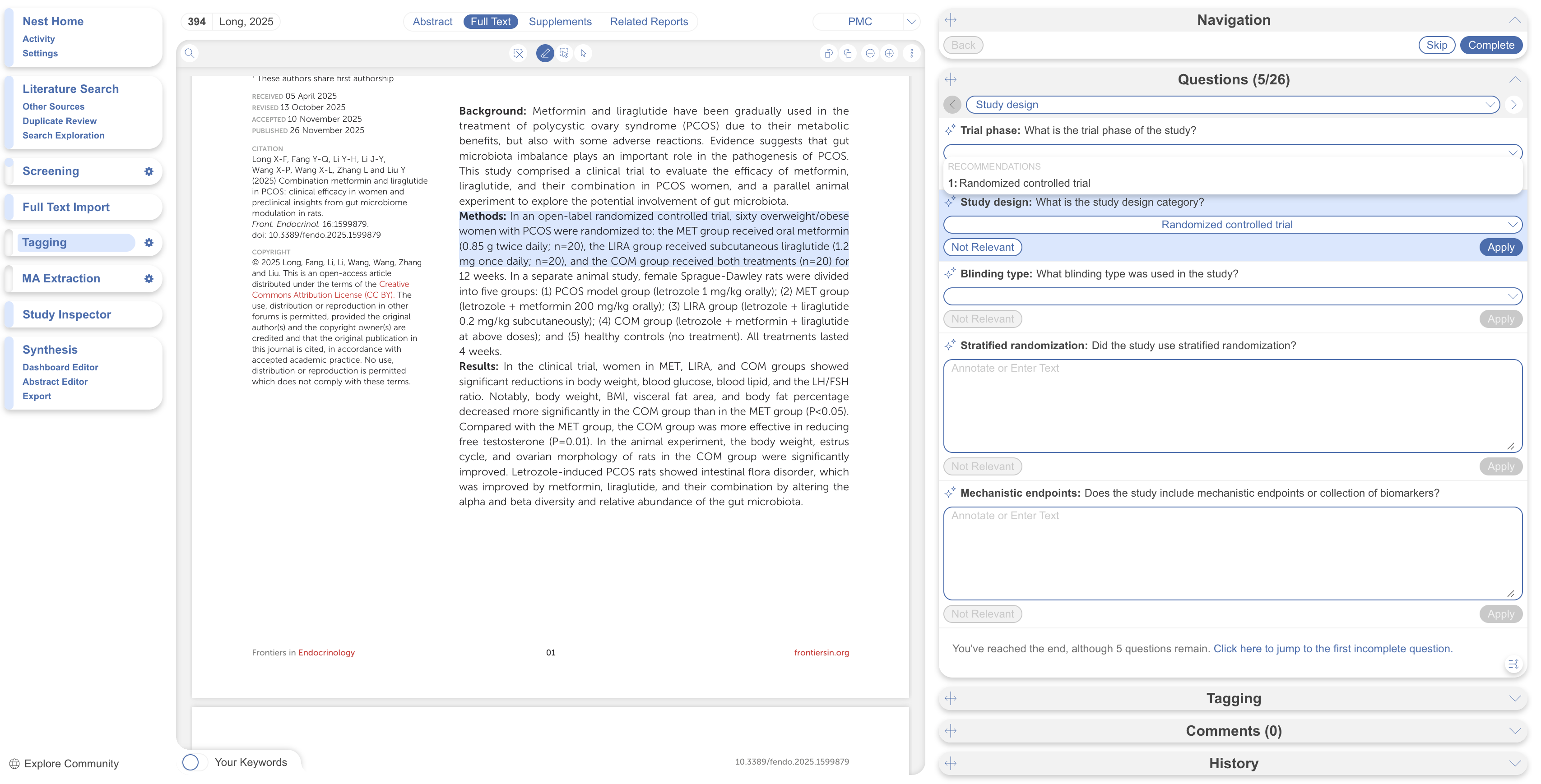
Form-Based Tagging shows your configured questions beside the full text, abstract, or supplements. Questions open automatically in the right panel; the question under review has a light-blue background. Select **Apply** to apply the tag. By default, answering a question auto-advances you to the next unanswered one — turn this off from the auto-progress icon in the bottom right of the tab if you'd rather move manually.

If a tag has text contents, annotate the source text or enter your own — see **Add an annotation**, below. Mark every question either answered or **Not Relevant**.

Questions are grouped by root tag by default; switch to a single combined form in [Nest Settings](/your-nests/nest-settings.md) if you prefer. Each group shows a completion indicator: no circle for incomplete, a hollow circle for partial, a full circle for complete.

<figure><img src="https://305208404-files.gitbook.io/~/files/v0/b/gitbook-x-prod.appspot.com/o/spaces%2Fxb7uNGATUgwQAjDVQRXG%2Fuploads%2FI553gW4c4WxcgOR31kkF%2FScreenshot%202026-08-20%20at%2010.16.06.png?alt=media&amp;token=5b6f30ca-b15e-4b58-bfcd-7cb5ecdba5ea" alt=""><figcaption></figcaption></figure>

How you answer depends on the question's type:

* **Single Select** — choose one child tag from the dropdown, then highlight or select an excerpt.
* **Multi-Select** — apply as many child tags as are applicable, then select **Next** once the question is complete.
* **Single Apply** — apply the tag under review directly, or mark it **Not Relevant**. No child tags are involved.

<figure><img src="https://305208404-files.gitbook.io/~/files/v0/b/gitbook-x-prod.appspot.com/o/spaces%2Fxb7uNGATUgwQAjDVQRXG%2Fuploads%2FW4EnoxYWozY8UPX8CjnB%2FScreenshot%202026-08-20%20at%2010.17.14.png?alt=media&amp;token=175e62ec-a630-4be6-ba5f-5d8daf02e14b" alt=""><figcaption></figcaption></figure>
{% endstep %}

{% step %}

#### Add An Annotation

Choose how to identify the supporting excerpt:

* **Highlighting** — a traceable, exact quote from the text. The default method; drag across the text you want to highlight, and it populates the tag text box automatically.
* **Selection** — a traceable, exact image extraction from a table, figure, or other visual area. Best for content that doesn't quote cleanly as text.
* **Manual entry** — type your own excerpt directly into the tag text box. This isn't traceable to a specific location in the source, so use it only when you genuinely need custom wording rather than a quotation.

To redo an annotation, either repeat the action or select **Clear Annotation** from the top of the full text, then choose your method again.

<details>

<summary>Why not leave the annotation blank?</summary>

You can apply a tag without filling in its text, but then the only evidence it's applicable is that it was applied — anyone viewing Qualitative Synthesis has no supporting context. Filled-in text gives both specific evidence for the tag and the underlying information itself.

Adding a PDF annotation also assists whoever is conducting quality assessment later on.

</details>

<figure><img src="https://305208404-files.gitbook.io/~/files/v0/b/gitbook-x-prod.appspot.com/o/spaces%2Fxb7uNGATUgwQAjDVQRXG%2Fuploads%2F2MBHQ3H4rQrtVdGCy9Da%2FScreenshot%202026-08-20%20at%2010.18.21.png?alt=media&amp;token=a990f877-9a4c-4ac2-a1ad-bcda2923c52b" alt=""><figcaption></figcaption></figure>
{% endstep %}

{% step %}

#### Apply The Tag

Confirm the tag selected in the dropdown and its text content are correct, then select **Apply Tag**.

<figure><img src="https://305208404-files.gitbook.io/~/files/v0/b/gitbook-x-prod.appspot.com/o/spaces%2Fxb7uNGATUgwQAjDVQRXG%2Fuploads%2F4KUCpBouTEMjO5LdRyPu%2FScreenshot%202026-08-20%20at%2010.20.00.png?alt=media&amp;token=400eae5d-1f1e-49e3-81b8-7d45945b7588" alt=""><figcaption></figcaption></figure>
{% endstep %}

{% step %}

#### Mark The Study Complete

Once you've finished extracting data for the study, select **Complete** to remove it from the queue and move to the next one. To edit it again later, use [Study Inspector](/review-workflow/study-inspector.md).
{% endstep %}
{% endstepper %}

### Tag Recommendations

AI-generated tag recommendations help you answer questions by searching a study's abstract and/or full text and highlighting supporting evidence. Two tools generate them:

* [Core Smart Tags](/review-workflow/tagging/ai-tools-in-tagging/core-smart-tags.md) — recommendations for PICO, Study Type, Study Location, and Study Size, from abstracts, based on your research question.
* [Adaptive Smart Tags](/review-workflow/tagging/ai-tools-in-tagging/adaptive-smart-tags.md) — recommendations for your custom tag questions, from abstracts and/or full texts.

Both generate on Configure Tagging, but you review the recommendations here on the Tagging page. A sparkle icon next to a tag name means a recommendation is available; select it to open a modal listing every recommendation. Selecting one auto-scrolls to and highlights the supporting evidence, and auto-populates the tag answer — select **Apply** to accept it as-is, or edit the text or highlighted evidence first. Every component stays editable at any stage, and the sparkle icon remains after a tag is applied so you can revisit it.

<figure><img src="https://305208404-files.gitbook.io/~/files/v0/b/gitbook-x-prod.appspot.com/o/spaces%2Fxb7uNGATUgwQAjDVQRXG%2Fuploads%2Fm7jWKnn1JqNUCWrNH9CI%2FScreenshot%202026-08-20%20at%2009.45.05.png?alt=media&amp;token=a9489f87-298b-43cc-8361-0eb63b888d9b" alt=""><figcaption></figcaption></figure>

### Standard Tags

In addition to answering questions in a form, you can add one-off tags from a dropdown. In the **Tagging** tab on the right-hand side, view all applied tags for the study and select others to apply from the dropdown. This is the basis of **Standard Tagging** mode — see [Configure Tagging](/review-workflow/tagging/configure-tagging.md#standard-tagging) — but it's also available here in Form-Based Tagging mode.

{% hint style="info" %}
AI tag recommendations don't appear in this tab. Open the Abstract or Full Text Tag Recs tab to view recommendations alongside configured questions.
{% endhint %}

<figure><img src="https://305208404-files.gitbook.io/~/files/v0/b/gitbook-x-prod.appspot.com/o/spaces%2Fxb7uNGATUgwQAjDVQRXG%2Fuploads%2FvqAPt4gJwy4U0Z6UqL5a%2FScreenshot%202026-08-20%20at%2010.21.49.png?alt=media&amp;token=06520956-87f9-4fb2-b6bc-0200a4d5005c" alt=""><figcaption></figcaption></figure>

### Add New Tags On The Fly

If a Single Select or Multi-Select question's answer isn't one of your pre-configured tags, add it without leaving the page: type the new tag's name into **Select Tag** and select **Add Option** at the top of the dropdown. In the modal that opens, confirm the name and optionally add a description — the parent tag is already assigned. The new tag then appears in the dropdown going forward. You can also add any new tag in **Standard Tagging** by typing in the dropdown box.

{% hint style="info" %}
Only tags with text contents can be created on the fly. To use table contents, edit the tag in [Configure Tagging](/review-workflow/tagging/configure-tagging.md) first.
{% endhint %}

<details>

<summary>Form-based Tagging</summary>

<figure><img src="https://305208404-files.gitbook.io/~/files/v0/b/gitbook-x-prod.appspot.com/o/spaces%2Fxb7uNGATUgwQAjDVQRXG%2Fuploads%2FxUMRcbzghFVB5pV8xs8j%2FScreenshot%202026-08-20%20at%2010.24.29.png?alt=media&amp;token=f3315c5f-fae6-4e59-bb46-c05f822a775d" alt=""><figcaption></figcaption></figure>

</details>

<details>

<summary>Standard Tagging</summary>

<figure><img src="https://305208404-files.gitbook.io/~/files/v0/b/gitbook-x-prod.appspot.com/o/spaces%2Fxb7uNGATUgwQAjDVQRXG%2Fuploads%2Fkthwo1D5fkIkKC9pCYAM%2FScreenshot%202026-08-20%20at%2010.23.14.png?alt=media&amp;token=cb396d02-29fe-400c-8e66-ee83f2dfbe10" alt=""><figcaption></figcaption></figure>

<figure><img src="https://305208404-files.gitbook.io/~/files/v0/b/gitbook-x-prod.appspot.com/o/spaces%2Fxb7uNGATUgwQAjDVQRXG%2Fuploads%2FFYuNf8eGH1VZvPsSSIOk%2FScreenshot%202026-08-20%20at%2010.24.38.png?alt=media&amp;token=11959c7c-84c9-4d08-b50b-2bf6d0fab417" alt=""><figcaption></figcaption></figure>

</details>

### Tags With Non-Text Contents

**Table** and **Index Table** tags display exactly as configured — see [Match Tags to your Exports](/review-workflow/tagging/match-tags-to-your-exports.md) for worked examples of both. Highlighting a PDF doesn't auto-populate a table cell the way it does a text tag, but if applied, it remembers the highlighted or selected region and scrolls back to it when you reselect the tag. To change a table's columns, select the column header directly in Tagging, or return to [Configure Tagging](/review-workflow/tagging/configure-tagging.md#table).

{% hint style="info" %}
Entering numerical data into a table doesn't generate automated statistics — that's only done in [Meta-Analytical Extraction](/review-workflow/meta-analytical-extraction.md).
{% endhint %}

<figure><img src="https://305208404-files.gitbook.io/~/files/v0/b/gitbook-x-prod.appspot.com/o/spaces%2Fxb7uNGATUgwQAjDVQRXG%2Fuploads%2FmdGkxmYYspxzUdaFRTSc%2FScreenshot%202026-08-20%20at%2010.27.34.png?alt=media&amp;token=2c1fb2b0-4288-4052-bdce-461f92ea4273" alt=""><figcaption></figcaption></figure>

**Text Options** tags show only the configured options, with no accompanying text box. **Numeric** tags accept digits only, and show an error on text input.

<figure><img src="https://305208404-files.gitbook.io/~/files/v0/b/gitbook-x-prod.appspot.com/o/spaces%2Fxb7uNGATUgwQAjDVQRXG%2Fuploads%2FlhR4fH4IvmXY5Oiiz35S%2FScreenshot%202026-08-20%20at%2010.27.16.png?alt=media&amp;token=860289e4-6dba-464c-8e13-bfa46df4eac8" alt=""><figcaption></figcaption></figure>

{% hint style="info" %}
**Add a screenshot here:** a Table, Text Options, and Numeric tag each as they appear during Tagging.
{% endhint %}

### Related Report Tags

Applying a tag to a record with an associated related report also displays that tag on the related report, marked with an RR icon to show its origin. See [Related Reports](/review-workflow/screening/screen-records.md#related-reports) for how related reports are grouped.

### Extracting Data From Images

Create tags and specify in the question description for the AI to look at a specific figure or image. Use **High Fidelity mode** when generating **Adaptive Smart Tags** to enable figure extraction.

### FAQs

<details>

<summary>Why not leave the annotation blank?</summary>

You can apply a tag without filling in its text, but then the only evidence it's applicable is that it was applied — anyone viewing Qualitative Synthesis has no supporting context. Filled-in text gives both specific evidence for the tag and the underlying information itself.

</details>

<details>

<summary>Why is my study is missing a full text?</summary>

Navigate to [Full Text Import](/review-workflow/screening/full-text-import.md) page and follow the steps to bulk upload all available texts.

Note: Sometimes open access PDF retrieval is unsuccessful. This can happen when a journal CAPTCHA blocks unpaywall.org from retrieving a PDF.

You can upload individual PDFs from the record's **Full Text** tab.

<figure><img src="https://305208404-files.gitbook.io/~/files/v0/b/gitbook-x-prod.appspot.com/o/spaces%2Fxb7uNGATUgwQAjDVQRXG%2Fuploads%2FJALBUcKze26gNAtOzFQw%2Ffailed%20full%20text%20import.png?alt=media&amp;token=1883c153-0d67-4d4c-9506-3b9ff147f71f" alt="Full Text tab showing the option to upload a PDF"><figcaption></figcaption></figure>

</details>

<details>

<summary>Can I apply a tag without full-text access to a study?</summary>

Yes — you can annotate from the Abstract or Supplements tabs if a full text isn't available, though extracting from the full text is best practice when you have it.

</details>

<details>

<summary>What happens if I apply the same tag to a study twice?</summary>

The tag will simply be duplicated if applied twice. There is no mechanism preventing this.

</details>

<details>

<summary>Do AI tag recommendations show up in the Standard Tags dropdown?</summary>

No — recommendations only appear in the **Questions** tab. The **Tagging** tab used for Standard Tags shows applied tags only.

</details>

<details>

<summary>Can I change a table's columns after I've already started tagging?</summary>

Yes — select the column header directly in Tagging, or return to Configure Tagging. Existing table entries stay; only the column structure changes going forward.

</details>

### Next Steps

<table data-card-size="large" data-view="cards"><thead><tr><th></th><th></th><th data-hidden data-card-target data-type="content-ref"></th></tr></thead><tbody><tr><td><i class="fa-magnifying-glass">:magnifying-glass:</i><br><strong>Study Inspector</strong></td><td>Quality-check extracted data across your nest.</td><td><a href="/review-workflow/study-inspector.md">Study Inspector</a></td></tr><tr><td><i class="fa-hand-pointer">:hand-pointer:</i><br><strong>Qualitative Synthesis</strong></td><td>View and share auto-generated synthesis of tagged data.</td><td><a href="/review-workflow/synthesis/navigate-synthesis-outputs/qualitative-synthesis.md">Qualitative Synthesis</a></td></tr><tr><td><i class="fa-chart-pie">:chart-pie:</i><br><strong>Dashboard</strong></td><td>Build updatable custom tables from your tagged data.</td><td><a href="/review-workflow/synthesis/set-up-synthesis-outputs/dashboard-editor.md">Dashboard Editor</a></td></tr><tr><td><i class="fa-file-arrow-down">:file-arrow-down:</i><br><strong>Download from Inspector</strong></td><td>Export all tagged data from Tagging as a spreadsheet.</td><td><a href="/review-workflow/study-inspector/download-from-inspector.md">Download from Inspector</a></td></tr><tr><td><i class="fa-clipboard-check">:clipboard-check:</i><br><strong>Critical Appraisal</strong></td><td>Assess methodological quality of included studies.</td><td><a href="/review-workflow/critical-appraisal.md">Critical Appraisal</a></td></tr><tr><td><i class="fa-calculator">:calculator:</i><br><strong>Meta-Analytical Extraction</strong></td><td>Optional: pool quantitative data for Quantitative Synthesis.</td><td><a href="/review-workflow/meta-analytical-extraction.md">Meta-Analytical Extraction</a></td></tr><tr><td><i class="fa-file-pdf">:file-pdf:</i><br><strong>Export PDFs</strong></td><td>Download annotated full texts individually or in bulk.</td><td><a href="/review-workflow/study-inspector/download-from-inspector.md">Download from Inspector</a></td></tr></tbody></table>


---

# Agent Instructions
This documentation is published with GitBook. GitBook is the documentation platform designed so that both humans and AI agents can read, navigate, and reason over technical content effectively. Learn more at gitbook.com.

## Querying This Documentation
If you need additional information that is not directly available in this page, you can query the documentation by asking a question.

Perform an HTTP GET request on the following URL with the `ask` and `goal` query parameters:

```
GET https://docs.nested-knowledge.com/review-workflow/tagging/apply-tags.md?ask=<question>&goal=<user_goal>
```

`ask` is the immediate question: it should be specific, self-contained, and written in natural language.
`goal` is what the user is ultimately trying to achieve, the reason they need the answer. Sharing it helps GitBook give you a better, more relevant answer. A goal is most helpful when it describes the outcome the user wants rather than restating the question. For example, with `ask=how do I create an API token`, a goal like `automate deployments from our CI pipeline` lets GitBook tailor the answer to that use case.

The response will contain a direct answer to the question and relevant excerpts and sources from the documentation.

Use this mechanism when the answer is not explicitly present in the current page, you need clarification or additional context, or you want to retrieve related documentation sections.
