> For the complete documentation index, see [llms.txt](https://docs.nested-knowledge.com/llms.txt). Markdown versions of documentation pages are available by appending `.md` to page URLs; this page is available as [Markdown](https://docs.nested-knowledge.com/review-workflow/synthesis/navigate-synthesis-outputs/filters-on-synthesis.md).

# Filters on Synthesis

Learn how to use filters on Synthesis pages.

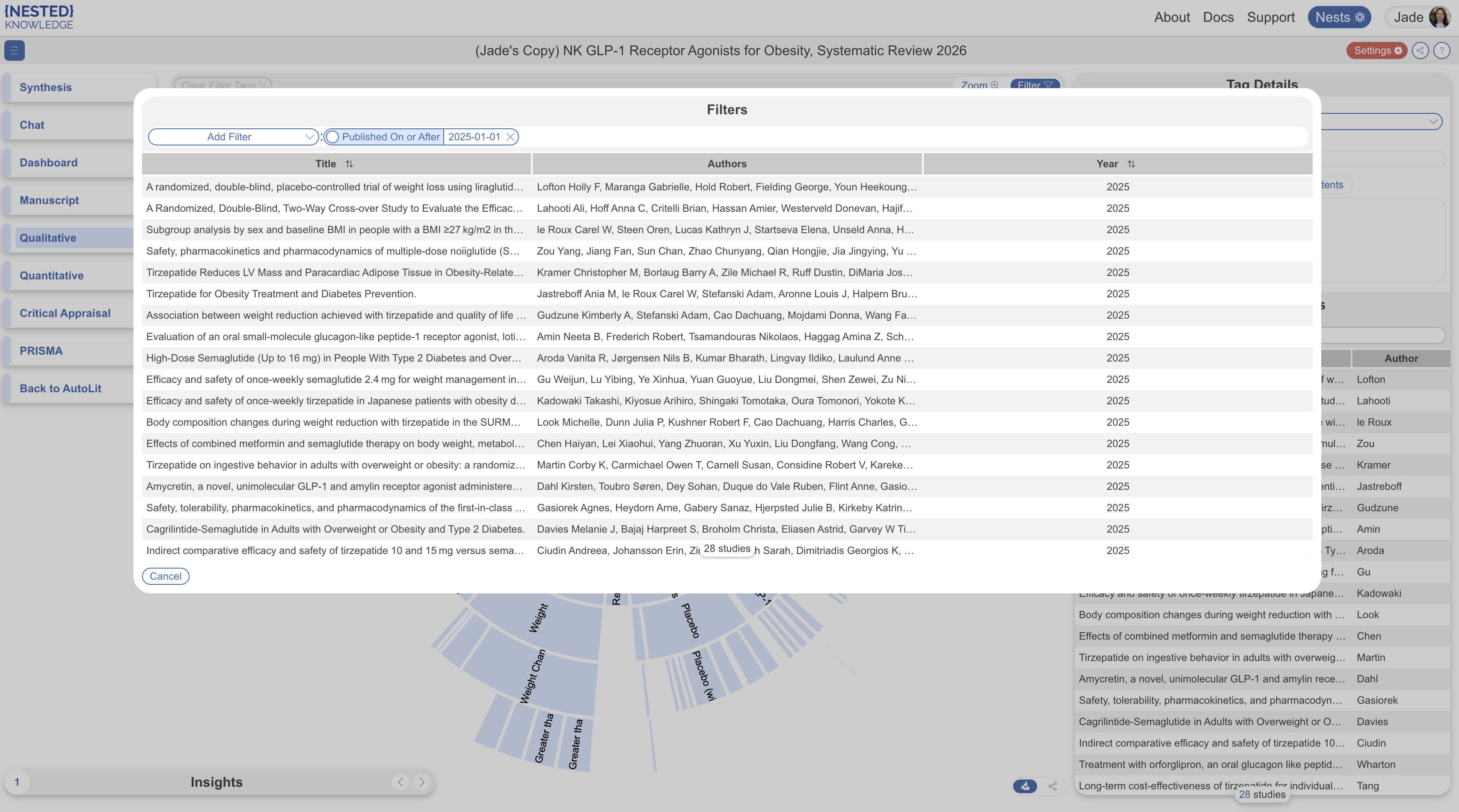
Filters let you narrow most Synthesis pages down to a specific subset of studies at once. Set a filter once, and it applies across Qualitative Synthesis, Quantitative Synthesis, Critical Appraisal, and PRISMA together, so you don't have to repeat it on every page.

<figure><img src="https://305208404-files.gitbook.io/~/files/v0/b/gitbook-x-prod.appspot.com/o/spaces%2Fxb7uNGATUgwQAjDVQRXG%2Fuploads%2Fa6Xz3OUxsbHoiaa0eFTu%2Fsynthesis%20filters.png?alt=media&amp;token=02608014-672b-40fc-b5b0-50ea4eeaaf4e" alt="Synthesis page showing the Settings button used to apply filters."><figcaption><p>Select <strong>Settings</strong> to filter Synthesis outputs.</p></figcaption></figure>

### Applying A Filter

On any applicable Synthesis page, select **Settings** in the top right. Add one or more filters, and the page updates to show only matching studies. This view is for filtering only — you can't click into individual studies from the filter panel itself.

Available filters:

* **Tag** — show only studies with a specific topic or characteristic applied
* **Critical Appraisal (Risk)** — High, Some Concerns, Low, or No Information
* **Publication Date** — on/before or on/after a given date
* **Time of Retrieval** — on/before or on/after a given date the study was added to the review

### How Filters Carry Across Pages

Once applied on one Synthesis page, a filter carries to every other applicable page until removed or changed.

### Where Filters Don't Apply

Filters cannot be applied to **Dashboard** or **Manuscript**. Both are already built by the reviewer to show exactly the studies and data they intended, so a second filtering layer isn't offered on top. If a filter is active elsewhere and you navigate to Dashboard or Manuscript, the Settings button appears in red as a reminder that it isn't affecting what you're currently viewing.

### FAQs

<details>

<summary>Will a filter I set persist if I close the page and come back later?</summary>

Synthesis filters persist for the specific user navigating the pages in one session. They reset when you refresh the page.

</details>

<details>

<summary>Do I need an account to apply my own filter?</summary>

No — filtering doesn't require an account or AutoLit access, only access to the Synthesis link itself.

</details>

### Next Steps

<table data-card-size="large" data-view="cards"><thead><tr><th></th><th></th><th data-hidden data-card-target data-type="content-ref"></th></tr></thead><tbody><tr><td><i class="fa-chart-pie">:chart-pie:</i><br><strong>Qualitative Synthesis</strong></td><td>Explore filtered findings by topic.</td><td><a href="/review-workflow/synthesis/navigate-synthesis-outputs/qualitative-synthesis.md">Qualitative Synthesis</a></td></tr><tr><td><i class="fa-chart-line">:chart-line:</i><br><strong>Quantitative Synthesis</strong></td><td>Explore filtered numeric findings.</td><td><a href="/review-workflow/synthesis/navigate-synthesis-outputs/quantitative-synthesis.md">Quantitative Synthesis</a></td></tr><tr><td><i class="fa-table-columns">:table-columns:</i><br><strong>Dashboard in Synthesis</strong></td><td>View a page these filters do not affect.</td><td><a href="/review-workflow/synthesis/navigate-synthesis-outputs/dashboard-in-synthesis.md">Dashboard in Synthesis</a></td></tr><tr><td><i class="fa-file-lines">:file-lines:</i><br><strong>Manuscript in Synthesis</strong></td><td>View a page these filters do not affect.</td><td><a href="/review-workflow/synthesis/navigate-synthesis-outputs/manuscript-in-synthesis.md">Manuscript in Synthesis</a></td></tr></tbody></table>


---

# Agent Instructions
This documentation is published with GitBook. GitBook is the documentation platform designed so that both humans and AI agents can read, navigate, and reason over technical content effectively. Learn more at gitbook.com.

## Querying This Documentation
If you need additional information that is not directly available in this page, you can query the documentation by asking a question.

Perform an HTTP GET request on the following URL with the `ask` and `goal` query parameters:

```
GET https://docs.nested-knowledge.com/review-workflow/synthesis/navigate-synthesis-outputs/filters-on-synthesis.md?ask=<question>&goal=<user_goal>
```

`ask` is the immediate question: it should be specific, self-contained, and written in natural language.
`goal` is what the user is ultimately trying to achieve, the reason they need the answer. Sharing it helps GitBook give you a better, more relevant answer. A goal is most helpful when it describes the outcome the user wants rather than restating the question. For example, with `ask=how do I create an API token`, a goal like `automate deployments from our CI pipeline` lets GitBook tailor the answer to that use case.

The response will contain a direct answer to the question and relevant excerpts and sources from the documentation.

Use this mechanism when the answer is not explicitly present in the current page, you need clarification or additional context, or you want to retrieve related documentation sections.
