> For the complete documentation index, see [llms.txt](https://docs.nested-knowledge.com/llms.txt). Markdown versions of documentation pages are available by appending `.md` to page URLs; this page is available as [Markdown](https://docs.nested-knowledge.com/review-workflow/tagging/ai-tools-in-tagging/adaptive-smart-tags.md).

# Adaptive Smart Tags

Learn how to set up, generate, and review Adaptive Smart Tags.

**Adaptive Smart Tags (ASTs)** recommend or extract custom, user-defined data from study abstracts, full texts, and supplements using a large language model. Where **Core Smart Tags** cover a fixed PICO, Study Type, Study Location, and Study Size set, ASTs extract against whatever questions you've configured — hand-built, imported, or drafted with **Smart Config: Tagging** — which makes them the extraction step for any hierarchy that isn't Core Smart Tags' own.

ASTs give you two ways to work:

* **Recommend** — generate suggestions for a reviewer to confirm or reject, with in-text annotations pointing to the source evidence.
* **Apply** — extract and apply data automatically, for immediate outputs and export, with no review step required. Best for [rapid reviews.](/get-started/ai-documentation/conduct-a-rapid-review.md)

Use **High Fidelity** mode for extraction from tables, figures, and images in full texts, in addition to text — available for full-text generation only. See the [Nested Knowledge AI Disclosure](/policies/policies/artificial-intelligence-policies/disclosure-of-ai-systems-in-nested-knowledge.md) for a full account of what data ASTs use and how.

### Set Up Adaptive Smart Tags

{% stepper %}
{% step %}

#### Set Up Your Tag Hierarchy

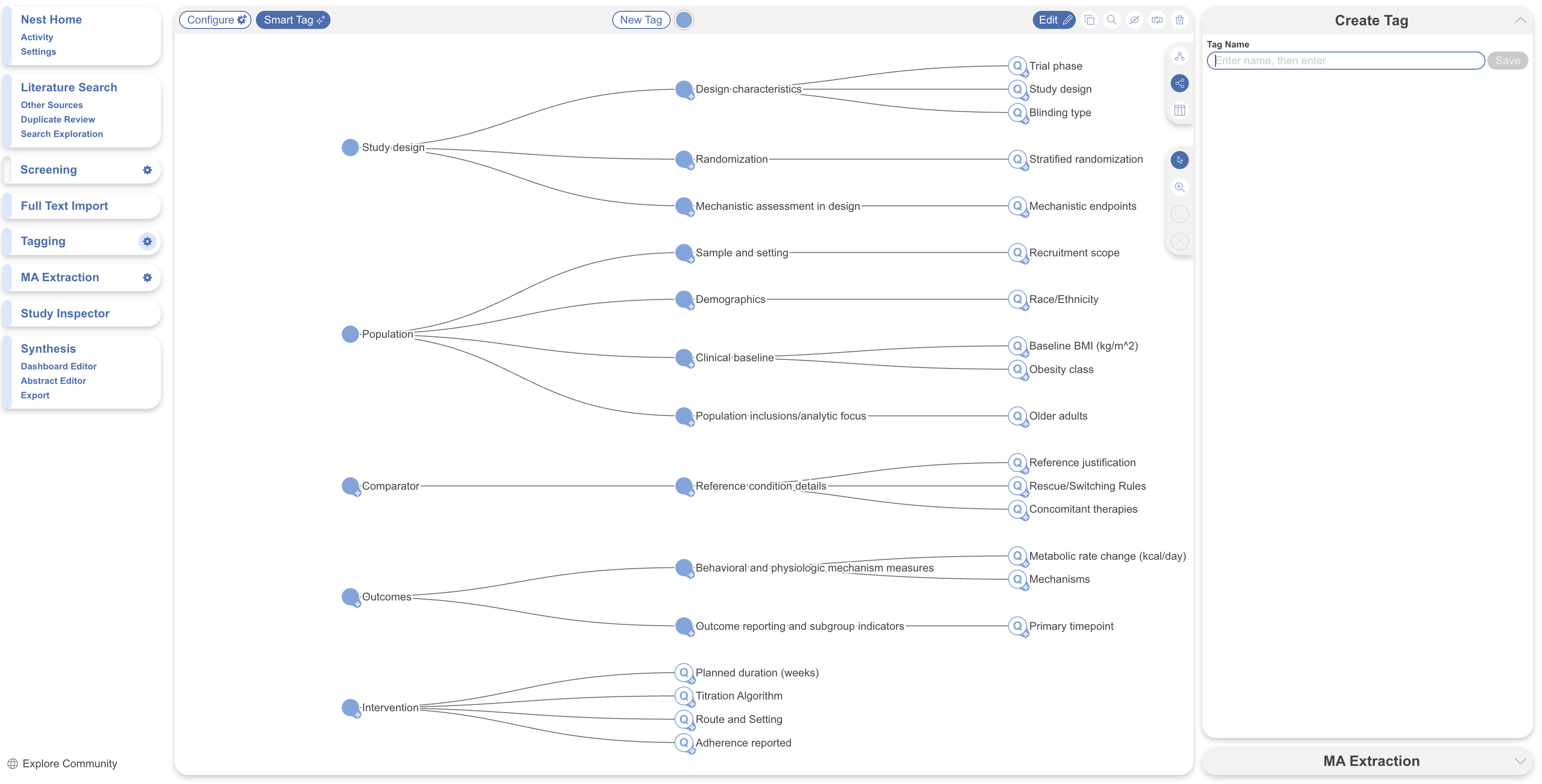
ASTs extract against the tag questions you've configured, so create the questions relevant to your review before generating — in [Configure Tagging](/review-workflow/tagging/configure-tagging.md), or by running **Smart Config: Tagging** first. We recommend **Form-Based Tagging** mode for best results, and a comprehensive set of questions configured before you generate, since each question against each study counts toward your generation limit.

See [Prompt Guidance](/ai-transparency/ai-in-nested-knowledge/prompt-guidance.md) for how to word questions ASTs can answer well.

<figure><img src="https://305208404-files.gitbook.io/~/files/v0/b/gitbook-x-prod.appspot.com/o/spaces%2Fxb7uNGATUgwQAjDVQRXG%2Fuploads%2FCqPGd7KqgaF7Psdb6agI%2FScreenshot%202026-08-20%20at%2009.37.45.png?alt=media&amp;token=f4d6a9da-031f-4863-8f3f-e2c1ce069d7b" alt="The Configure Tagging page shows a tag hierarchy with questions for data extraction."><figcaption><p>Configure tag questions before generating Adaptive Smart Tags.</p></figcaption></figure>
{% endstep %}

{% step %}

#### Make Sure Your Studies Are Ready

ASTs can generate against abstracts or full texts and supplements — check the requirements for whichever you're using.

For abstracts: confirm every study has an abstract by checking bibliographic data on each study, or applying the **Sync Bibliographic Data** bulk action to fill in gaps at once — see [Bulk Actions](/review-workflow/study-inspector/bulk-actions.md).

For full texts: confirm the studies you need have a full text uploaded — see [Full Text Import](/review-workflow/screening/full-text-import.md) — and are marked included if you're limiting generation to included studies. Supplements are uploaded manually in the Supplements tab.
{% endstep %}

{% step %}

#### Generate

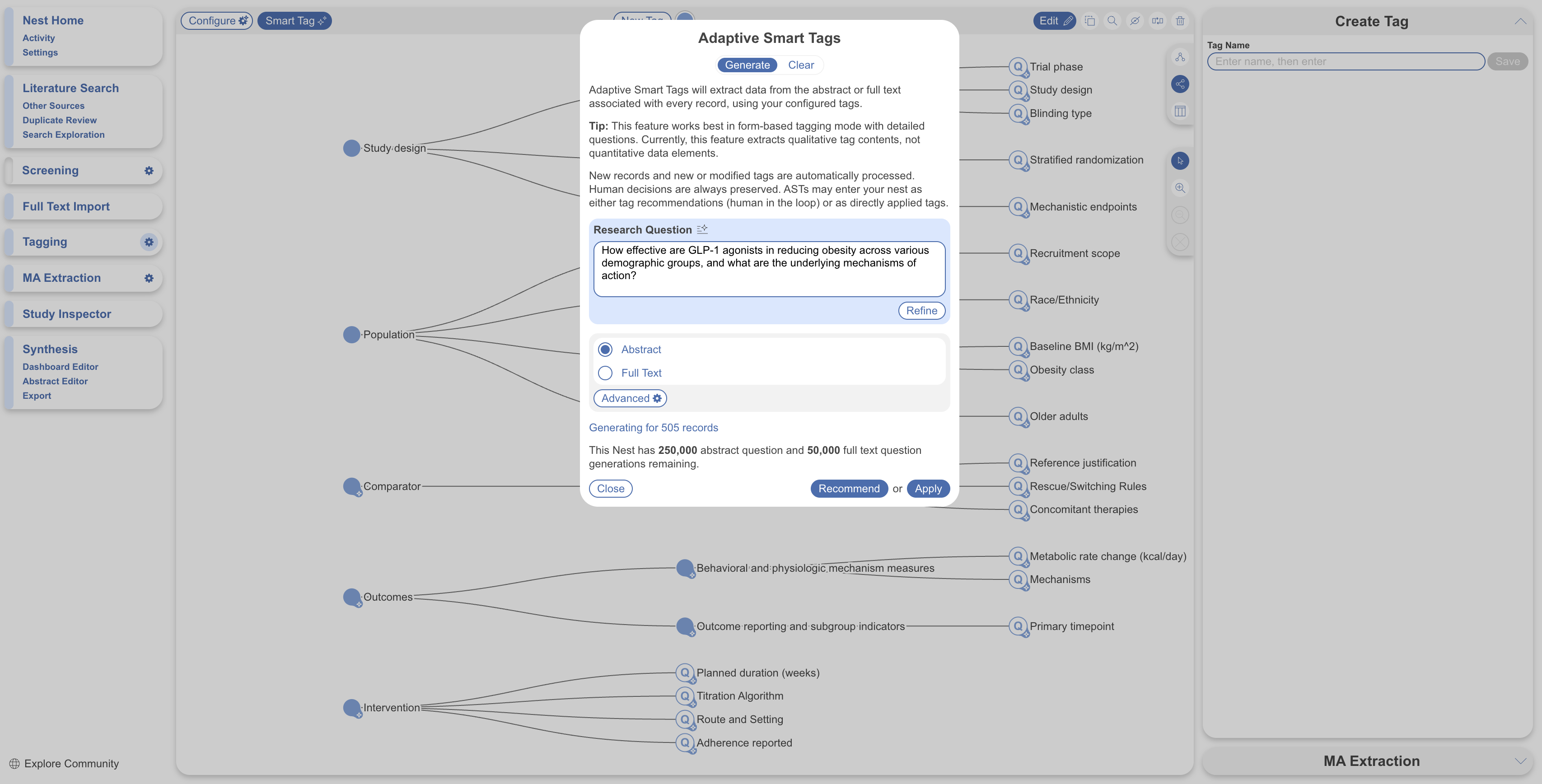
On Configure Tagging <i class="fa-gear">:gear:</i>, select **Adaptive**. Confirm or refine the research question — pre-filled if you've used **Smart Search**, **Smart Screener**, or **Core Smart Tags** already — then choose Abstracts or Full Texts.

<figure><img src="https://305208404-files.gitbook.io/~/files/v0/b/gitbook-x-prod.appspot.com/o/spaces%2Fxb7uNGATUgwQAjDVQRXG%2Fuploads%2FCgmmCsVRy6clPV7be3M6%2FScreenshot%202026-08-20%20at%2009.38.34.png?alt=media&amp;token=3019b0d8-95e3-444c-ad33-2b4991771ba2" alt="The Adaptive Smart Tags generation dialog shows the research question and options for abstracts or full texts."><figcaption><p>Choose the source material for Adaptive Smart Tags generation.</p></figcaption></figure>

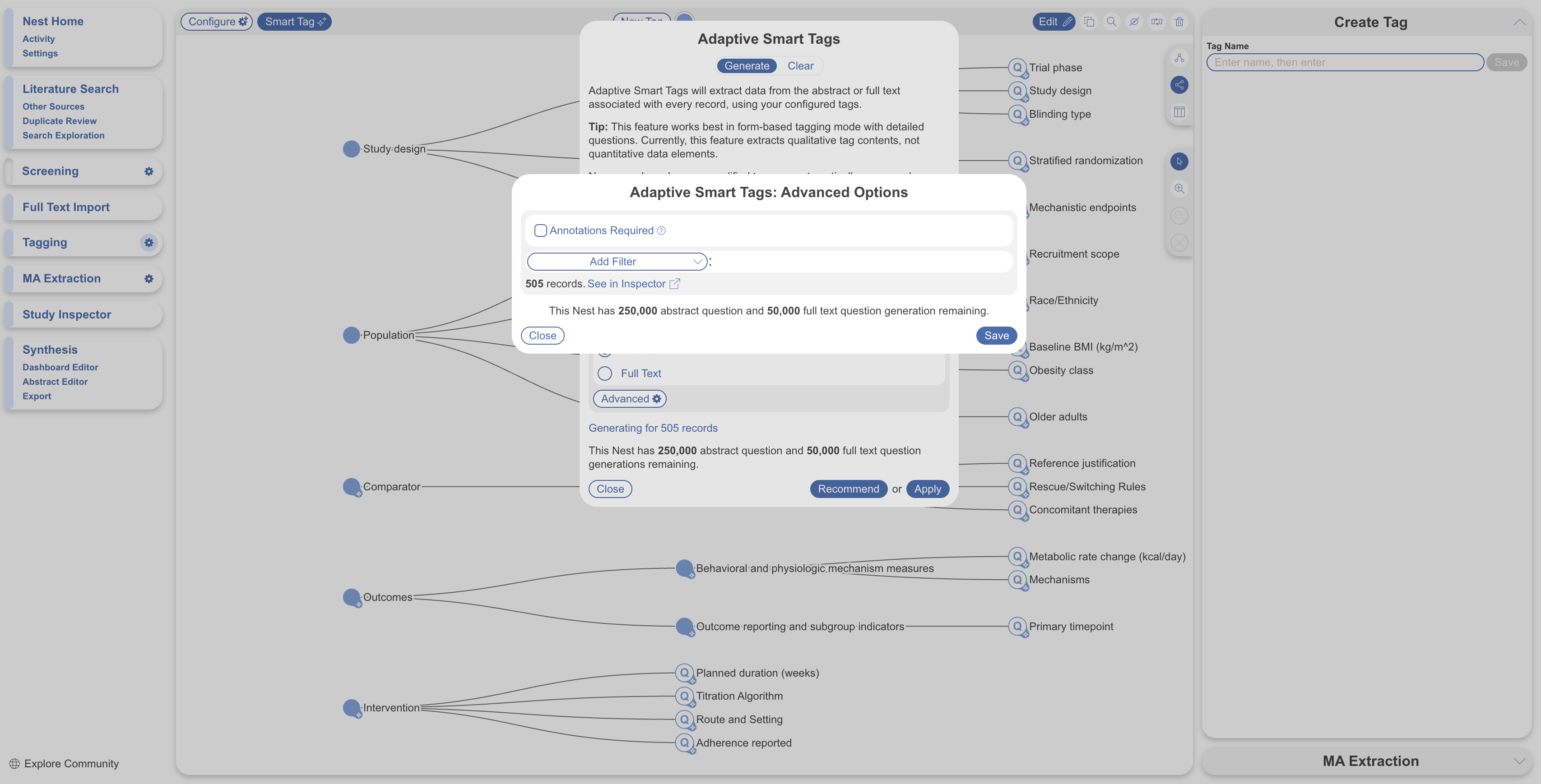
Select **Advanced** for further options:

* Filters to limit which records ASTs generate for, such as final screening status.
* **Annotations**, which attach an in-text source reference to each recommendation. Leave this off for more summary-like responses where a single direct annotation matters less.
* **High Fidelity Mode**, which reads tables, figures, and images in addition to text. Full texts only, and slower to process.

<figure><img src="https://305208404-files.gitbook.io/~/files/v0/b/gitbook-x-prod.appspot.com/o/spaces%2Fxb7uNGATUgwQAjDVQRXG%2Fuploads%2FjyMgjvd0musdFN0pFnQB%2FScreenshot%202026-08-20%20at%2009.39.22.png?alt=media&amp;token=28675eea-b9a0-4ff6-84c7-400cdadb57d0" alt="Advanced Adaptive Smart Tags settings show filters, annotations, and High Fidelity Mode."><figcaption><p>Use Advanced settings to filter records and control generation options.</p></figcaption></figure>

Select **See in Inspector** to preview filtered records before applying.

The modal shows how many records ASTs will generate for. Generation limits are counted in questions, not studies — 250,000 abstract questions and 50,000 full-text questions per nest.

Choose **Recommend** or **Apply** (best for rapid reviews), then select **Generate**. This typically takes one to five minutes per study, longer with High Fidelity Mode on.
{% endstep %}

{% step %}

#### Review Recommendations

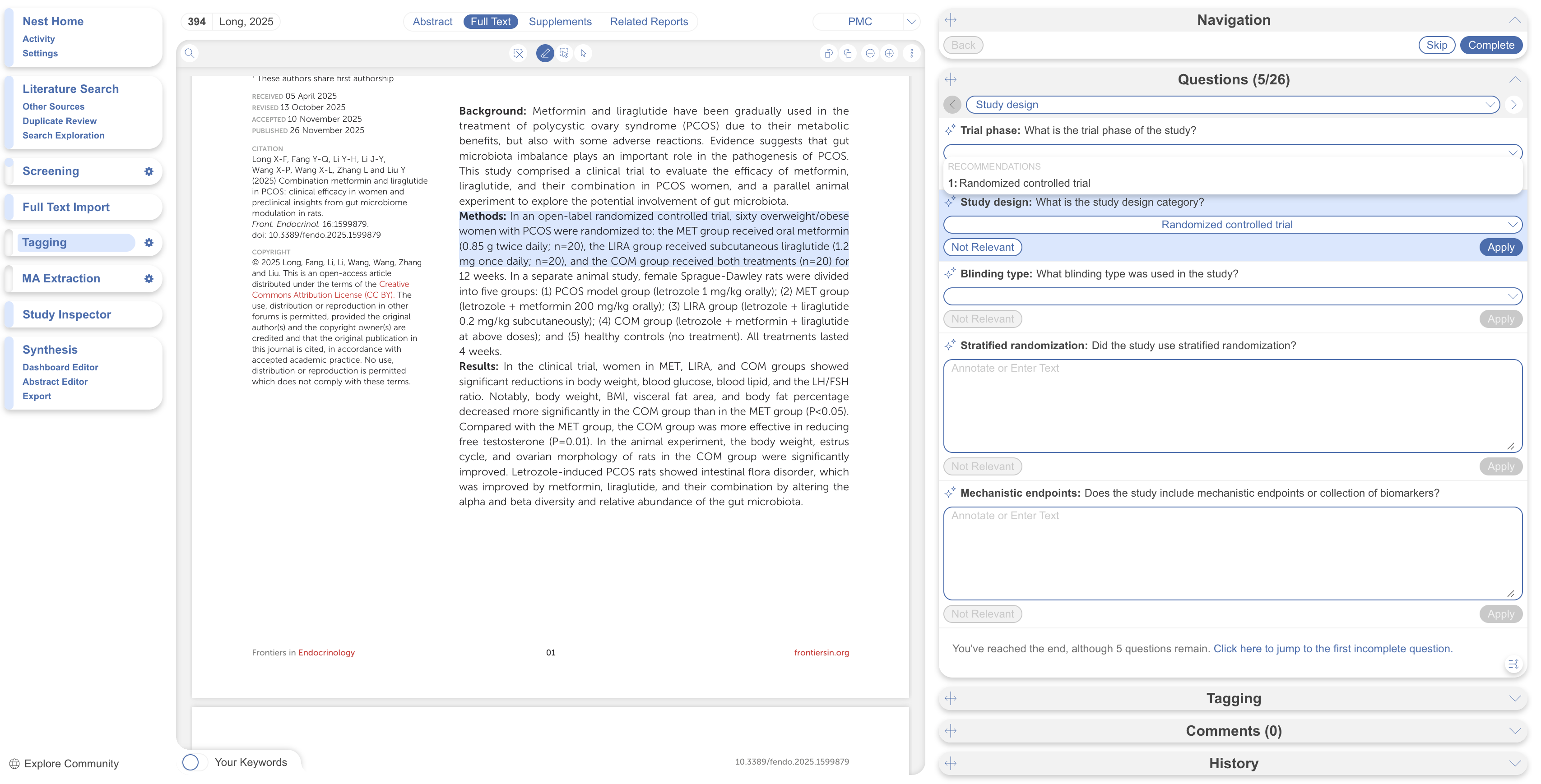
If you chose **Recommend**, review the suggestions in **Tagging**. Recommendations can be viewed for each question by selecting the sparkle icon. Select a recommendation to jump to the supporting evidence in the PDF, then edit, clear, or apply it.

Recommendations are not applied until you, the reviewer, actions it. Nor are records removed from the queue until marked Complete.

<figure><img src="https://305208404-files.gitbook.io/~/files/v0/b/gitbook-x-prod.appspot.com/o/spaces%2Fxb7uNGATUgwQAjDVQRXG%2Fuploads%2Fm7jWKnn1JqNUCWrNH9CI%2FScreenshot%202026-08-20%20at%2009.45.05.png?alt=media&amp;token=a9489f87-298b-43cc-8361-0eb63b888d9b" alt="A tagging recommendation shows extracted content and an annotation in the study PDF."><figcaption><p>Review each recommendation against its supporting evidence.</p></figcaption></figure>
{% endstep %}

{% step %}

#### Review Auto-Extracted Data

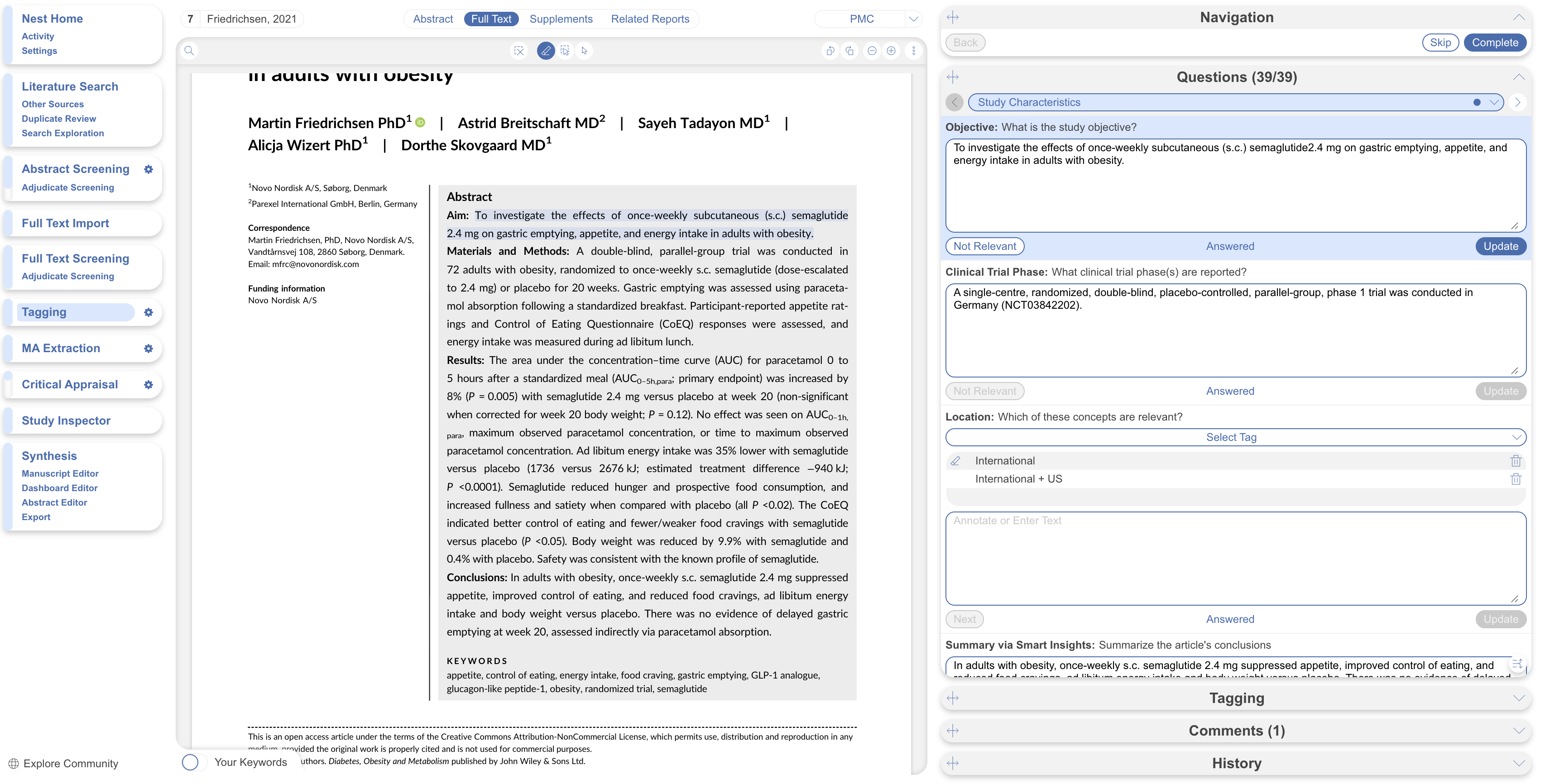
If you chose **Apply,** you can also review extracted data in **Tagging.** Extracted data is already applied. Select each question to jump to the supporting evidence in the PDF, then edit and update or clear.

This review format allows you to review data after extraciton, rather than reviewing every suggestion.

<figure><img src="https://305208404-files.gitbook.io/~/files/v0/b/gitbook-x-prod.appspot.com/o/spaces%2Fxb7uNGATUgwQAjDVQRXG%2Fuploads%2F6KbyNq1SUyOAJF0yqChL%2FScreenshot%202026-08-20%20at%2009.47.08.png?alt=media&amp;token=b8c3aabc-937e-4a67-9844-ba848f40a8ed" alt="Applied Adaptive Smart Tags data appears in the Tagging workspace with supporting PDF evidence."><figcaption><p>Review and edit data applied automatically by Adaptive Smart Tags.</p></figcaption></figure>

You can also view the results in:

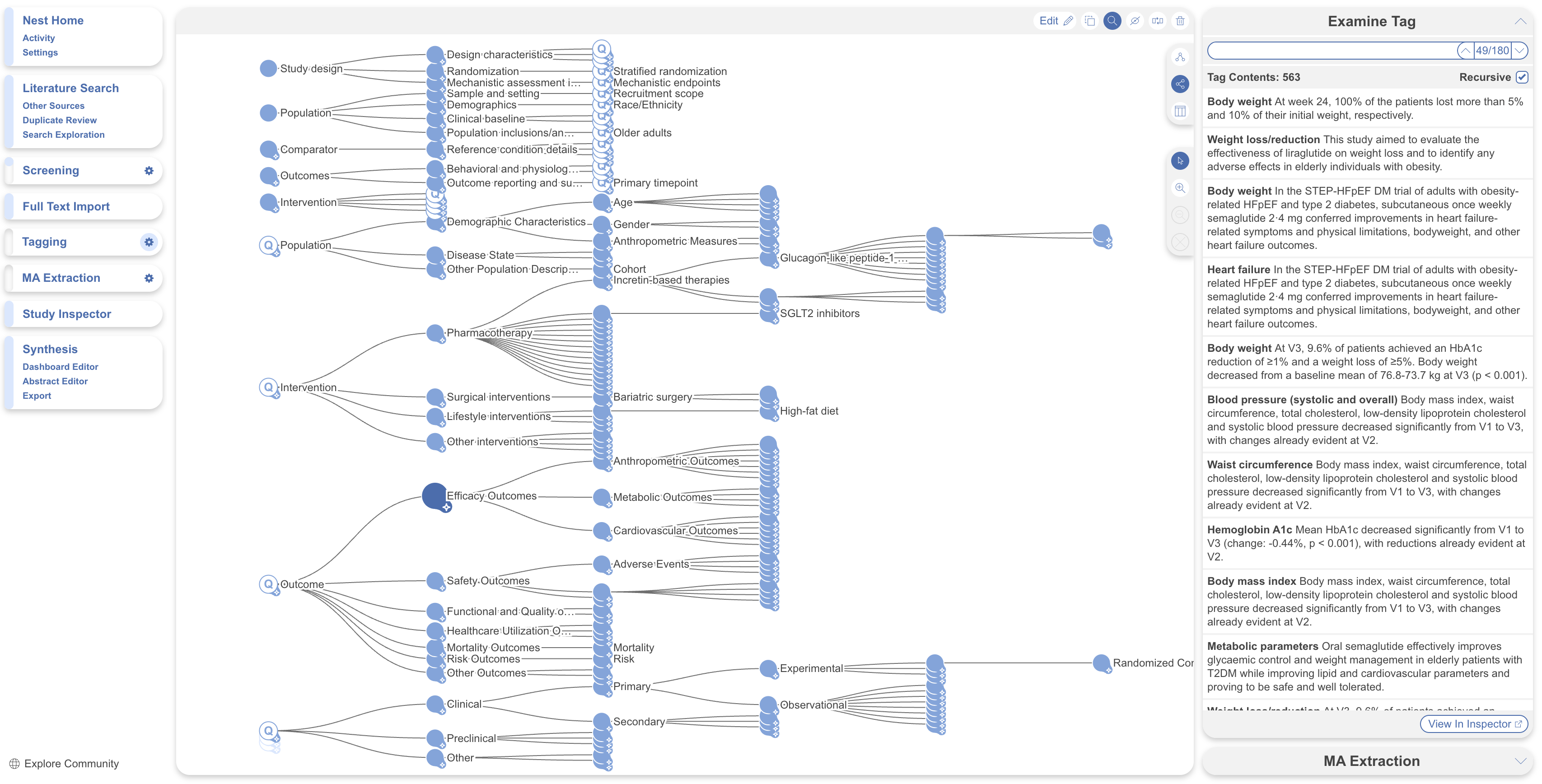
* [Examine tool](/review-workflow/tagging/configure-tagging.md#examine-applied-tags-at-a-glance) on Configure Tagging page for a snapshot of extracted content per tag with a shortcut into [Study Inspector](/review-workflow/study-inspector.md)
* [Qualitative Synthesis](/review-workflow/synthesis/navigate-synthesis-outputs/qualitative-synthesis.md) for an immediate view of the extracted data
* [Study Inspector](/review-workflow/study-inspector.md) or [Dashboard](/review-workflow/synthesis/set-up-synthesis-outputs/dashboard-editor.md), for downloadable spreadsheets and updatable tables

<figure><img src="https://305208404-files.gitbook.io/~/files/v0/b/gitbook-x-prod.appspot.com/o/spaces%2Fxb7uNGATUgwQAjDVQRXG%2Fuploads%2Fr60g3oGsgRyt4pu8qIJq%2FScreenshot%202026-08-20%20at%2009.43.03.png?alt=media&amp;token=5213a438-ba82-4de8-84d7-ec83bcc93462" alt="The Examine tool summarizes applied tag values and links to the relevant studies."><figcaption><p>Use the Examine tool to review extracted content across tags.</p></figcaption></figure>
{% endstep %}
{% endstepper %}

### Re-Running Adaptive Smart Tags

If you add tags to the hierarchy, edit an existing tag's question, or upload more studies after a previous AST run, you can re-run generation the same way — back on Configure Tagging, select **Smart Tags**, choose your settings, and generate again. Re-running is targeted, not a full reset:

* **New, previously unextracted studies** get every applicable tag generated fresh, the same as a first run.
* **Existing, already-extracted studies** are only re-generated for a tag whose question or configuration has changed significantly since the last run.
* An unchanged tag on a study that's already been extracted is left alone — re-running never silently overwrites settled data.

This is different from **Core Smart Tags** and **Smart Config**, both of which recreate their entire hierarchy on every run. ASTs extract into whatever hierarchy already exists, so a re-run only touches what's actually new or changed.

### Clear Adaptive Smart Tags

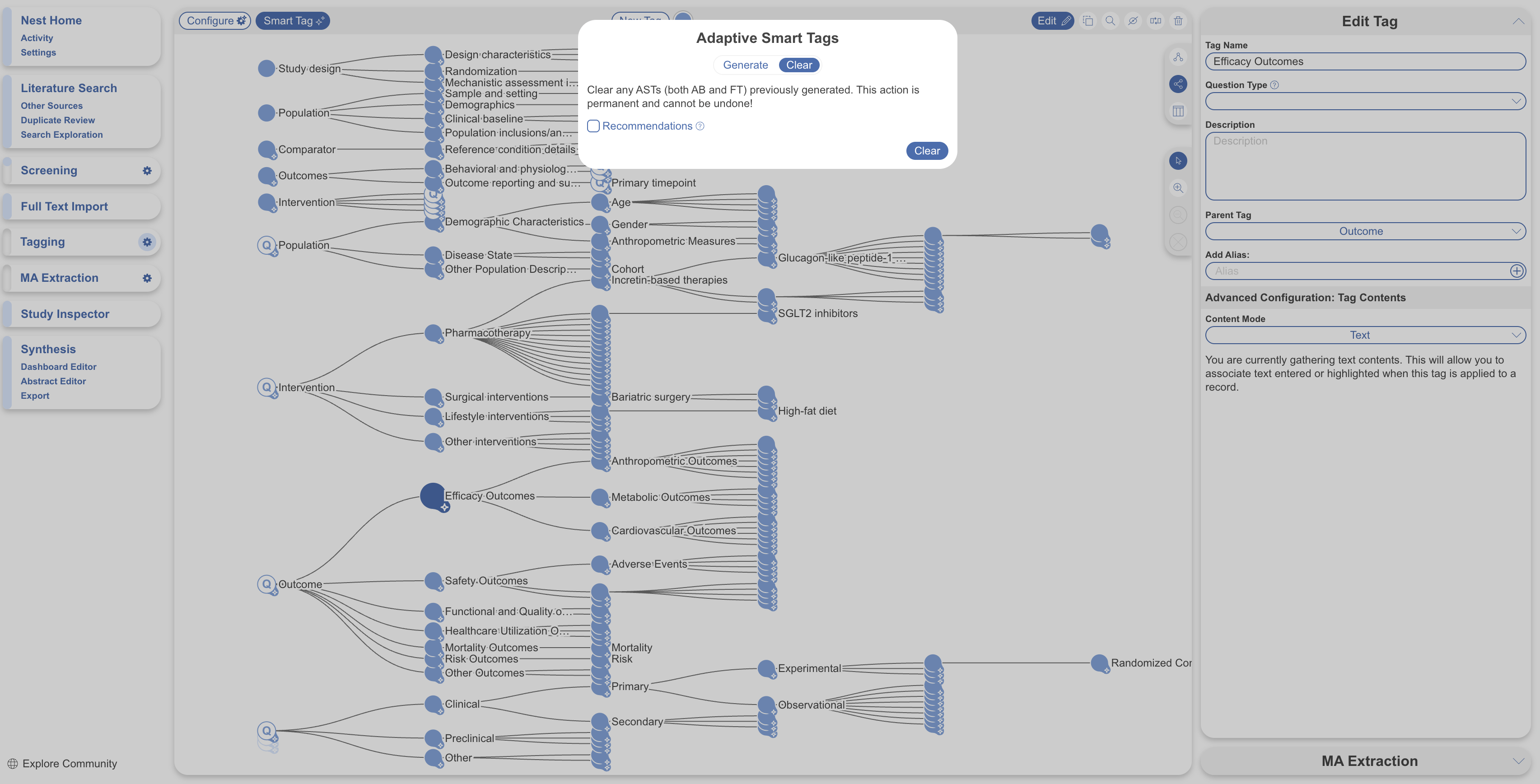
To start over, go to Configure Tagging, select **Smart Tags**, then the **Clear** tab instead of **Generate**. Choose whether to clear recommendations, applied tags, or both — this acts across every abstract, full text and supplement in the nest, permanently. Clearing recommendations doesn't remove tags you've since applied yourself based on them; clearing applied tags only removes what ASTs applied when **Apply** mode was selected.

<figure><img src="https://305208404-files.gitbook.io/~/files/v0/b/gitbook-x-prod.appspot.com/o/spaces%2Fxb7uNGATUgwQAjDVQRXG%2Fuploads%2F6hYguYqK1N1SQmghhhYZ%2FScreenshot%202026-08-20%20at%2009.44.23.png?alt=media&amp;token=e02293d3-6f5c-47d0-b732-ecec7d8fb63c" alt="The Clear Adaptive Smart Tags dialog offers options to clear recommendations, applied tags, or both."><figcaption><p>Choose which Adaptive Smart Tags results to clear.</p></figcaption></figure>

### FAQs

<details>

<summary>What's the difference between Adaptive Smart Tags and Core Smart Tags?</summary>

Core Smart Tags build and extract a fixed PICO, Study Type, Study Location, and Study Size set from abstracts in one step. Adaptive Smart Tags extract against whatever custom questions you've configured — hand-built, imported, or Smart Config-generated — from abstracts or full texts.

</details>

<details>

<summary>Will re-running Adaptive Smart Tags overwrite data I've already reviewed?</summary>

No, not unless the underlying tag's question or configuration changed significantly. Unchanged tags on already-extracted studies are left as they are; re-running only covers new studies and meaningfully edited tags.

</details>

<details>

<summary>Can I run Adaptive Smart Tags on a Core Smart Tags concept?</summary>

Only if you've edited that Core Smart Tags tag — editing converts it to a regular, human-created tag, which makes it eligible. An untouched Core Smart Tags tag already has its data from Core Smart Tags' own extraction.

</details>

<details>

<summary>Should I use Recommend or Apply mode?</summary>

Use **Recommend** for tags where you want a human check before the data counts — inclusion-critical or ambiguous concepts, for instance. Use **Apply** when you're comfortable reviewing after the fact, for faster turnaround on lower-stakes tags. Best for rapid reviews.

</details>

<details>

<summary>What counts toward the generation limit — studies or tags?</summary>

Questions, not studies. Each tag generated against each study counts as one question, so a comprehensive hierarchy configured before you generate uses your limit more efficiently than repeated partial runs.

</details>

<details>

<summary>Does clearing recommendations remove tags I've already applied myself?</summary>

No. Clearing recommendations only removes the suggestions themselves; anything you already accepted and applied stays. Clearing applied tags is a separate option, and only removes what Adaptive Smart Tags applied automatically in Apply mode.

</details>

<details>

<summary>The Smart Tags button is disabled. Why?</summary>

Smart Tags are likely toggled off for your nest. Toggle back on in **Nest Settings**.

</details>

<details>

<summary>If I upload supplements for a study, does AST use them regardless of whether it's extracting from the abstract or the full text?</summary>

No — supplements only come into play on full-text extractions. If ASTs is drawing from a study's abstract only, its supplements are never in scope, even if they've been uploaded.

</details>

<details>

<summary>If an answer appears in both a supplement and the full text, does AST extract both, or does it defer to one?</summary>

ASTs returns one value per tag, not one from each source. If the full text and the supplement agree, it uses the full-text answer. If they conflict, ASTs has a separate model review the disagreement and decide which source's answer to keep.

</details>

<details>

<summary>Do supplements count against my full-text generation limit separately from the full text itself?</summary>

No — a tag answered with help from a supplement still uses just one generation from the full-text balance, the same as it would without one.

</details>

### Next Steps

<table data-card-size="large" data-view="cards"><thead><tr><th></th><th></th><th data-hidden data-card-target data-type="content-ref"></th></tr></thead><tbody><tr><td><i class="fa-diagram-project">:diagram-project:</i><br><strong>AI Tools In Tagging</strong></td><td>See how the three tagging AI tools compare and combine.</td><td><a href="/review-workflow/tagging/ai-tools-in-tagging.md">AI Tools in Tagging</a></td></tr><tr><td><i class="fa-sparkles">:sparkles:</i><br><strong>Smart Config: Tagging</strong></td><td>Generate a custom hierarchy for Adaptive Smart Tags to extract.</td><td><a href="/review-workflow/tagging/ai-tools-in-tagging/smart-config-tagging.md">Smart Config: Tagging</a></td></tr><tr><td><i class="fa-tags">:tags:</i><br><strong>Apply Tags</strong></td><td>Apply tags manually alongside AI recommendations.</td><td><a href="/review-workflow/tagging/apply-tags.md">Apply Tags</a></td></tr><tr><td><i class="fa-magnifying-glass">:magnifying-glass:</i><br><strong>Study Inspector</strong></td><td>Review, filter, and export extracted data.</td><td><a href="/review-workflow/study-inspector.md">Study Inspector</a></td></tr></tbody></table>


---

# Agent Instructions
This documentation is published with GitBook. GitBook is the documentation platform designed so that both humans and AI agents can read, navigate, and reason over technical content effectively. Learn more at gitbook.com.

## Querying This Documentation
If you need additional information that is not directly available in this page, you can query the documentation by asking a question.

Perform an HTTP GET request on the following URL with the `ask` and `goal` query parameters:

```
GET https://docs.nested-knowledge.com/review-workflow/tagging/ai-tools-in-tagging/adaptive-smart-tags.md?ask=<question>&goal=<user_goal>
```

`ask` is the immediate question: it should be specific, self-contained, and written in natural language.
`goal` is what the user is ultimately trying to achieve, the reason they need the answer. Sharing it helps GitBook give you a better, more relevant answer. A goal is most helpful when it describes the outcome the user wants rather than restating the question. For example, with `ask=how do I create an API token`, a goal like `automate deployments from our CI pipeline` lets GitBook tailor the answer to that use case.

The response will contain a direct answer to the question and relevant excerpts and sources from the documentation.

Use this mechanism when the answer is not explicitly present in the current page, you need clarification or additional context, or you want to retrieve related documentation sections.