> For the complete documentation index, see [llms.txt](https://docs.nested-knowledge.com/llms.txt). Markdown versions of documentation pages are available by appending `.md` to page URLs; this page is available as [Markdown](https://docs.nested-knowledge.com/review-workflow/literature-search/add-search/automatic-search.md).

# Automatic Search

Learn how to add automatic searches on a schedule.

**Automatic Search** runs your query against a database API and adds matching records to your nest. Schedule it to rerun for a living or long-running review, so it can add newly indexed studies without a separate export-and-import step.

Use Automatic Search for supported databases. For another database, import your completed search file. You can also import Embase results without its API integration. See [Import search files](/review-workflow/literature-search/add-search/import-search-files.md).

### Add A Search

{% stepper %}
{% step %}

#### Go To Literature Search

In the navigation menu, select **Literature Search**.

<figure><img src="https://305208404-files.gitbook.io/~/files/v0/b/gitbook-x-prod.appspot.com/o/spaces%2Fxb7uNGATUgwQAjDVQRXG%2Fuploads%2FQJN9lxMybZDQgRffIhsu%2Fliterature%20searches.png?alt=media&amp;token=4cbfed78-91b8-4548-b884-97f8b6f30da4" alt="The Literature Search item in the navigation menu"><figcaption><p>Open <strong>Literature Search</strong> from the navigation menu.</p></figcaption></figure>
{% endstep %}

{% step %}

#### Start A Search

Select **Add Search**. Any earlier searches are listed below.

<figure><img src="https://305208404-files.gitbook.io/~/files/v0/b/gitbook-x-prod.appspot.com/o/spaces%2Fxb7uNGATUgwQAjDVQRXG%2Fuploads%2FagXZ6MCbjRYaMH0G9zOD%2Fautomatic%20search.png?alt=media&amp;token=8c66a60e-e960-46ef-a127-9b592955d248" alt="The Add Search button on the Literature Search page"><figcaption><p>Select <strong>Add Search</strong> to create a new automatic search.</p></figcaption></figure>
{% endstep %}

{% step %}

#### Select A Search Engine

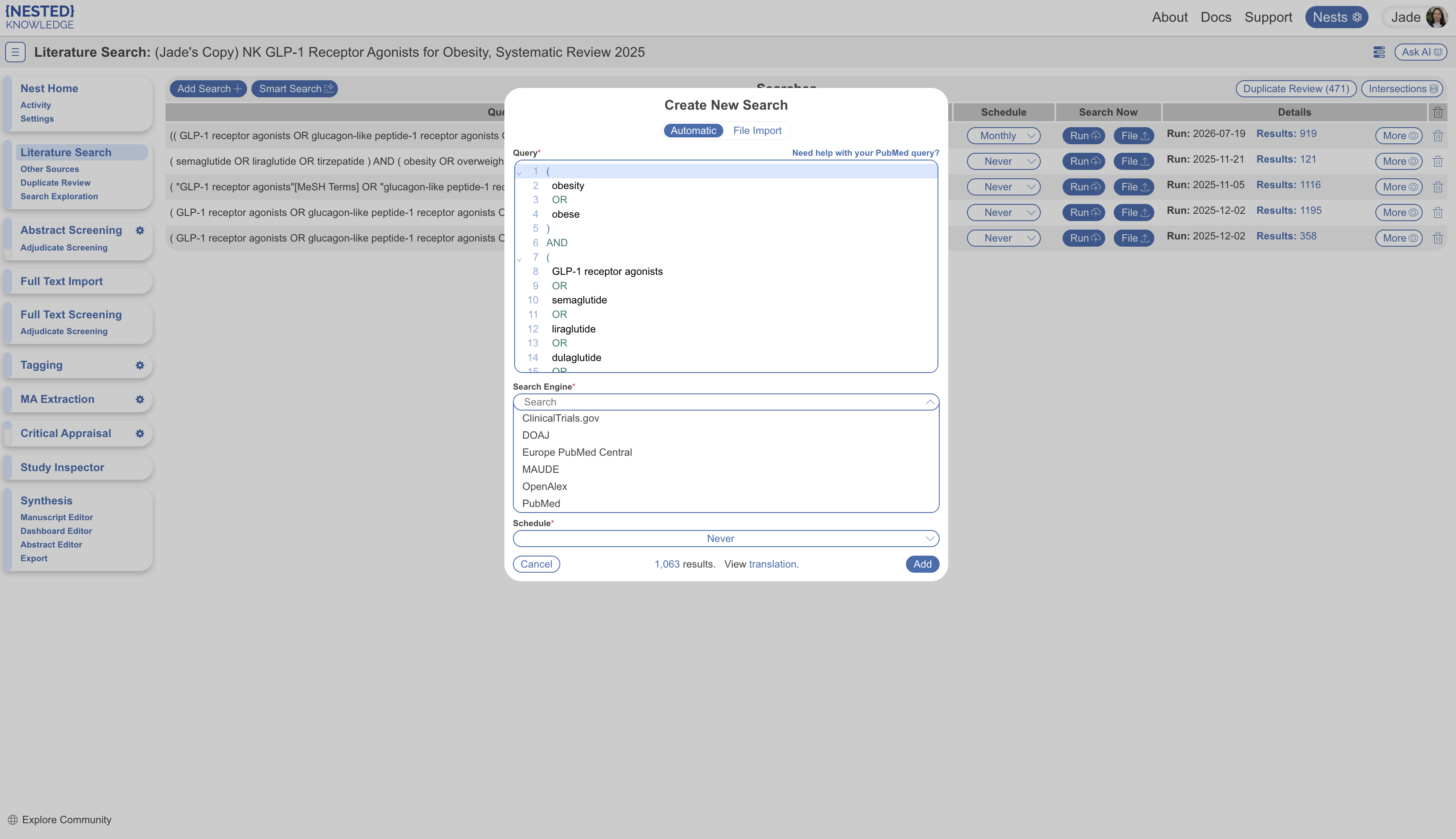
From the **Search Engine** dropdown, select a database. **Automatic Search** supports ClinicalTrials.gov, DOAJ, EuropePMC, MAUDE, OpenAlex, and PubMed. It also supports Embase through a separate subscription integration.

Use `AND`, `OR`, `NOT`, and parentheses to connect search terms. For database-specific query guidance, see:

* [ClinicalTrials.gov](/guides/write-a-search-query/clinicaltrials.gov.md)
* [Directory of Open Access Journals (DOAJ)](/guides/write-a-search-query/doaj.md)
* [EuropePMC](/guides/write-a-search-query/europepmc.md)
* [MAUDE](/guides/write-a-search-query/maude.md)
* [PubMed](/guides/write-a-search-query/pubmed.md)
* [OpenAlex](/guides/write-a-search-query/openalex.md)
* [Embase](/guides/write-a-search-query/embase.md)

To search Embase automatically, [set up the Embase integration](/integrations/embase-integration.md). Otherwise, [import an RIS file.](/review-workflow/literature-search/add-search/import-search-files.md)
{% endstep %}

{% step %}

#### Enter Your Search Terms

In the **Query** box, enter your search terms. Use [**Smart Search**](/review-workflow/literature-search/ai-tools-in-search/smart-search.md) to generate PubMed queries from a research question. Use [**Search Exploration**](/review-workflow/literature-search/ai-tools-in-search/search-exploration.md) to explore concepts before finalizing a query.

<details>

<summary>Query Translation</summary>

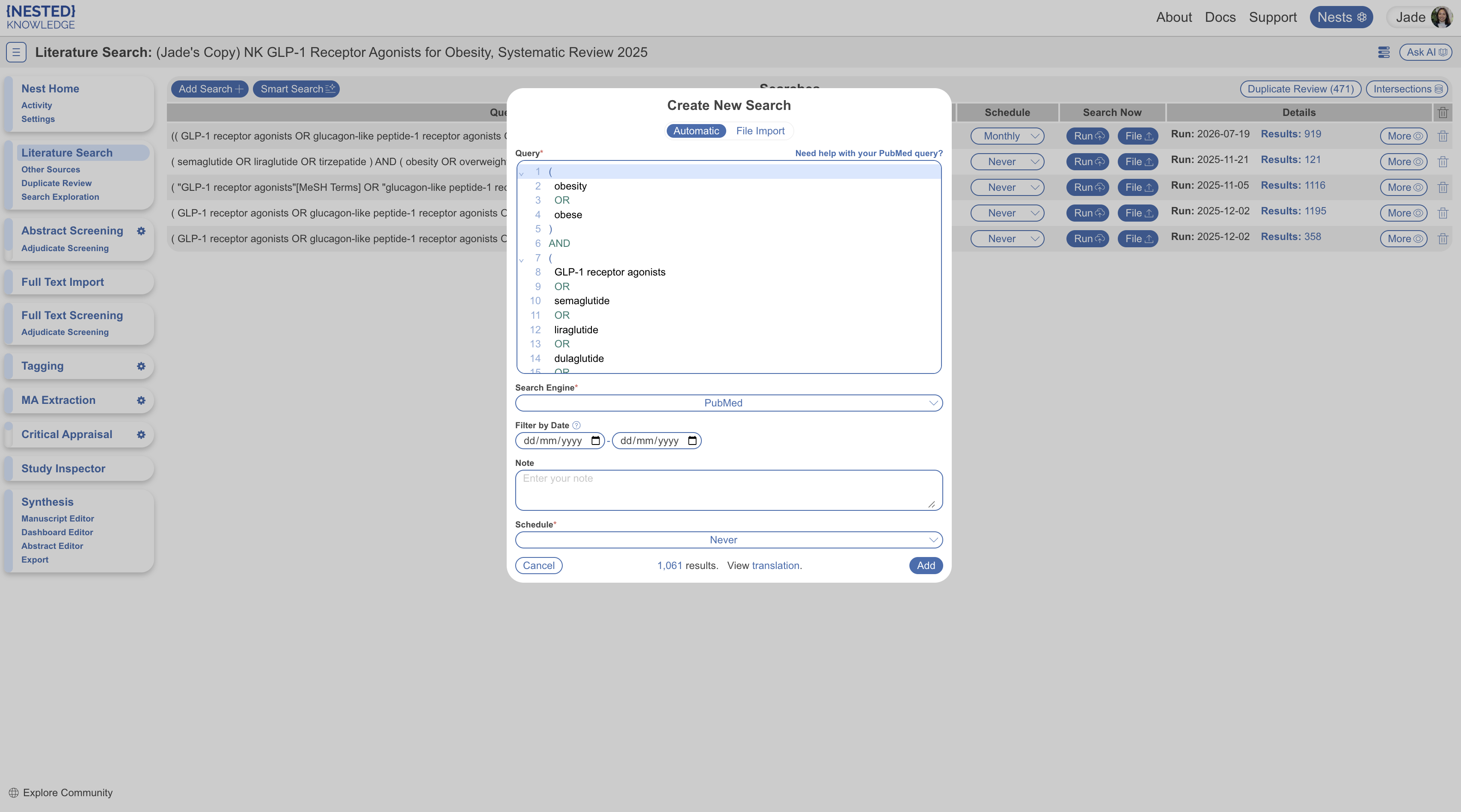
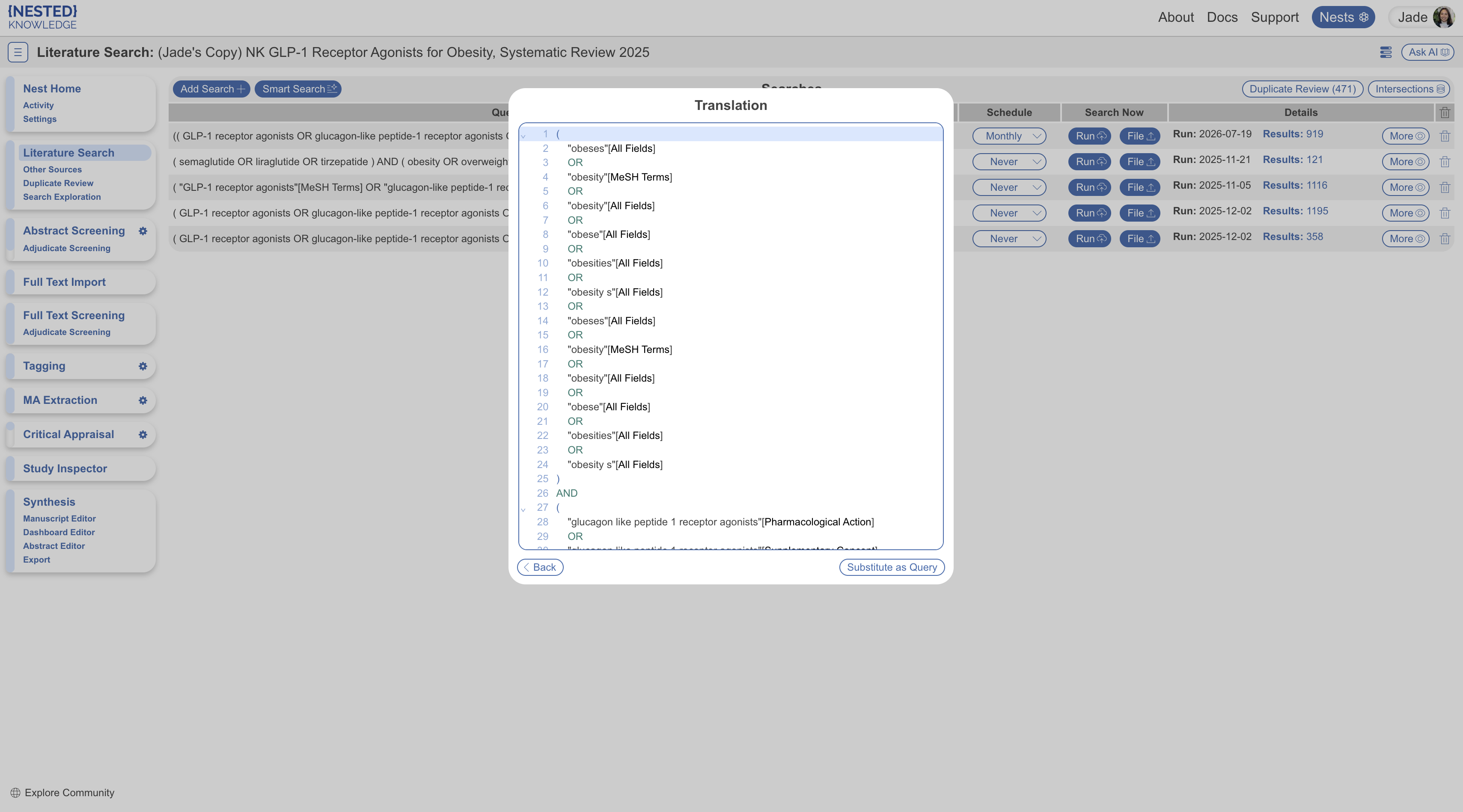
**Automatic Search** offers query translation for PubMed and Embase. For queries with simple operators, select **View translation** next to the search record number. The translation can add search syntax, including MeSH terms for PubMed. Review the translation, edit it if needed, and select **Add**.

<figure><img src="https://305208404-files.gitbook.io/~/files/v0/b/gitbook-x-prod.appspot.com/o/spaces%2Fxb7uNGATUgwQAjDVQRXG%2Fuploads%2FDp5rFaBl5gw3ax79uiZh%2FQuery%20translation.png?alt=media&amp;token=49f15741-02be-4510-a60f-95b17f602863" alt="The View translation control beside a search record"><figcaption><p>Select <strong>View translation</strong> beside the search record number.</p></figcaption></figure>

<figure><img src="https://305208404-files.gitbook.io/~/files/v0/b/gitbook-x-prod.appspot.com/o/spaces%2Fxb7uNGATUgwQAjDVQRXG%2Fuploads%2FSgnDqGoKWf3yTpxsU0rM%2Fquery%20translation2.png?alt=media&amp;token=21fd1df2-9bd4-45be-9ed4-cf10b61585ff" alt="A translated search query ready for review"><figcaption><p>Review or edit the translated query before selecting <strong>Add</strong>.</p></figcaption></figure>

</details>
{% endstep %}

{% step %}

#### Set Optional Search Details

Add a date filter and notes. Set the search to run once or on a recurring schedule, such as daily, monthly, quarterly, or yearly.
{% endstep %}

{% step %}

#### Add The Search

Select **Add** to run the search.
{% endstep %}
{% endstepper %}

{% hint style="info" %}
Once you add the search, you can't change its query, search engine, or date filter. You can still update the schedule.
{% endhint %}

Nested Knowledge runs the search immediately and lists it first. New records are ready for [Screening](/review-workflow/screening.md).

To view records from one search, under **Details**, select **Results: ####**. This opens [**Study Inspector**](/review-workflow/study-inspector.md) filtered to those records.

{% hint style="danger" %}
Deleting a search removes its records and their screening, tagging, and extraction data. You can't undo this action. Records from another search remain in the nest.
{% endhint %}

### FAQs

<details>

<summary>Can I use a query in multiple search engines?</summary>

Yes, but add it as a separate search for each search engine. After adding the first search, select **More** and copy the query. Then select **Add Search** and choose another search engine.

</details>

<details>

<summary>Can I be notified when an automatic search re-runs?</summary>

Yes. For a recurring search, toggle on email notifications in [**Nest Settings**](/your-nests/nest-settings.md#notifications). Choose to notify the nest **Owner**, **Admins**, or both. Running a search manually doesn't send a notification.

If the organization owns the nest, notifications go to the organization **Owner** or **Admins**.

</details>

<details>

<summary>What happens when a search re-runs?</summary>

If the query has no end date filter, it reruns and adds relevant studies indexed since its last run.

</details>

<details>

<summary>How are duplicates handled?</summary>

**Automatic Search** identifies and removes duplicates within and between searches. See [**Duplicate Review**](/review-workflow/literature-search/duplicate-review.md).

</details>

<details>

<summary>What happens if I delete a search?</summary>

All records and associated data from that search are removed.

</details>

### Next Steps

<table data-card-size="large" data-view="cards"><thead><tr><th></th><th></th><th data-hidden data-card-target data-type="content-ref"></th></tr></thead><tbody><tr><td><i class="fa-sparkles">:sparkles:</i><br><strong>Smart Search</strong></td><td>Generate a PubMed query from your research question.</td><td><a href="/review-workflow/literature-search/ai-tools-in-search/smart-search.md">Smart Search</a></td></tr><tr><td><i class="fa-file-import">:file-import:</i><br><strong>Import Search Files</strong></td><td>Add results from databases without an automatic search integration.</td><td><a href="/review-workflow/literature-search/add-search/import-search-files.md">Import Search Files</a></td></tr><tr><td><i class="fa-file-circle-plus">:file-circle-plus:</i><br><strong>Other Sources</strong></td><td>Add gray literature to your nest.</td><td><a href="/review-workflow/literature-search/other-sources.md">Other Sources</a></td></tr><tr><td><i class="fa-clone">:clone:</i><br><strong>Duplicate Review</strong></td><td>Review duplicate matches before screening.</td><td><a href="/review-workflow/literature-search/duplicate-review.md">Duplicate Review</a></td></tr><tr><td><i class="fa-clipboard-check">:clipboard-check:</i><br><strong>Screening</strong></td><td>Configure your screening route and start reviewing records.</td><td><a href="/review-workflow/screening.md">Screening</a></td></tr></tbody></table>


---

# Agent Instructions
This documentation is published with GitBook. GitBook is the documentation platform designed so that both humans and AI agents can read, navigate, and reason over technical content effectively. Learn more at gitbook.com.

## Querying This Documentation
If you need additional information that is not directly available in this page, you can query the documentation by asking a question.

Perform an HTTP GET request on the following URL with the `ask` and `goal` query parameters:

```
GET https://docs.nested-knowledge.com/review-workflow/literature-search/add-search/automatic-search.md?ask=<question>&goal=<user_goal>
```

`ask` is the immediate question: it should be specific, self-contained, and written in natural language.
`goal` is what the user is ultimately trying to achieve, the reason they need the answer. Sharing it helps GitBook give you a better, more relevant answer. A goal is most helpful when it describes the outcome the user wants rather than restating the question. For example, with `ask=how do I create an API token`, a goal like `automate deployments from our CI pipeline` lets GitBook tailor the answer to that use case.

The response will contain a direct answer to the question and relevant excerpts and sources from the documentation.

Use this mechanism when the answer is not explicitly present in the current page, you need clarification or additional context, or you want to retrieve related documentation sections.