> For the complete documentation index, see [llms.txt](https://docs.nested-knowledge.com/llms.txt). Markdown versions of documentation pages are available by appending `.md` to page URLs; this page is available as [Markdown](https://docs.nested-knowledge.com/review-workflow/synthesis/set-up-synthesis-outputs/smart-insights.md).

# Smart Insights

Learn how to generate, view and export Smart Insights.

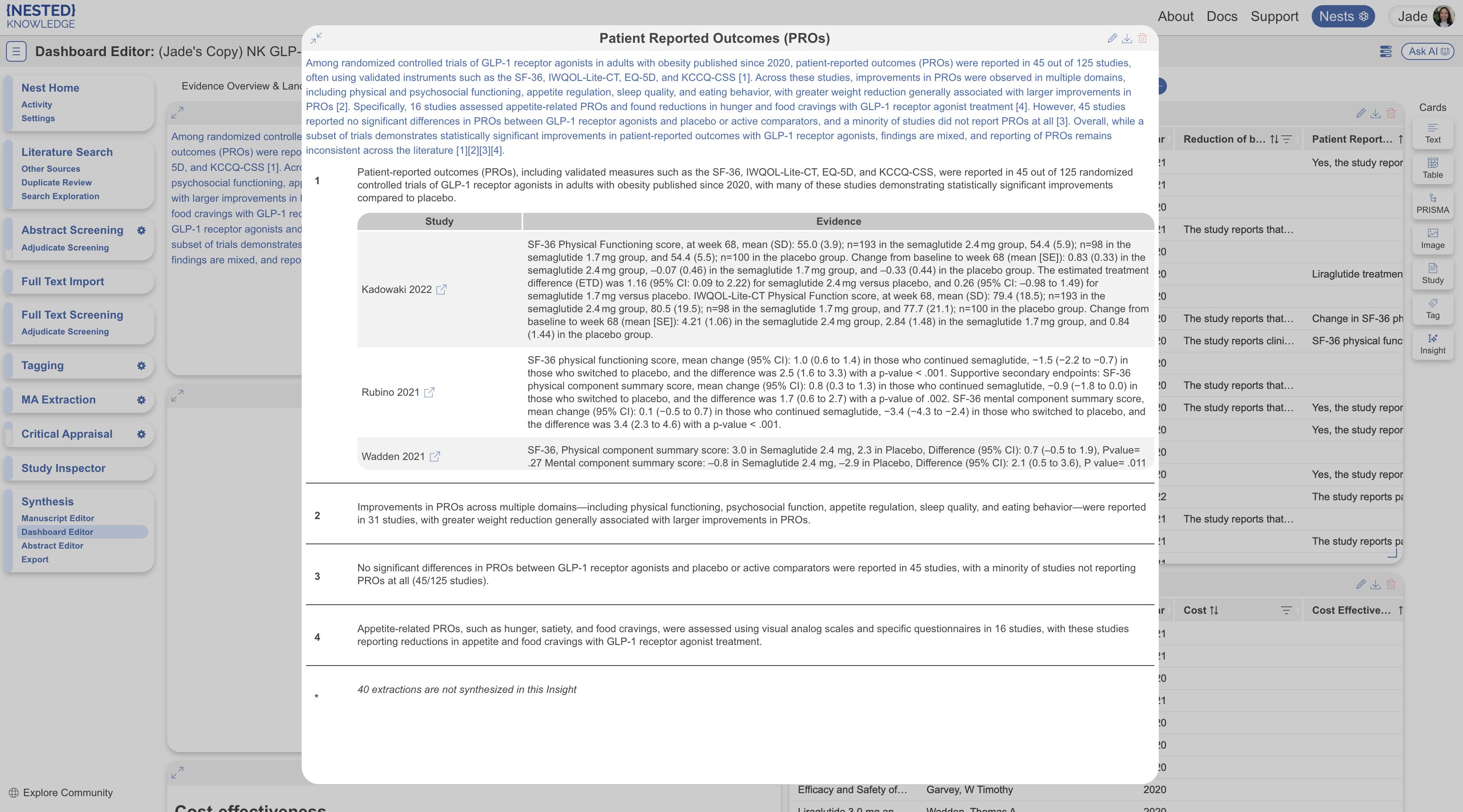
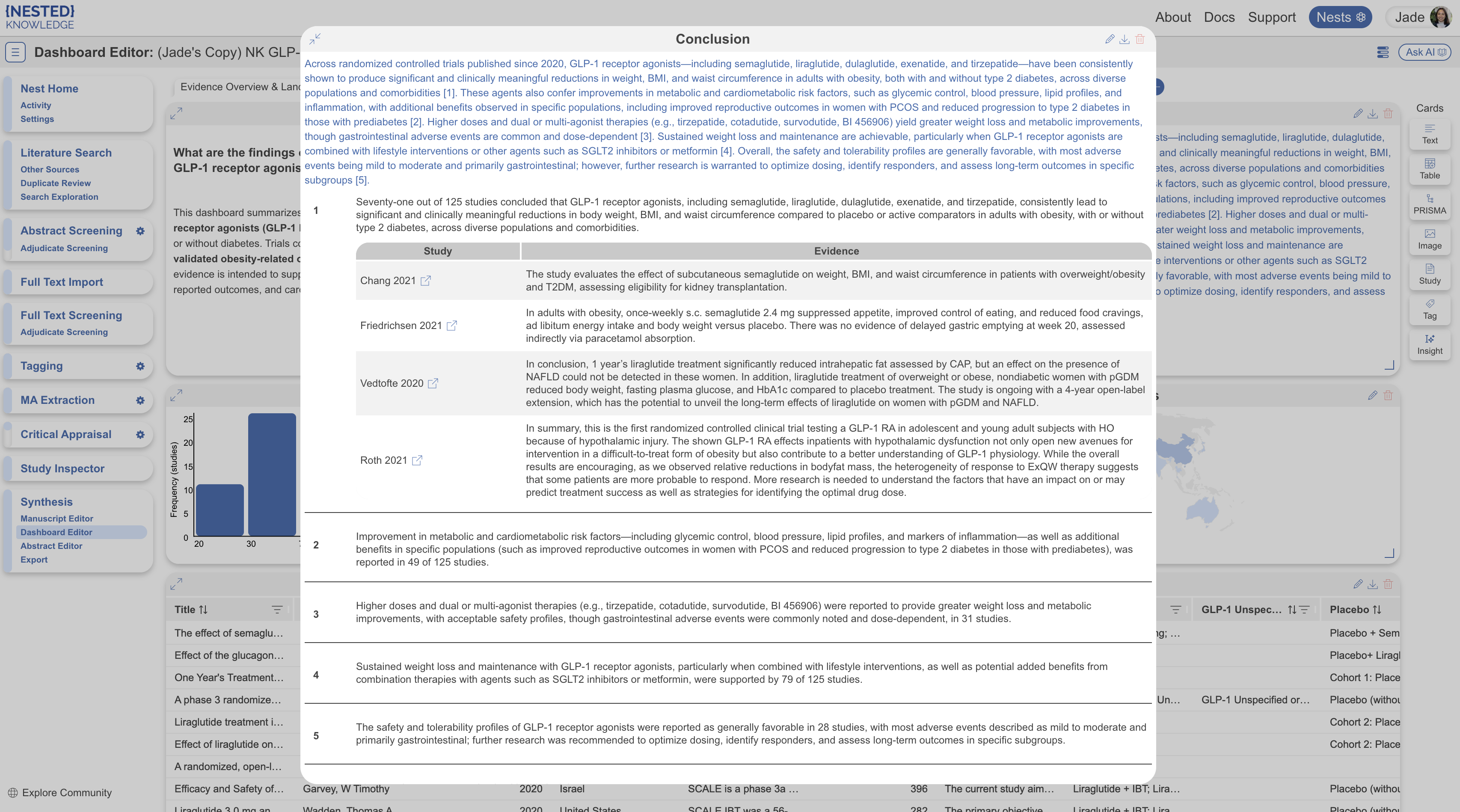
**Smart Insights** is Nested Knowledge’s AI-assisted writing feature. It generates written summaries from the tags applied in your nest. Each insight is structured as an **Insight** (the summary), the **Claims** within it, and the **Evidence** (cited studies with highlighted excerpts) supporting each claim. This structure lets you review, verify, and refine the output. Unlike standalone AI tools, **Smart Insights** works only with evidence in your nest. It preserves the link between each sentence and its source data, supporting reproducible, auditable outputs.

<figure><img src="https://305208404-files.gitbook.io/~/files/v0/b/gitbook-x-prod.appspot.com/o/spaces%2Fxb7uNGATUgwQAjDVQRXG%2Fuploads%2FQXby1SyCzDMojic323Zl%2Fsmart%20insight.png?alt=media&amp;token=1c79e05d-b55f-489e-8aef-d4f047bedbec" alt="Smart Insights interface showing generated insights and their supporting claims."><figcaption><p>Review each insight, claim, and supporting evidence.</p></figcaption></figure>

Use **Smart Insights** to move from extraction to interpretation. Summarize findings across studies, synthesize extracted outcomes or study characteristics, or draft narrative sections for reports, dossiers, or internal reviews.

### What Smart Insights Can Draw On

**Smart Insights** generates insights from **Apply question** tags applied across multiple records, including tag tables. It can summarize entire Index Tables and individual sub tables. **Single Select** and **Multiple Select** question types aren't supported. See [Configure Tagging. ](/review-workflow/tagging/configure-tagging.md)for the distinction. Before generating, ensure your hierarchy contains described **Apply question** tags applied to at least two studies. **Smart Insights** excludes tags that don't meet these requirements. The generation modal explains which tags are excluded and why.

### Where To Generate Smart Insights

You can generate **Smart Insights** in two places. The generation modal is identical in both. The difference is what happens to the insights afterwards:

* [Exports](/review-workflow/exports.md) — Under **Synthesis**, select **Export**, then the **Smart Insights** tab. Generate and download all insights in a Word document. Choose the level of detail: Insight, Claim, and/or Evidence.
* [Dashboard Editor](/review-workflow/synthesis/set-up-synthesis-outputs/dashboard-editor.md) — Generate and display insights as interactive cards on your **Dashboard** and shareable **Synthesis** page. Cards download one insight at a time. For bulk downloads, use the **Export** page.

### Generate Smart Insights

{% stepper %}
{% step %}

#### Start Generation

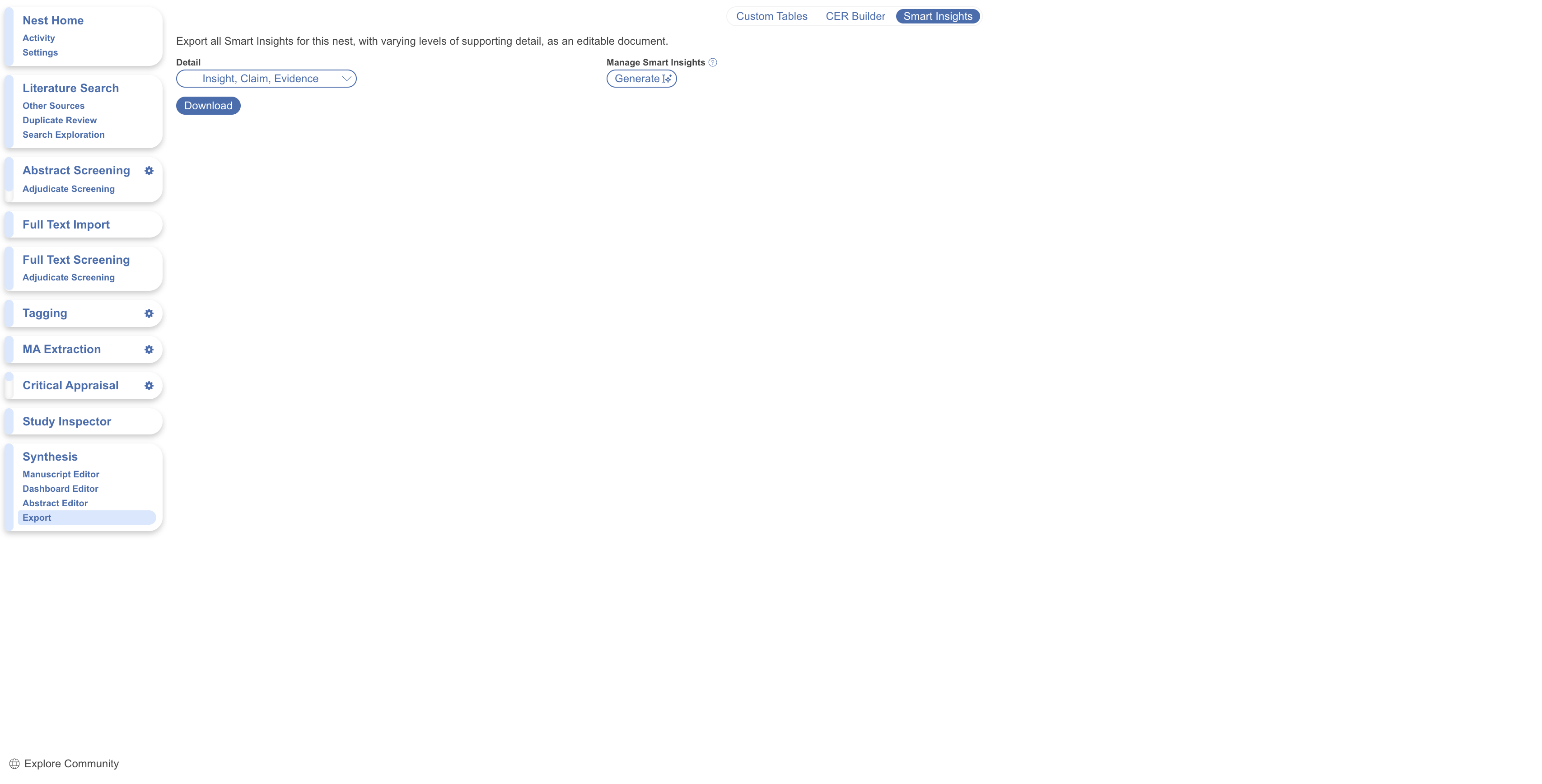
On the **Export** page, select the **Smart Insights** tab. Under **Manage Smart Insights**, select **Generate**.

<figure><img src="https://305208404-files.gitbook.io/~/files/v0/b/gitbook-x-prod.appspot.com/o/spaces%2Fxb7uNGATUgwQAjDVQRXG%2Fuploads%2FAZNUU5mFKeUYmof8NSp9%2Fsmart%20insights%20export%20page.png?alt=media&amp;token=167b5fc4-86a7-4649-8015-e7bf1c19434a" alt="Smart Insights tab on the Export page, with the Generate button under Manage Smart Insights."><figcaption><p>Generate insights from the <strong>Smart Insights</strong> tab on the <strong>Export</strong> page.</p></figcaption></figure>

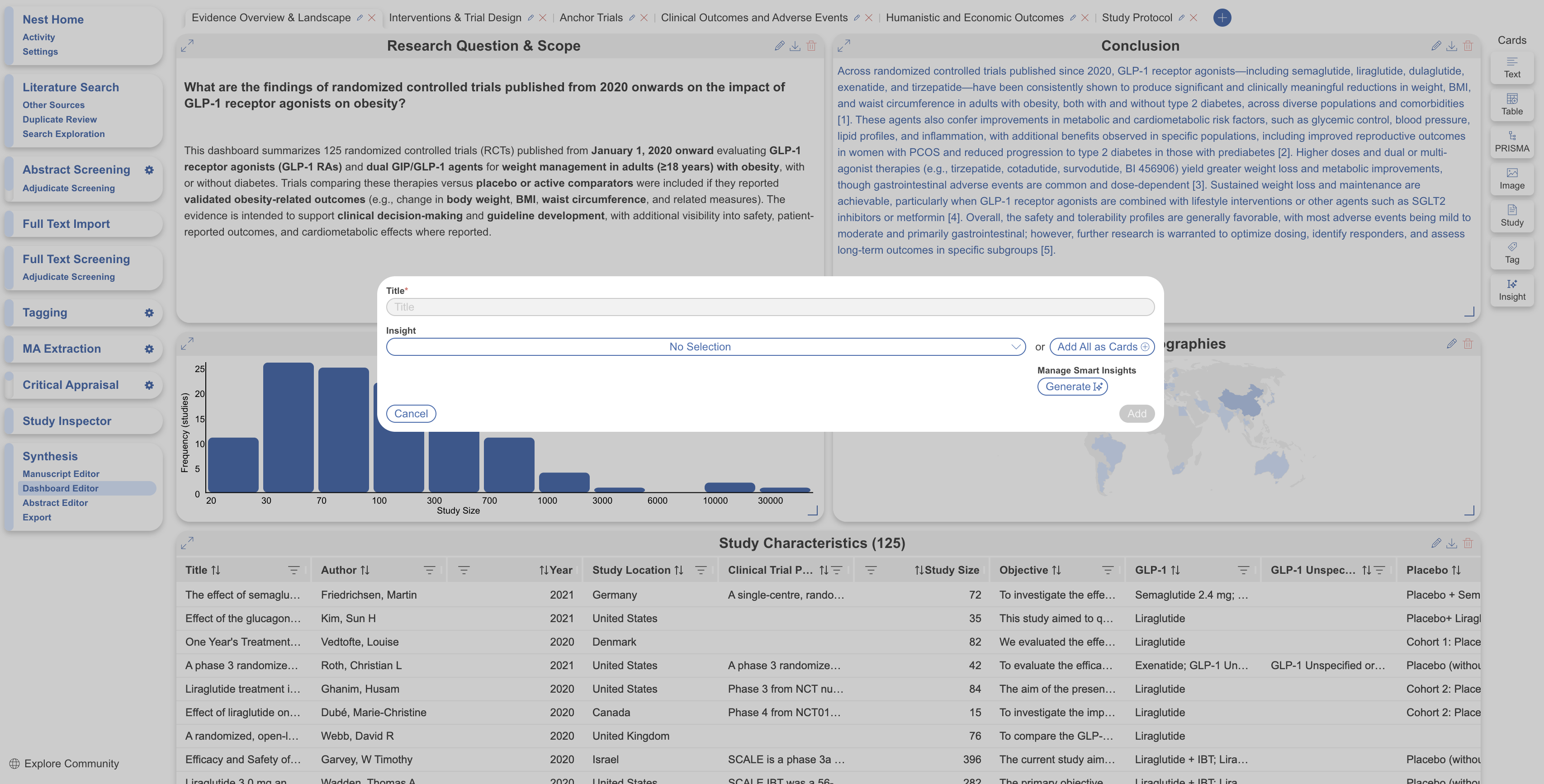
On the **Dashboard Editor** page, select **Insight** under **Cards**. Under **Manage Smart Insights**, select **Generate**.

<figure><img src="https://305208404-files.gitbook.io/~/files/v0/b/gitbook-x-prod.appspot.com/o/spaces%2Fxb7uNGATUgwQAjDVQRXG%2Fuploads%2F8lGyioD1LmekmQFHZHKT%2Fsmart%20insights%20dashboard.png?alt=media&amp;token=b71f3ef4-981e-43ce-8b91-97b3ce76a505" alt="Insight card option in the Dashboard Editor."><figcaption><p>Add an <strong>Insight</strong> card from the <strong>Dashboard Editor</strong>.</p></figcaption></figure>
{% endstep %}

{% step %}

#### Select Tags

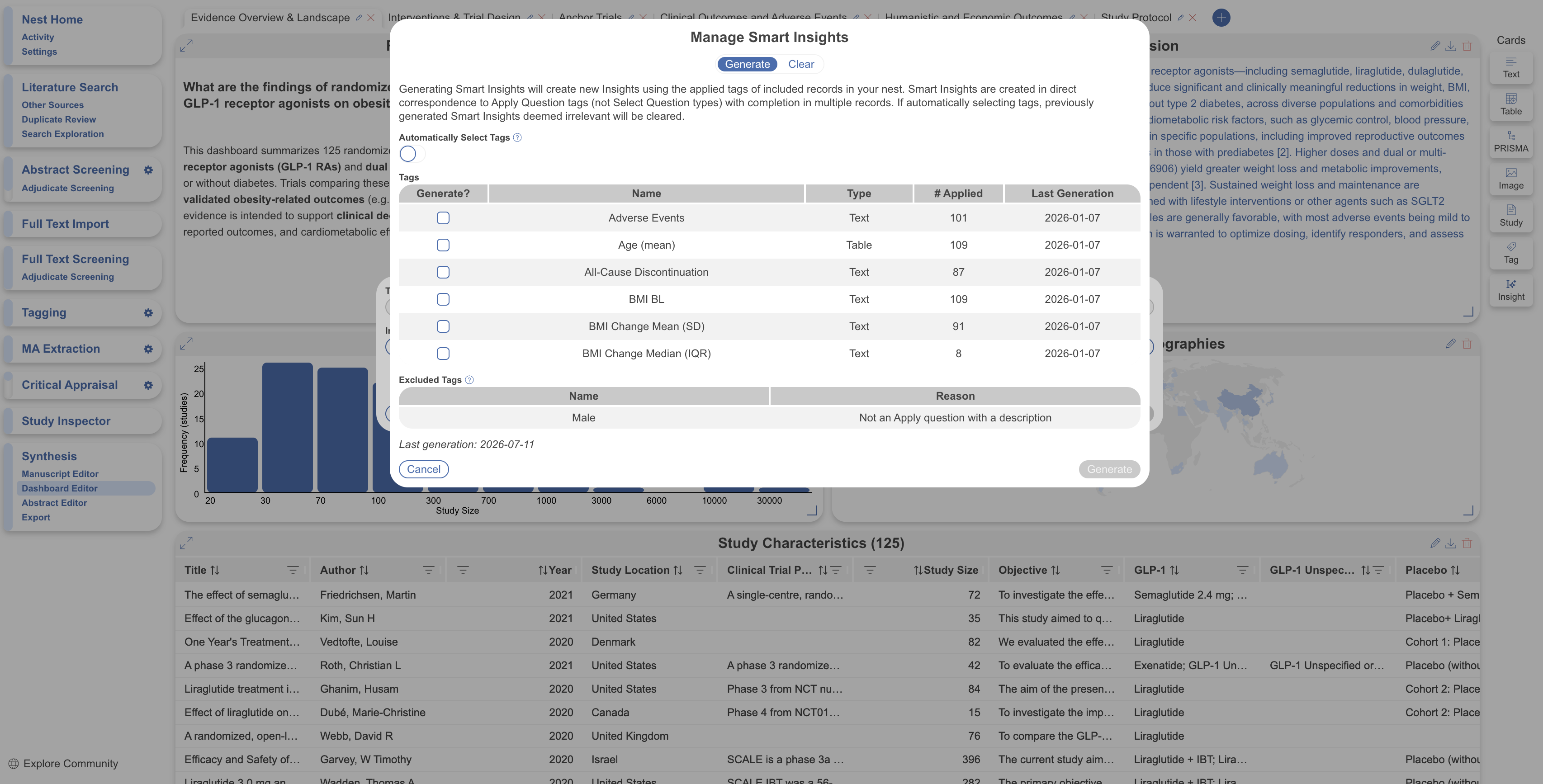
The **Manage Smart Insights** modal opens.

<figure><img src="https://305208404-files.gitbook.io/~/files/v0/b/gitbook-x-prod.appspot.com/o/spaces%2Fxb7uNGATUgwQAjDVQRXG%2Fuploads%2FydkBDholcIbZNqLBpYnv%2Fmanage%20smart%20insights.png?alt=media&amp;token=f63096b8-0544-4eb9-97e4-699c12301432" alt="Manage Smart Insights modal showing tag selection options."><figcaption><p>Select eligible tags in the <strong>Manage Smart Insights</strong> modal.</p></figcaption></figure>

The **Automatically Select Tags** toggle determines how tags are chosen. When enabled, **Smart Insights** generates insights for tags selected as most relevant to your research question. It clears previously generated insights that it deems irrelevant. When disabled, select the tags yourself.

When selecting manually, the modal lists each eligible tag's type (**Text**, **Sub Table**, or **Index Table**), applied-record count, and last generation date. Select **Generate?** for each tag to summarize. For tag tables, select an entire Index Table, individual sub tables, or both. For example, generate one insight for all Safety sub tables and another for GI Adverse Events.

The modal lists **Excluded Tags** beneath eligible tags. Each exclusion includes a reason, such as fewer than two applied studies or an **Apply question** without a description. **Single Select** and **Multiple Select** questions are filtered out before this list. If an expected tag is missing, check **Excluded Tags** first. Update your [Configure Tagging](/review-workflow/tagging/configure-tagging.md) page and consider running Adaptive Smart Tags again before regeneration.
{% endstep %}

{% step %}

#### Generate And Track Progress

Select **Generate**. Generation runs in the background. Leave the modal and check progress in **Background Jobs**.
{% endstep %}
{% endstepper %}

### Clear Smart Insights

{% hint style="warning" %}
The **Clear** tab removes generated insights from your nest. Cleared insights may be removed permanently. Related **Dashboard** cards no longer work.
{% endhint %}

### Display Insights On The Dashboard

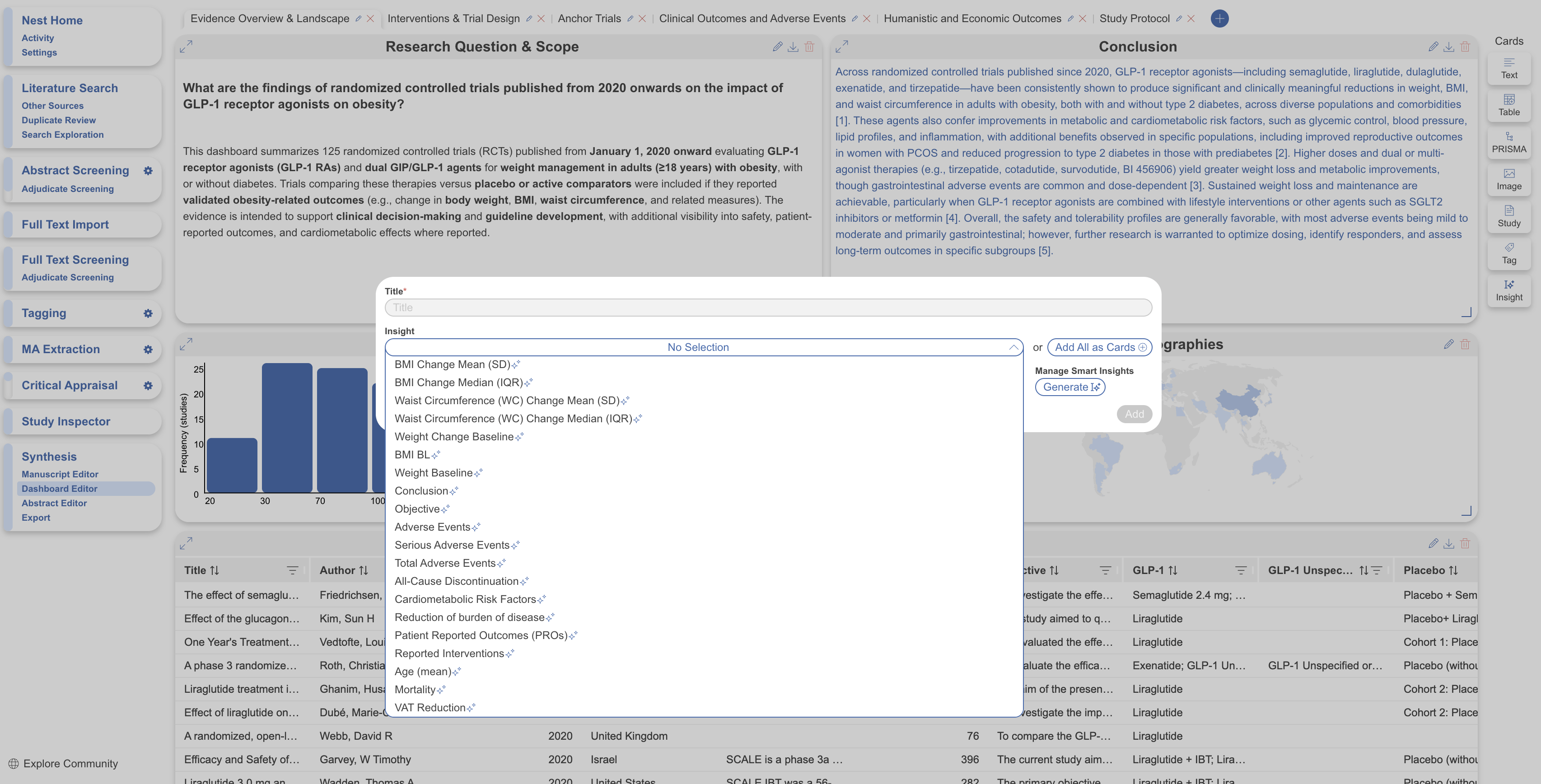
After generation completes, select the **Insight** card again. The list shows all generated insights. Add them individually, or select **Add All as Cards** to display each insight on the **Dashboard**.

<figure><img src="https://305208404-files.gitbook.io/~/files/v0/b/gitbook-x-prod.appspot.com/o/spaces%2Fxb7uNGATUgwQAjDVQRXG%2Fuploads%2F2uEiWf2PNNx8fng5ZVpl%2Fadd%20smart%20insight%20card.png?alt=media&amp;token=55c72205-5758-4749-846d-939d8a1e392f" alt="Insight card list with the Add All as Cards option."><figcaption><p>Add every generated insight to the <strong>Dashboard</strong> as a card.</p></figcaption></figure>

#### Use An Interactive Insight Card

When minimized, an **Insight** card displays only the Insight summary. Select the expand arrow to reveal numbered Claims. Select a claim to open its associated studies. Select a study to view supporting Evidence. Each claim links to its source excerpt within the card. Selecting a study opens it in a new tab.

To download an individual insight, select the download arrow on its card.

To display an insight as text only, select the edit icon, then select **Eject to text**.

<figure><img src="https://305208404-files.gitbook.io/~/files/v0/b/gitbook-x-prod.appspot.com/o/spaces%2Fxb7uNGATUgwQAjDVQRXG%2Fuploads%2FNBI2304o1dnKUV1WsQYY%2Finteract%20smart%20insight.png?alt=media&amp;token=5c263f4f-2a06-42e0-83b8-54c499e10dab" alt="Expanded Insight card showing claims, supporting studies, and evidence."><figcaption><p>Expand an insight card to review claims, studies, and evidence.</p></figcaption></figure>

### Download Insights From The Export Page

On the **Export** page’s **Smart Insights** tab, download all generated insights together. Choose any combination of:

* **Insight** — the summary
* **Claim** — the individual claims within each summary
* **Evidence** — the study citations supporting each claim

Select **Download** to export a Word document with the selected detail.

<figure><img src="https://305208404-files.gitbook.io/~/files/v0/b/gitbook-x-prod.appspot.com/o/spaces%2Fxb7uNGATUgwQAjDVQRXG%2Fuploads%2FAZNUU5mFKeUYmof8NSp9%2Fsmart%20insights%20export%20page.png?alt=media&amp;token=167b5fc4-86a7-4649-8015-e7bf1c19434a" alt="Smart Insights tab on the Export page, with the Generate button under Manage Smart Insights."><figcaption><p>Download generated insights from the <strong>Smart Insights</strong> tab on the <strong>Export</strong> page.</p></figcaption></figure>

### FAQs

<details>

<summary>Why can't I select a tag?</summary>

**Smart Insights** requires a described **Apply question** tag applied to at least two studies. Check **Excluded Tags** in the generation modal for the reason.

</details>

<details>

<summary>Smart Insights didn't generate for the tags I wanted. Why?</summary>

There are a few possible reasons:

* Smart Insights only generate on Single Apply tags. Your tags could be Select type formats.
* The study has to be extracted on at least 2 studies.
* Studies may not have been extracted yet, use [Adaptive Smart Tags](/review-workflow/tagging/ai-tools-in-tagging/adaptive-smart-tags.md) for rapid extraction.

</details>

<details>

<summary>Can I generate insights for individual tag-table sections?</summary>

Yes. Select the entire Index Table, individual sub tables, or both.

</details>

### Next Steps

<table data-card-size="large" data-view="cards"><thead><tr><th></th><th></th><th data-hidden data-card-target data-type="content-ref"></th></tr></thead><tbody><tr><td><i class="fa-table-columns">:table-columns:</i><br><strong>Dashboard Editor</strong></td><td>Display generated Insights as interactive cards.</td><td><a href="/review-workflow/synthesis/set-up-synthesis-outputs/dashboard-editor.md">Dashboard Editor</a></td></tr><tr><td><i class="fa-file-export">:file-export:</i><br><strong>Exports</strong></td><td>Download multiple Insights in a Word document.</td><td><a href="/review-workflow/exports.md">Exports</a></td></tr><tr><td><i class="fa-file-signature">:file-signature:</i><br><strong>Smart Abstract</strong></td><td>Use Insights to generate a fuller abstract.</td><td><a href="/review-workflow/synthesis/set-up-synthesis-outputs/abstract-editor/smart-abstract.md">Smart Abstract</a></td></tr></tbody></table>


---

# Agent Instructions
This documentation is published with GitBook. GitBook is the documentation platform designed so that both humans and AI agents can read, navigate, and reason over technical content effectively. Learn more at gitbook.com.

## Querying This Documentation
If you need additional information that is not directly available in this page, you can query the documentation by asking a question.

Perform an HTTP GET request on the following URL with the `ask` and `goal` query parameters:

```
GET https://docs.nested-knowledge.com/review-workflow/synthesis/set-up-synthesis-outputs/smart-insights.md?ask=<question>&goal=<user_goal>
```

`ask` is the immediate question: it should be specific, self-contained, and written in natural language.
`goal` is what the user is ultimately trying to achieve, the reason they need the answer. Sharing it helps GitBook give you a better, more relevant answer. A goal is most helpful when it describes the outcome the user wants rather than restating the question. For example, with `ask=how do I create an API token`, a goal like `automate deployments from our CI pipeline` lets GitBook tailor the answer to that use case.

The response will contain a direct answer to the question and relevant excerpts and sources from the documentation.

Use this mechanism when the answer is not explicitly present in the current page, you need clarification or additional context, or you want to retrieve related documentation sections.