> For the complete documentation index, see [llms.txt](https://docs.nested-knowledge.com/llms.txt). Markdown versions of documentation pages are available by appending `.md` to page URLs; this page is available as [Markdown](https://docs.nested-knowledge.com/review-workflow/literature-search/ai-tools-in-search/search-exploration.md).

# Search Exploration

Test and refine a PubMed query before adding records to a nest.

**Search Exploration** lets you build a search query concept by concept, previewing the literature it returns at every step, so you can see what you're capturing (e.g. PICOs) before you commit to a query.

If you have a well-formed research question and protocol and you're searching PubMed, use [**Smart Search**](/review-workflow/literature-search/ai-tools-in-search/smart-search.md) instead to generate queries.

### Build And Refresh Your Query

{% stepper %}
{% step %}

#### Open Search Exploration

<figure><img src="https://305208404-files.gitbook.io/~/files/v0/b/gitbook-x-prod.appspot.com/o/spaces%2Fxb7uNGATUgwQAjDVQRXG%2Fuploads%2FFyeMcxPD4mMPCxXGadNQ%2FScreenshot%202026-08-21%20at%2014.57.38.png?alt=media&amp;token=8e945507-0459-4fd1-853d-eccadde7dd63" alt="The Literature Search page with the Search Exploration action highlighted."><figcaption><p>Open Search Exploration from Literature Search.</p></figcaption></figure>
{% endstep %}

{% step %}

#### Add Concepts

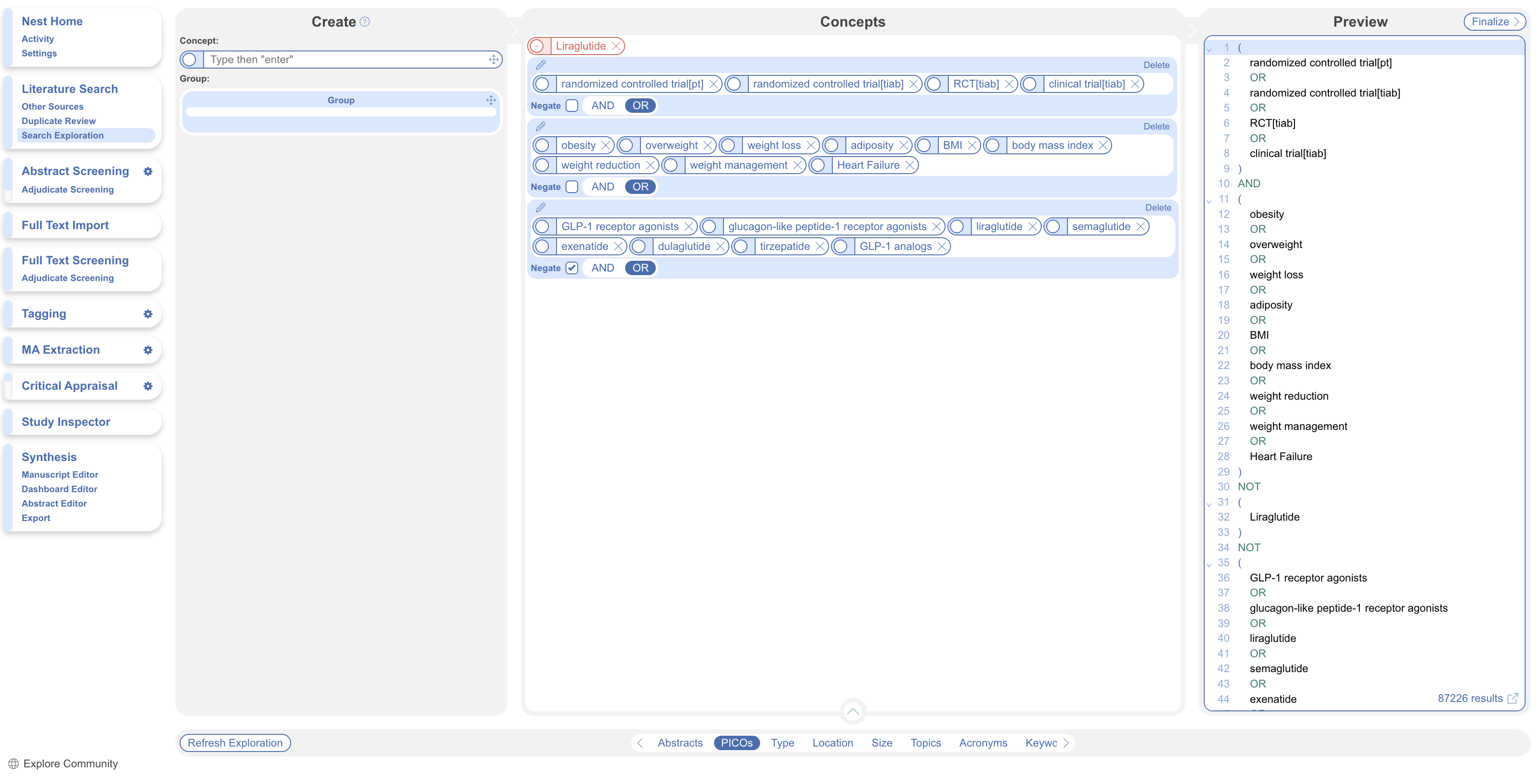
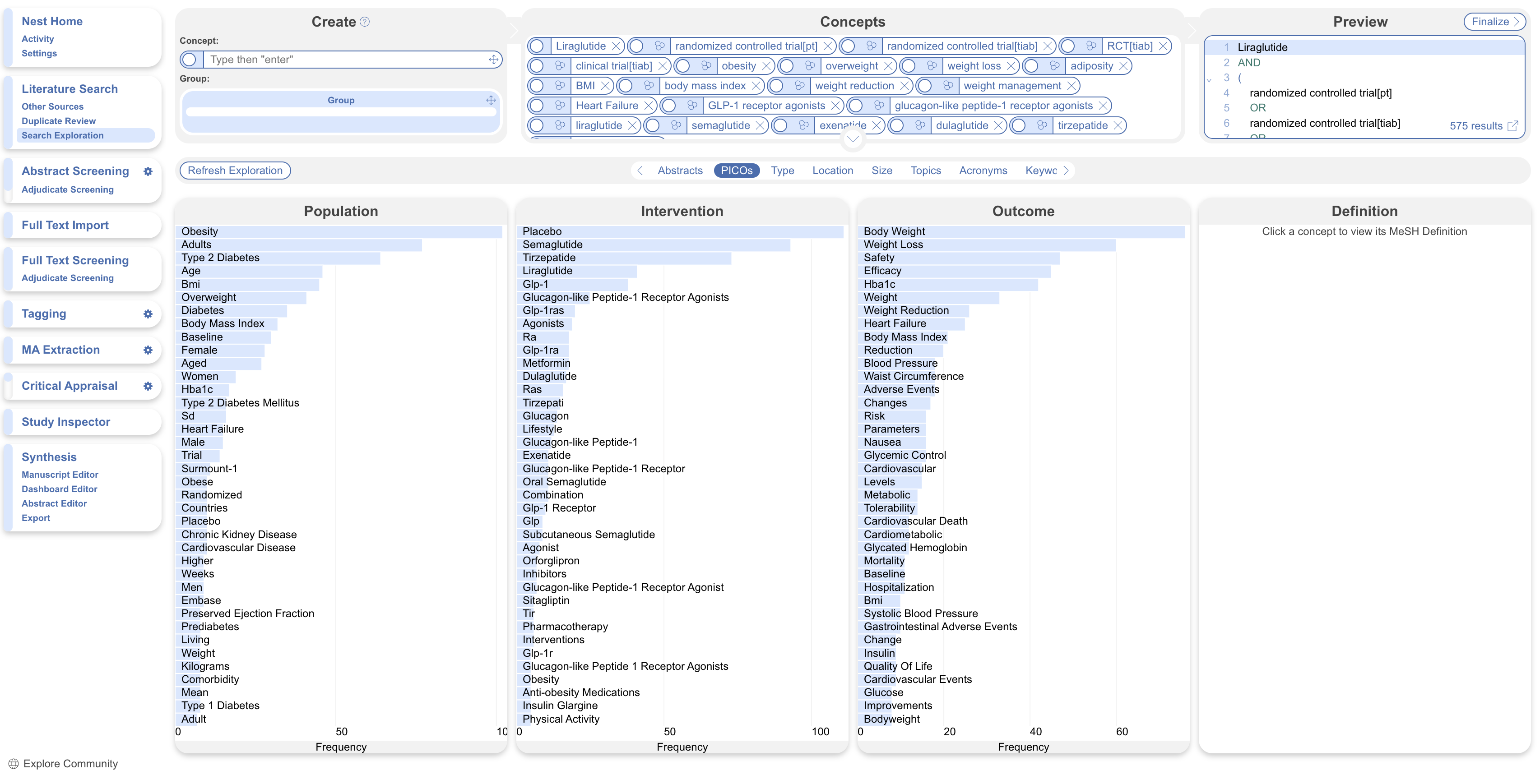
Enter a concept, then press `Enter`. Top-level concepts join with `AND`. Expand the concept editor to get a better view of concepts and corresponding query preview.

To set a group of concepts to `OR`, click and drag the group icon into the concepts box and drag the concept pills into the group. Use groups for synonyms or related concepts.

Set a group to `OR` to broaden it, or `AND` to require every concept. Nest groups to build complex logic. Negate a group by selecting the check box or negate concept to exclude it by selecting the open circle, the concept pill will turn red.

The query preview updates as you add concepts.

<figure><img src="https://305208404-files.gitbook.io/~/files/v0/b/gitbook-x-prod.appspot.com/o/spaces%2Fxb7uNGATUgwQAjDVQRXG%2Fuploads%2FqZqPlyjFz2MIRQFUltvX%2FScreenshot%202026-08-21%20at%2015.02.42.png?alt=media&amp;token=31d1b3fe-99da-44ca-836c-394cb6775ef8" alt="The Search Exploration concept editor showing concept pills, a query preview, and a grouped set of concepts."><figcaption><p>Build concepts and groups in the concept editor.</p></figcaption></figure>
{% endstep %}

{% step %}

#### Refresh Results

Select **Refresh Exploration**. Search Exploration runs the query against PubMed and updates the exploration tabs. The search may take a minute.

Select **Close** to let the search continue in the background. Track progress in Background Jobs.

<figure><img src="https://305208404-files.gitbook.io/~/files/v0/b/gitbook-x-prod.appspot.com/o/spaces%2Fxb7uNGATUgwQAjDVQRXG%2Fuploads%2FnSNTo6yicSNq95SVYL9l%2FScreenshot%202026-08-21%20at%2015.03.34.png?alt=media&amp;token=0f3639e4-2677-4505-960a-14e4d033b1ab" alt="The Search Exploration page showing the Refresh Exploration button."><figcaption><p>Refresh the exploration to run the query against PubMed.</p></figcaption></figure>
{% endstep %}
{% endstepper %}

### Use Exploration Findings

Review the tabs to assess relevance and identify terms worth adding. Each view opens the records that match a selected item.

<details>

<summary>Abstracts</summary>

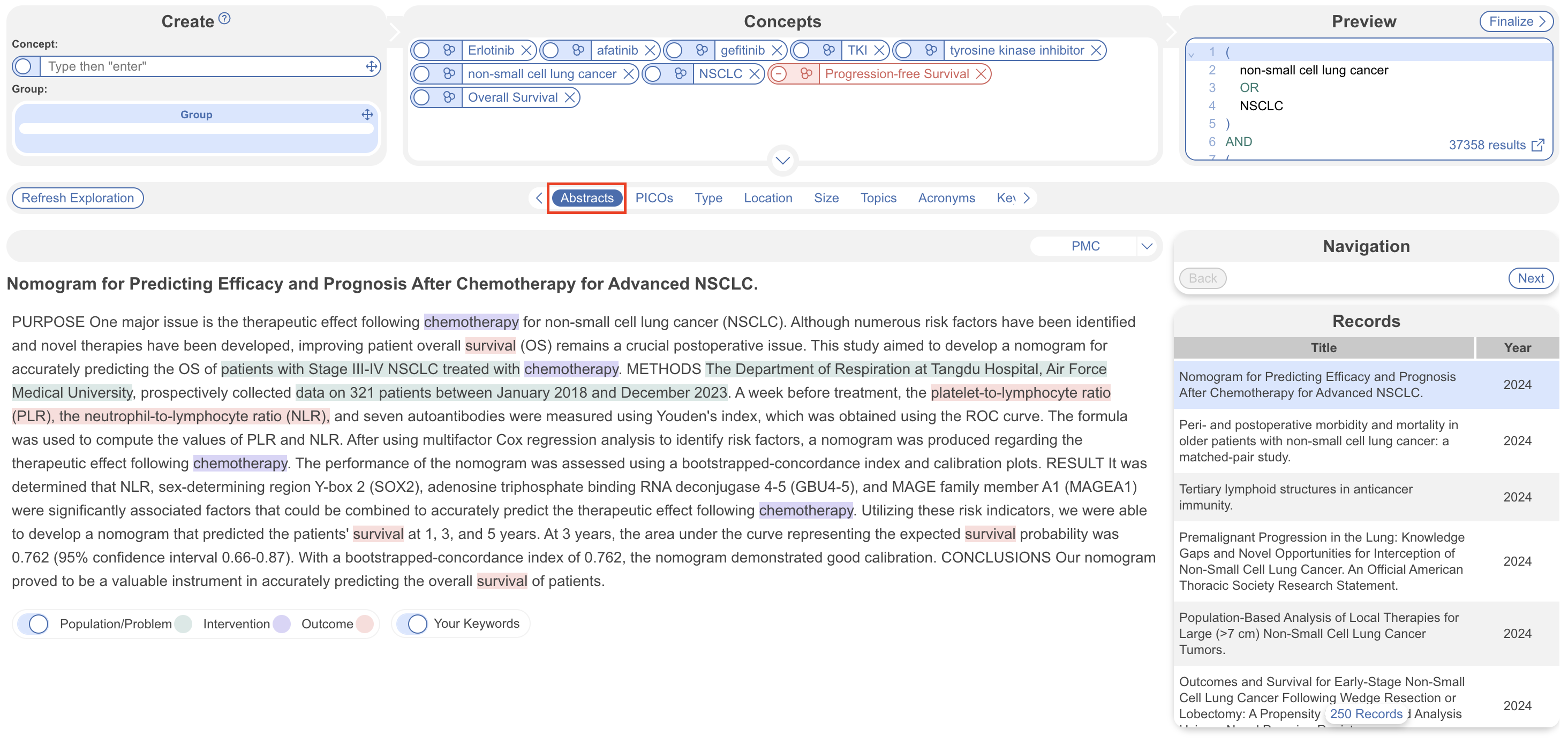
Use **Abstracts** to check whether the results match your research question. Note useful terms, then return to the concept editor and refresh the exploration.
<figure><img src="https://content.gitbook.com/content/xb7uNGATUgwQAjDVQRXG/blobs/a3o2w3WEA9C9RobJno9M/Screenshot%202024%2009%2005%20at%2017.40.13.png" alt="The Abstracts tab in Search Exploration, showing records returned by the query."><figcaption><p>Use Abstracts to check whether the results match your research question.</p></figcaption></figure>

</details>

<details>

<summary>PICOs</summary>

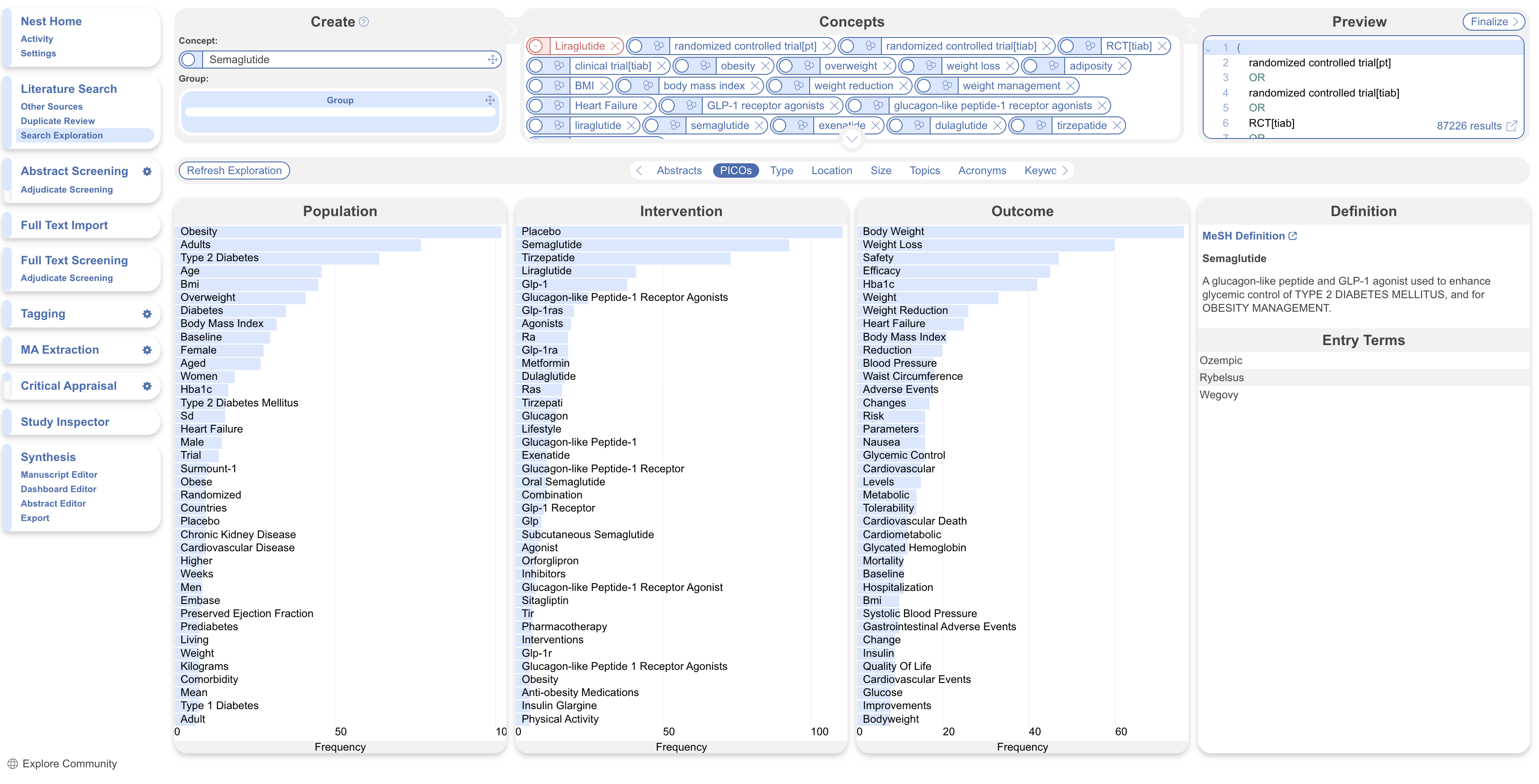
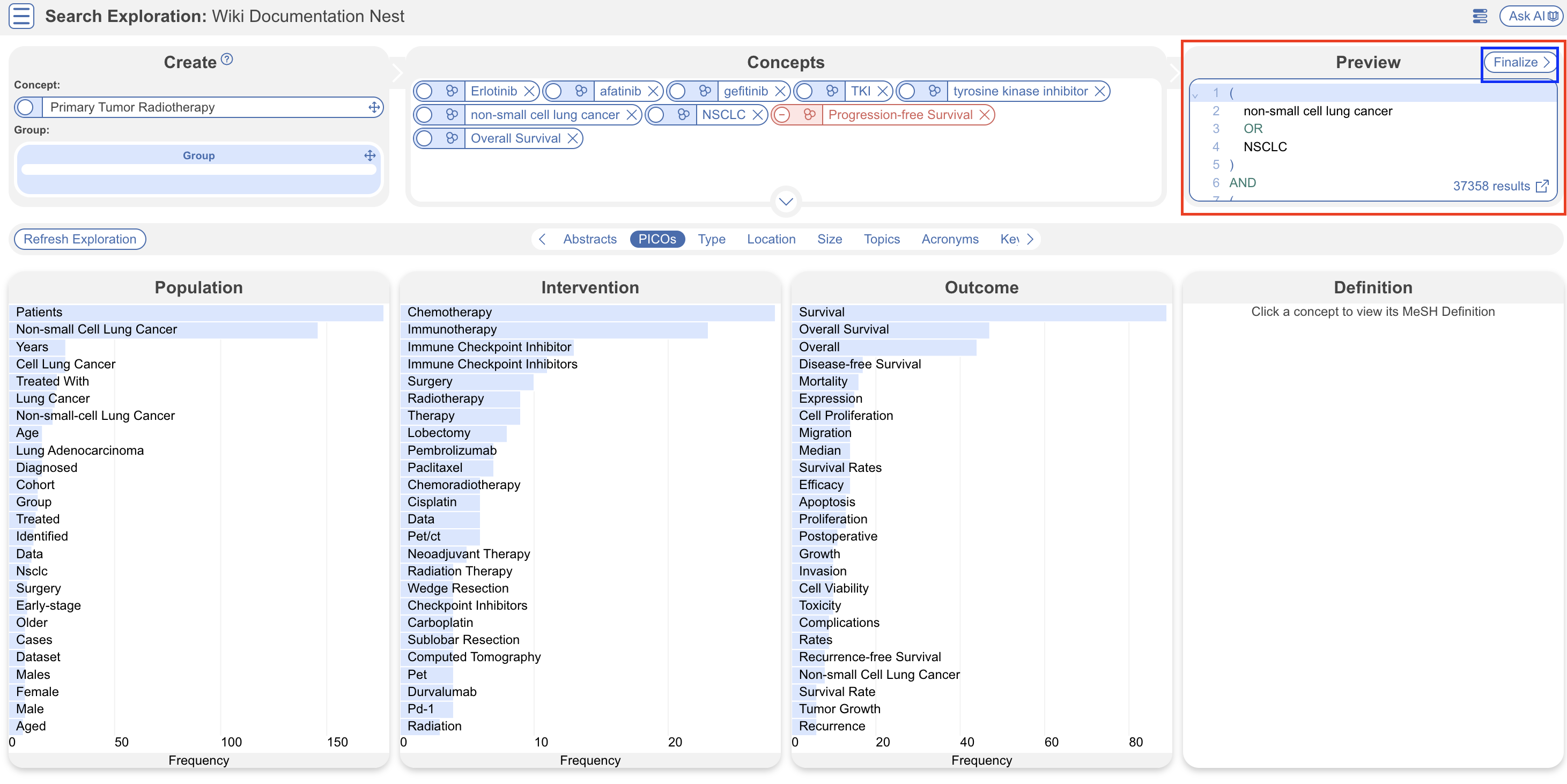
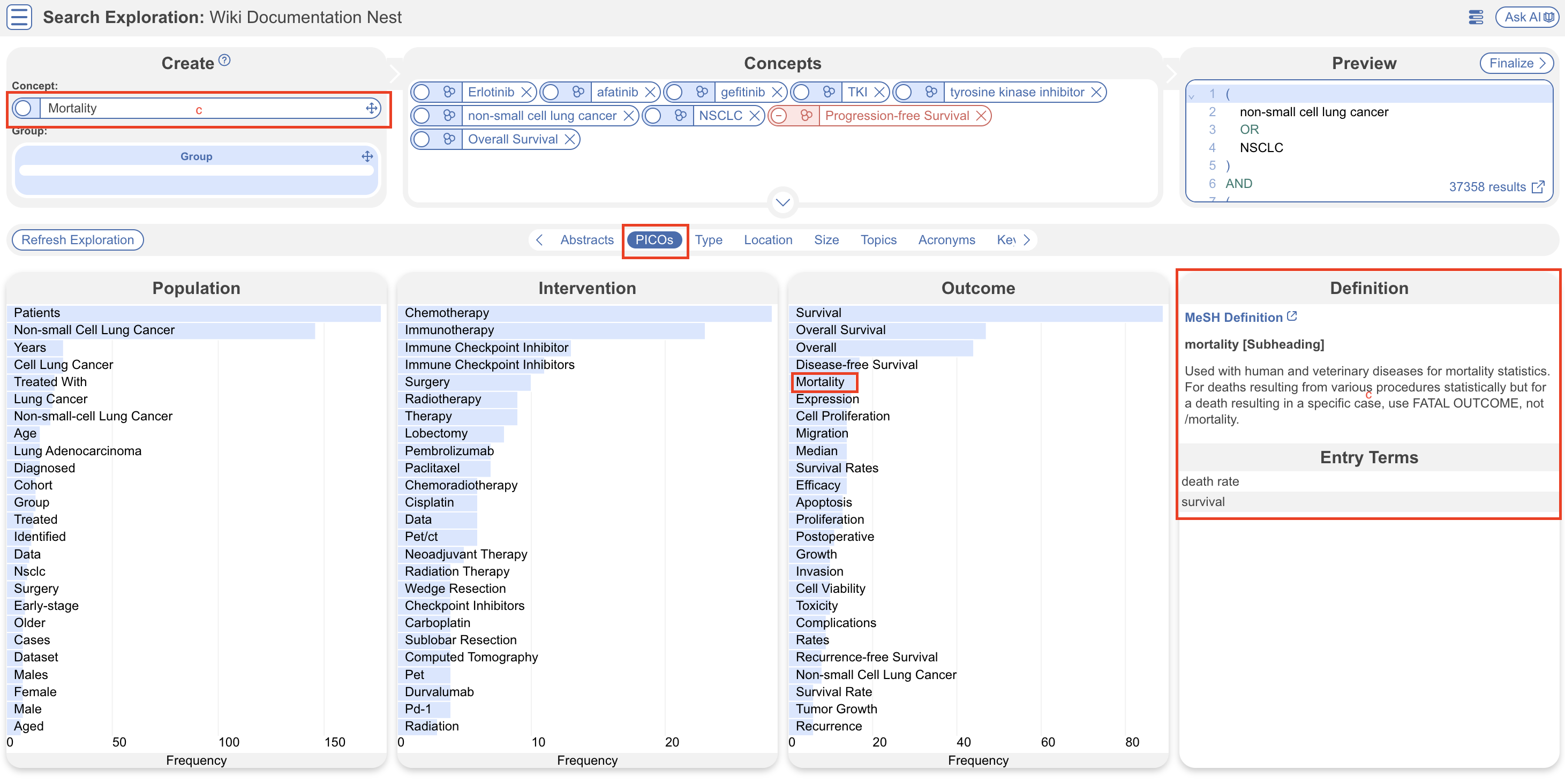
The **PICOs** tab uses **RoboPICO** to identify recurring population, intervention, comparator, and outcome terms. Select a term to inspect its definition and add relevant concepts to your query.
**Search Exploration** checks selected terms against MeSH. A term without a MeSH match may still be useful.

<figure><img src="https://content.gitbook.com/content/xb7uNGATUgwQAjDVQRXG/blobs/6d38cothLLafPT93jgjj/Screenshot%202024%2009%2005%20at%2017.41.29.png" alt="The PICOs tab in Search Exploration, showing extracted population, intervention, comparator, and outcome terms."><figcaption><p>Review recurring PICO terms and add relevant concepts to your query.</p></figcaption></figure>

</details>

<details>

<summary>Type, Location, Size</summary>

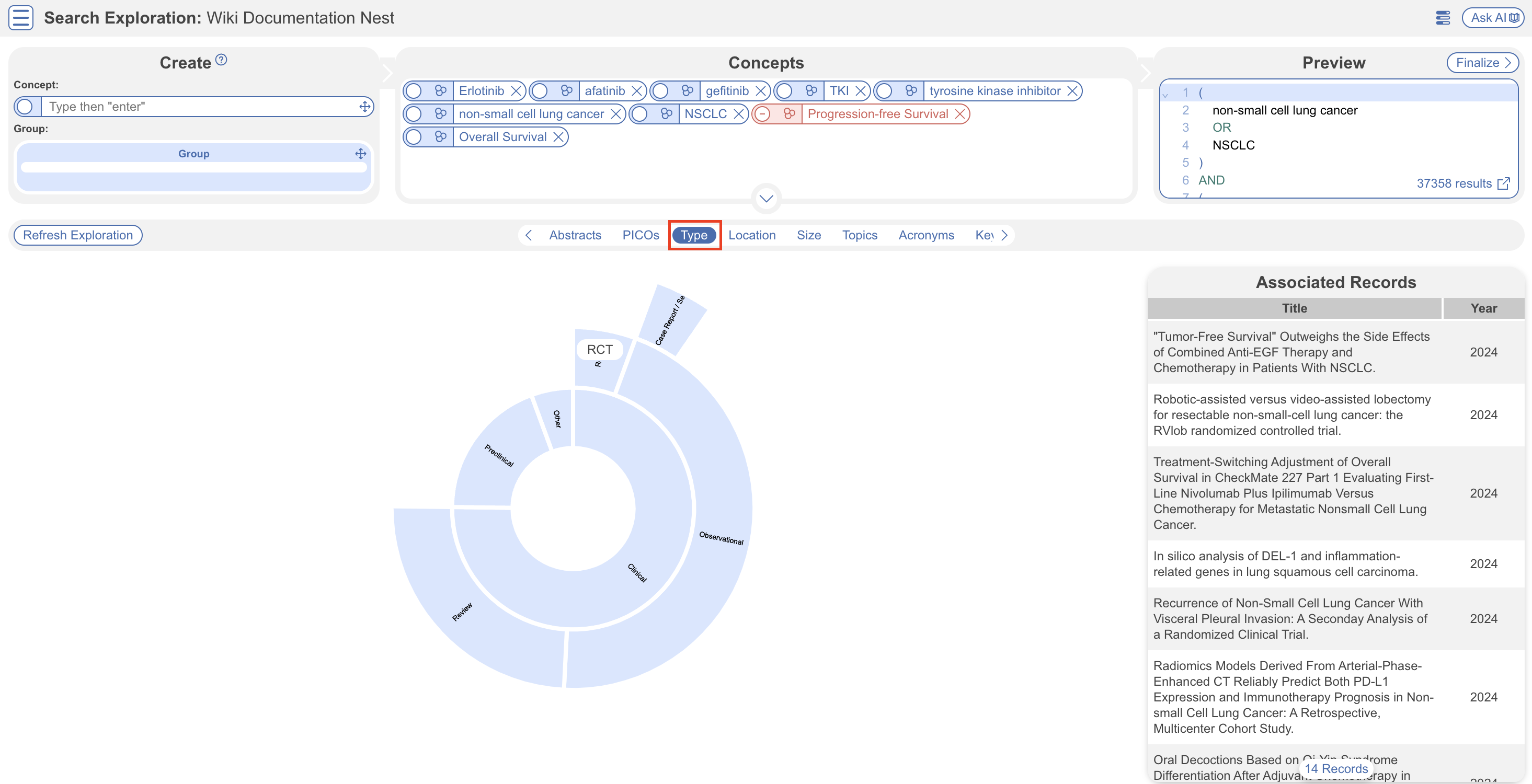
**Search Exploration** summarizes selected [**Core Smart Tags**](/review-workflow/tagging/ai-tools-in-tagging/core-smart-tags.md) to help you assess the sample.

* **Study Type** shows a sunburst of study-type categories.
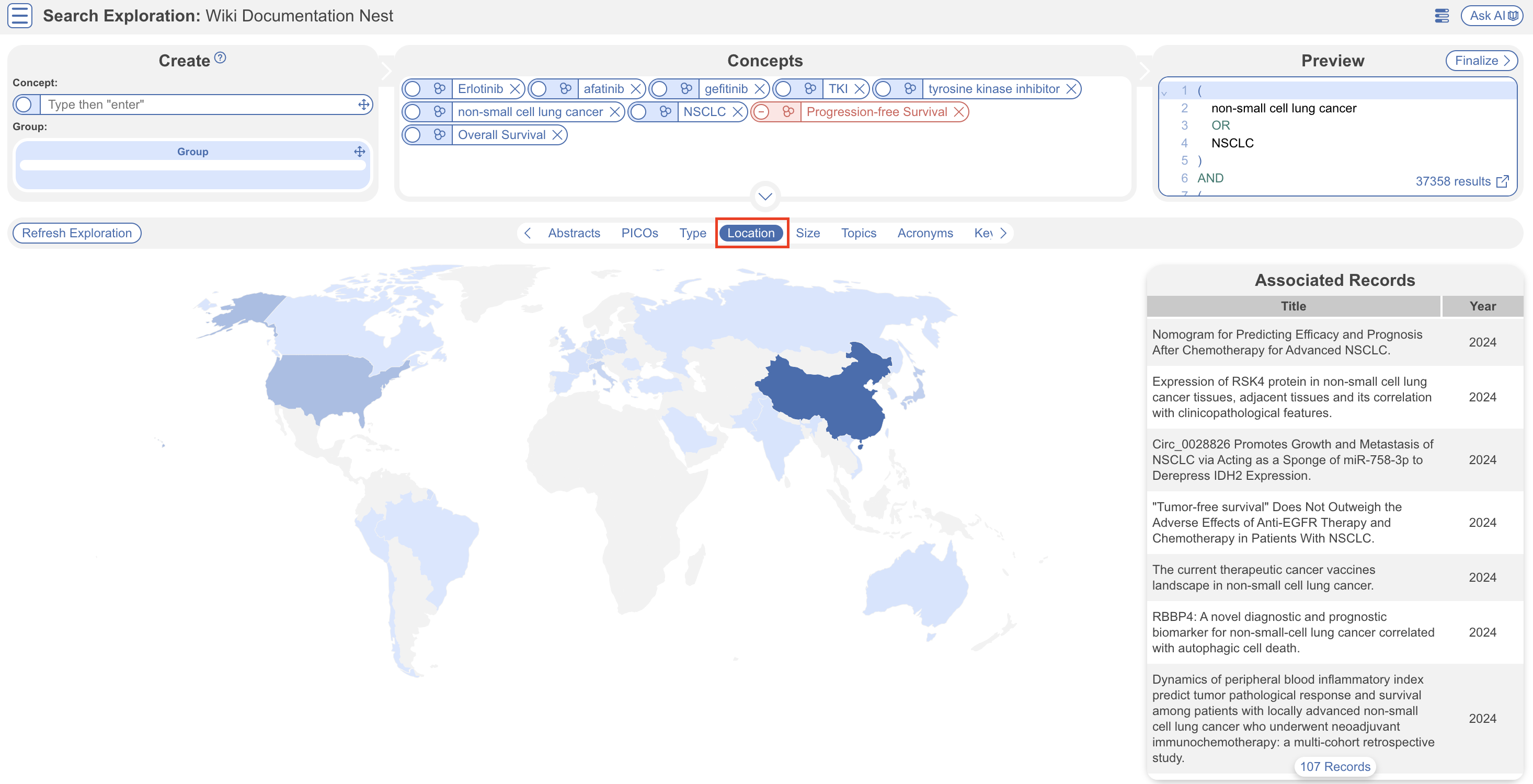
* **Location** shows a map of locations in the sample.
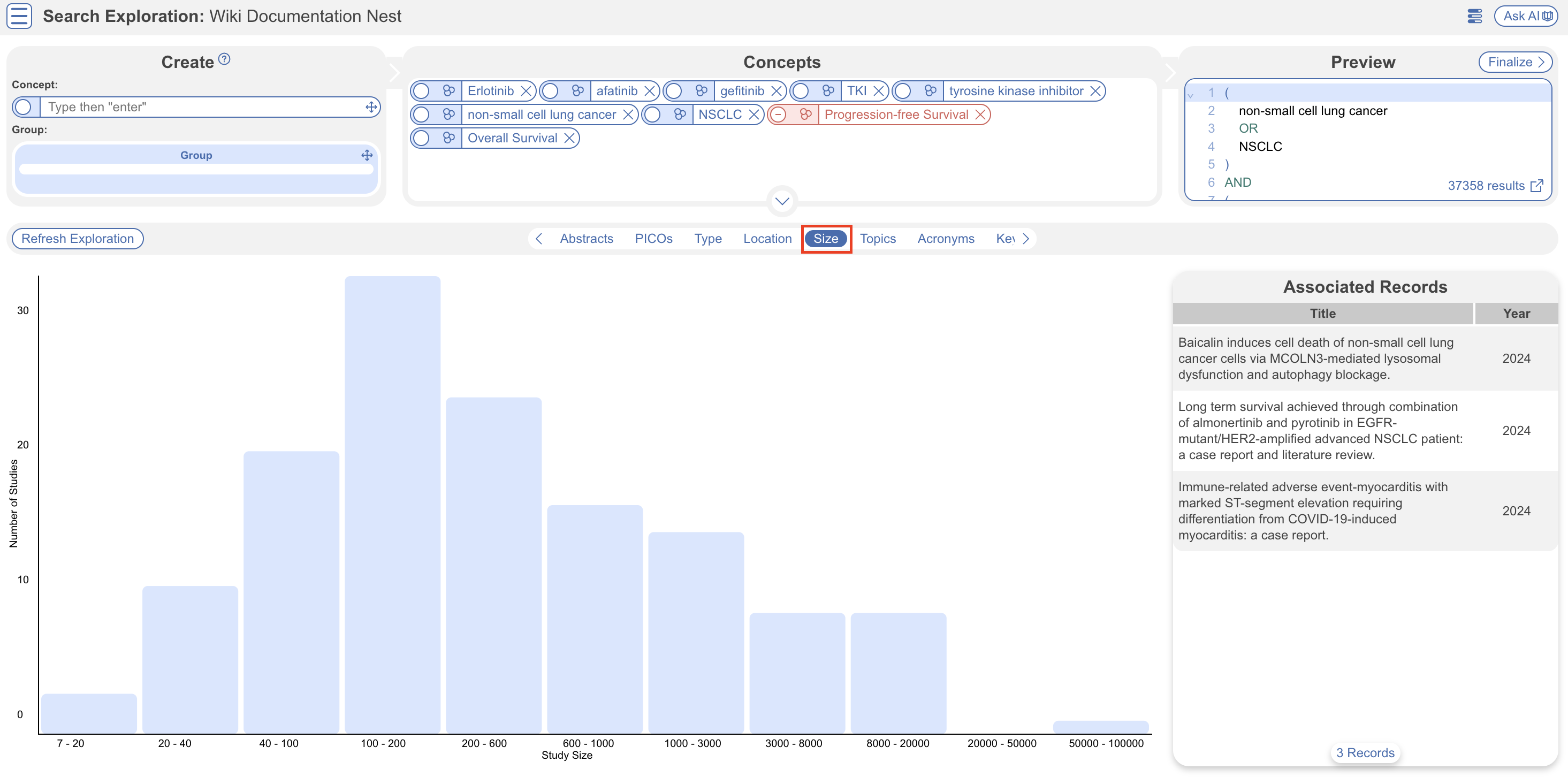
* **Study Size** shows a histogram of participant counts.
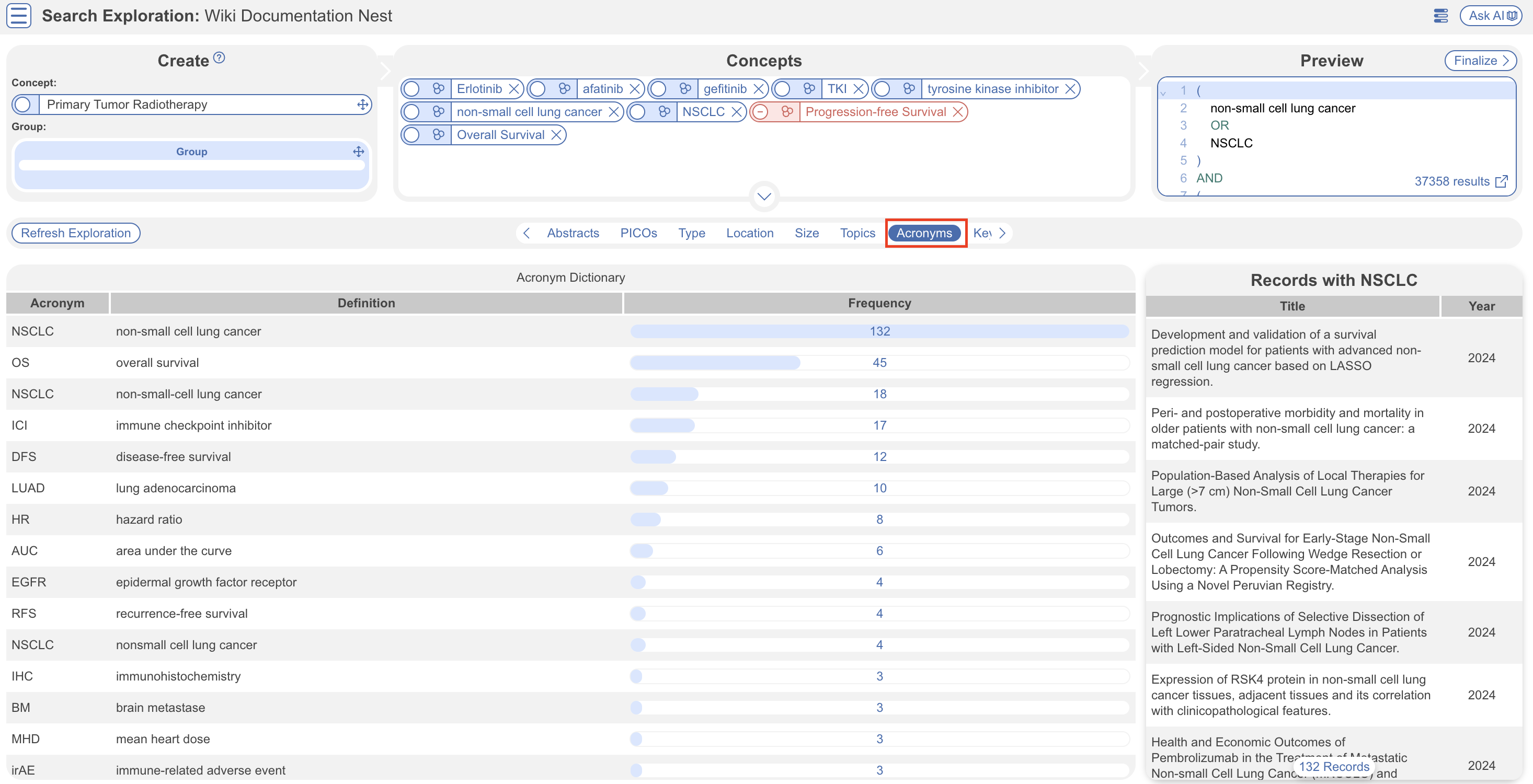
* **Acronyms** shows common abbreviations from abstracts.

<figure><img src="https://content.gitbook.com/content/xb7uNGATUgwQAjDVQRXG/blobs/ZQpjbV5slXF45QDDm83C/Screenshot%202024%2009%2005%20at%2017.43.09.png" alt="The Study Type view in Search Exploration, showing a sunburst of study-type categories."><figcaption><p>Study Type summarizes the sample by study-type category.</p></figcaption></figure>

<figure><img src="https://content.gitbook.com/content/xb7uNGATUgwQAjDVQRXG/blobs/ceqkVACDGw6PeClwTQZx/Screenshot%202024%2009%2005%20at%2017.47.28.png" alt="The Location view in Search Exploration, showing a map of locations represented in the sample."><figcaption><p>Location shows where studies in the sample were conducted.</p></figcaption></figure>

<figure><img src="https://content.gitbook.com/content/xb7uNGATUgwQAjDVQRXG/blobs/uM2AZFSRMDzCNpOkJCb5/Screenshot%202024%2009%2005%20at%2017.49.05.png" alt="The Study Size view in Search Exploration, showing a histogram of participant counts."><figcaption><p>Study Size shows the distribution of participant counts.</p></figcaption></figure>

<figure><img src="https://content.gitbook.com/content/xb7uNGATUgwQAjDVQRXG/blobs/GIMhIcCATc449iQFURmg/Screenshot%202024%2009%2005%20at%2017.52.24.png" alt="The Acronyms view in Search Exploration, showing common abbreviations from abstracts."><figcaption><p>Acronyms shows abbreviations that recur in the results.</p></figcaption></figure>

</details>

<details>

<summary>Topics, keywords, and n-grams</summary>

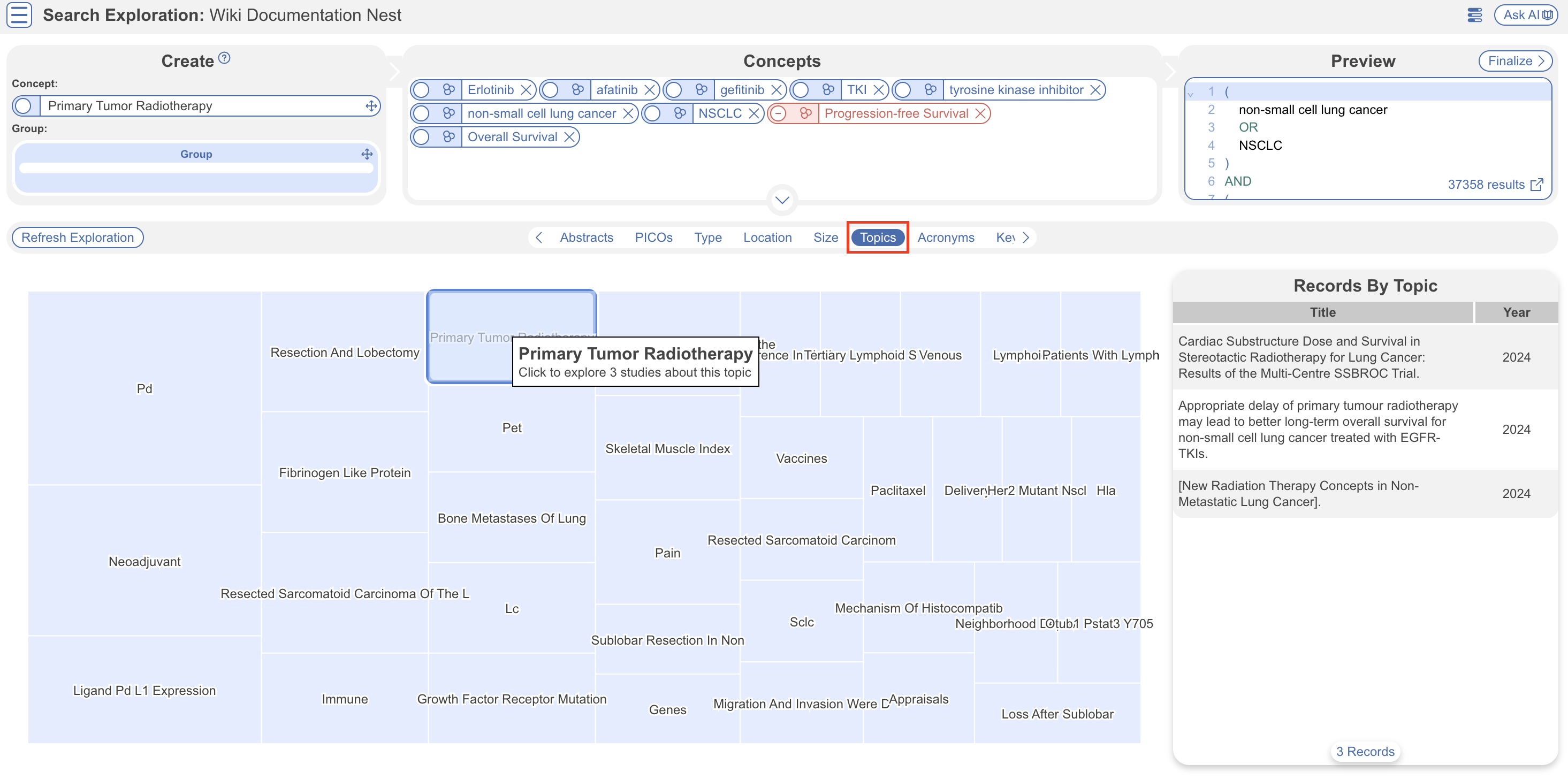
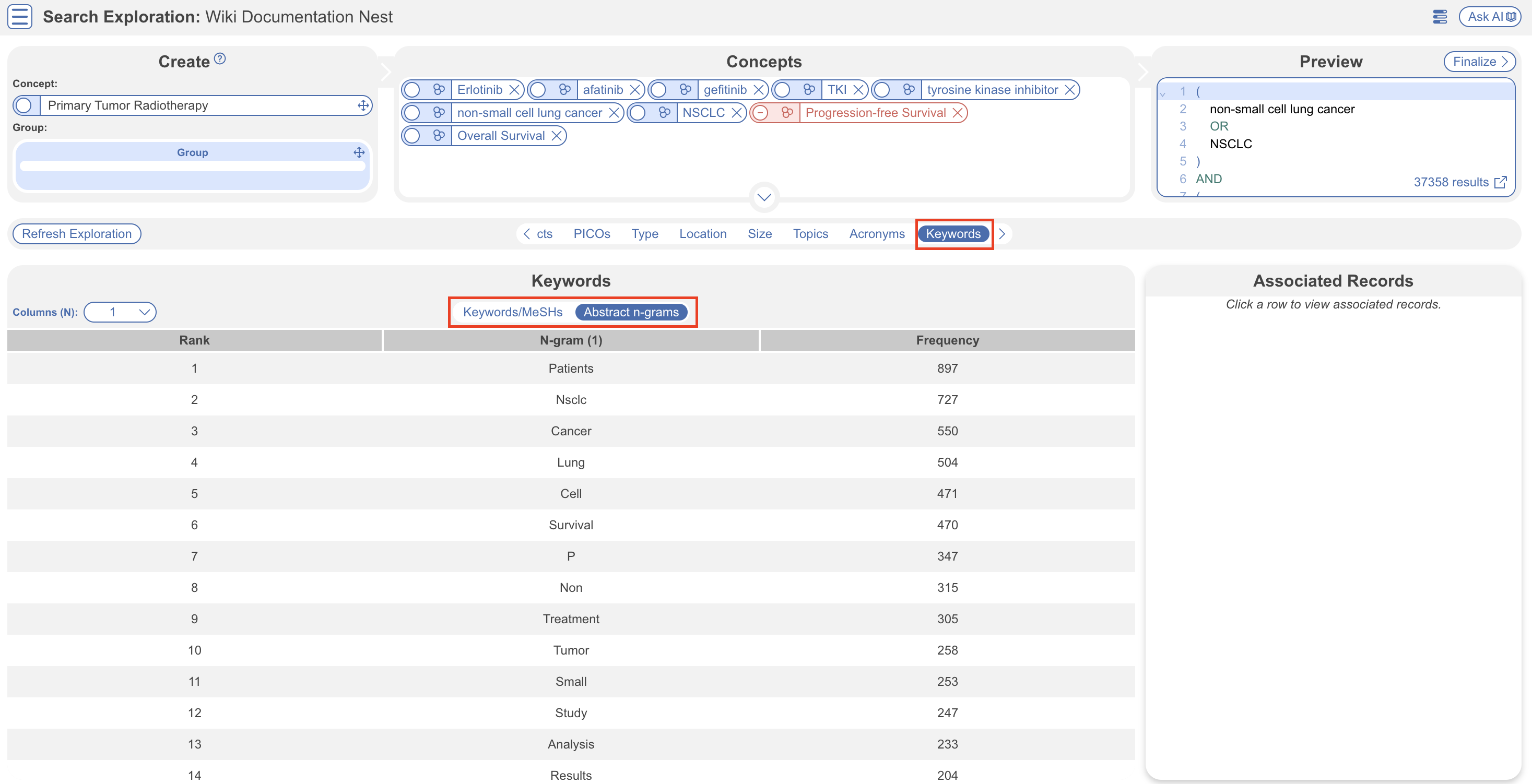
**Topics** cluster similar abstract language. **Keywords** and **n-grams** show frequent terms and word sequences. Select an item to inspect matching records.

<figure><img src="https://content.gitbook.com/content/xb7uNGATUgwQAjDVQRXG/blobs/GzeFI87pthagnv03H6Wg/Screenshot%202024%2009%2005%20at%2017.50.10.png" alt="The Topics view in Search Exploration, showing clusters of similar abstract language."><figcaption><p>Topics clusters similar language from result abstracts.</p></figcaption></figure>

<figure><img src="https://content.gitbook.com/content/xb7uNGATUgwQAjDVQRXG/blobs/MTxgo0QzQvSA5PZTZsTg/Screenshot%202024%2009%2005%20at%2017.53.03.png" alt="The Keywords and n-grams views in Search Exploration, showing frequent terms and word sequences."><figcaption><p>Keywords and n-grams highlight frequent terms in the results.</p></figcaption></figure>

</details>

{% hint style="info" %}
These views help refine your query. They cannot be added as query filters on this page. After you add a search, run [**Core Smart Tags**](/review-workflow/tagging/ai-tools-in-tagging/core-smart-tags.md) and use [**Study Inspector**](/review-workflow/study-inspector.md) to filter records.
{% endhint %}

### Decide When To Finalize

Refresh the exploration after each material query change. Finalize when the sample appears relevant and your query contains the concepts needed for your protocol.

No single record count or inclusion rate suits every review. Use your protocol, the query preview, and the exploration results to judge whether the search is ready.

<figure><img src="https://content.gitbook.com/content/xb7uNGATUgwQAjDVQRXG/blobs/hp09uR4uJySapVUj51xX/Screenshot%202024%2009%2005%20at%2017.54.08.png" alt="Search Exploration results with the Finalize action available."><figcaption><p>Finalize the query when the results support your protocol.</p></figcaption></figure>

Selecting **Finalize** opens **Add Search** on **Literature Search**, with **Automatic Search** selected and your query entered. Follow [Automatic Search](/review-workflow/literature-search/add-search/automatic-search.md) to add the search.

### FAQs

<details>

<summary>Does refreshing add records to my nest?</summary>

No. Refreshing runs a pre-search against **PubMed** and updates the exploration results.

</details>

<details>

<summary>Can I filter the query by study type or location?</summary>

No. These views help you assess and refine the query. After adding the search, filter records in [**Study Inspector**](/review-workflow/study-inspector.md) by **Core Smart Tags**.

</details>

<details>

<summary>Why doesn't a PICO term have a MeSH match?</summary>

Not every PICO term maps to MeSH. Review the term before deciding whether to add it.

</details>

### Next Steps

<table data-card-size="large" data-view="cards"><thead><tr><th></th><th></th><th data-hidden data-card-target data-type="content-ref"></th></tr></thead><tbody><tr><td><i class="fa-wand-magic-sparkles">:wand-magic-sparkles:</i><br><strong>Smart Search</strong></td><td>Generate PubMed queries from your research question.</td><td><a href="/review-workflow/literature-search/ai-tools-in-search/smart-search.md">Smart Search</a></td></tr><tr><td><i class="fa-rotate">:rotate:</i><br><strong>Automatic Search</strong></td><td>Run and schedule searches in supported databases.</td><td><a href="/review-workflow/literature-search/add-search/automatic-search.md">Automatic Search</a></td></tr><tr><td><i class="fa-file-import">:file-import:</i><br><strong>Import Search Files</strong></td><td>Add results from searches you ran outside Nested Knowledge.</td><td><a href="/review-workflow/literature-search/add-search/import-search-files.md">Import Search Files</a></td></tr><tr><td><i class="fa-file-circle-plus">:file-circle-plus:</i><br><strong>Other Sources</strong></td><td>Add records from gray literature and other sources.</td><td><a href="/review-workflow/literature-search/other-sources.md">Other Sources</a></td></tr><tr><td><i class="fa-clone">:clone:</i><br><strong>Duplicate Review</strong></td><td>Review records that may match records already in your nest.</td><td><a href="/review-workflow/literature-search/duplicate-review.md">Duplicate Review</a></td></tr><tr><td><i class="fa-list-check">:list-check:</i><br><strong>Screening</strong></td><td>Screen the records you imported and searched.</td><td><a href="/review-workflow/screening.md">Screening</a></td></tr></tbody></table>


---

# Agent Instructions
This documentation is published with GitBook. GitBook is the documentation platform designed so that both humans and AI agents can read, navigate, and reason over technical content effectively. Learn more at gitbook.com.

## Querying This Documentation
If you need additional information that is not directly available in this page, you can query the documentation by asking a question.

Perform an HTTP GET request on the following URL with the `ask` and `goal` query parameters:

```
GET https://docs.nested-knowledge.com/review-workflow/literature-search/ai-tools-in-search/search-exploration.md?ask=<question>&goal=<user_goal>
```

`ask` is the immediate question: it should be specific, self-contained, and written in natural language.
`goal` is what the user is ultimately trying to achieve, the reason they need the answer. Sharing it helps GitBook give you a better, more relevant answer. A goal is most helpful when it describes the outcome the user wants rather than restating the question. For example, with `ask=how do I create an API token`, a goal like `automate deployments from our CI pipeline` lets GitBook tailor the answer to that use case.

The response will contain a direct answer to the question and relevant excerpts and sources from the documentation.

Use this mechanism when the answer is not explicitly present in the current page, you need clarification or additional context, or you want to retrieve related documentation sections.